You’re on a train with no signal, walking into a meeting, or halfway through a task when you remember the timer. Toggl gives you a few ways to start tracking right where you are.
Keep tracking when you go offline
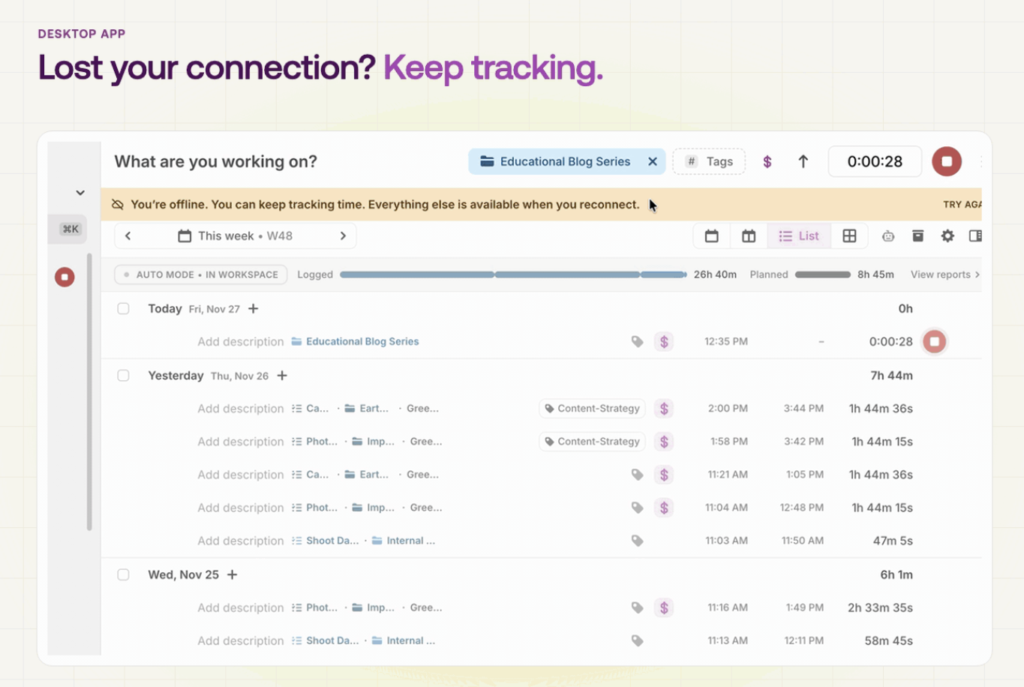
In the Toggl desktop app for Mac and Windows (version 1.12 or later), you can start, stop or rename a timer even when your connection drops. You can start a timer on a recently used project or task, or edit an entry you started before going offline. To add a manual time log, wait until you’re back online.
Toggl syncs your tracked time when you reconnect. If you started a new timer on another device while you were offline, Toggl can keep that newer timer running.
Control your timer from your iPhone
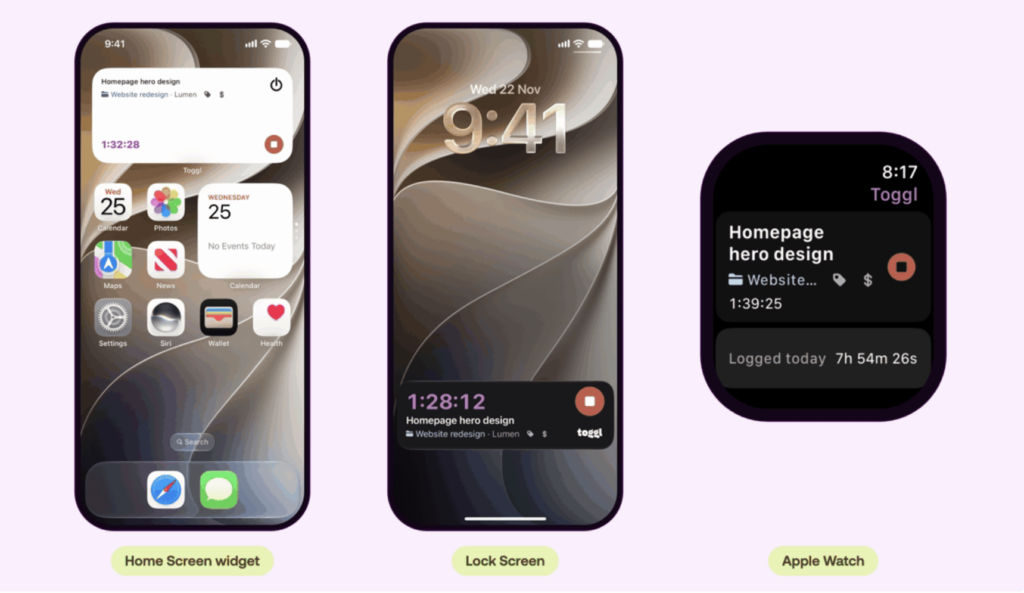
Ask Siri to start or stop a timer, find Toggl’s timer actions in Spotlight, or build a shortcut with the project, task and tags already filled in. If you prefer a button, add the Toggl timer widget to your Home Screen to start and stop tracking there.
When the timer is running, a Live Activity shows your elapsed time and a Stop button on the Lock Screen. On iPhones that support Dynamic Island, you can see the timer there too.
Start and stop from your Apple Watch
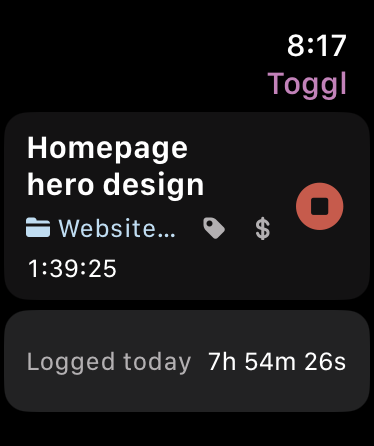
Start and stop your Toggl timer from your wrist while your iPhone is in your pocket. The Toggl app for Apple Watch requires watchOS 26 or later.
Stop your timer from an Android notification
On Android, you can see a running timer in your notifications and stop it from there. If you’re using Pomodoro, the notification shows how much time is left in your focus session.
Get a reminder before a meeting
With a calendar connected, the Toggl desktop app for Mac and Windows can remind you two minutes before an event starts. Click the notification to start tracking the event. Look for this option under Tracking reminders in desktop settings.
See your plan in Google Calendar or Outlook
Plan time in Toggl, and it can show up in your Google Calendar or Outlook too, next to your meetings. Each planned block becomes an event, and tasks with dates but no set time show as all-day events. Move or resize the event in your calendar, and the planned time in Toggl moves with it.
To turn it on in the web or desktop app, go to Settings → Connected calendars → Add planned tasks to, and pick a calendar. It works on every plan.
Keep the timer on your Mac desktop
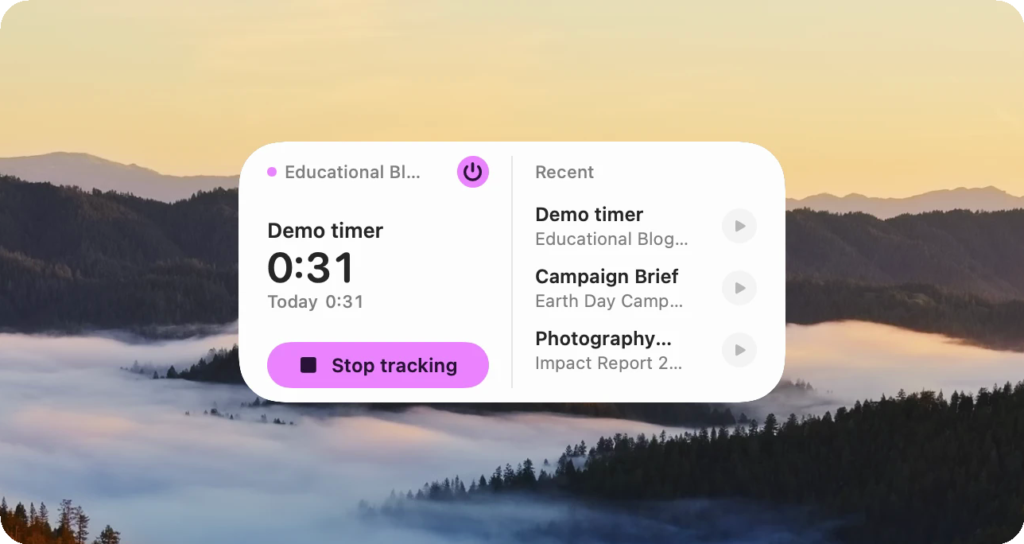
On macOS 14 or later, add the Toggl Timer widget from your widget gallery. With Toggl running, the widget shows your timer or today’s total and lets you start or stop tracking. The medium widget also lets you restart one of your three most recent time logs.
Keep a mini timer in view
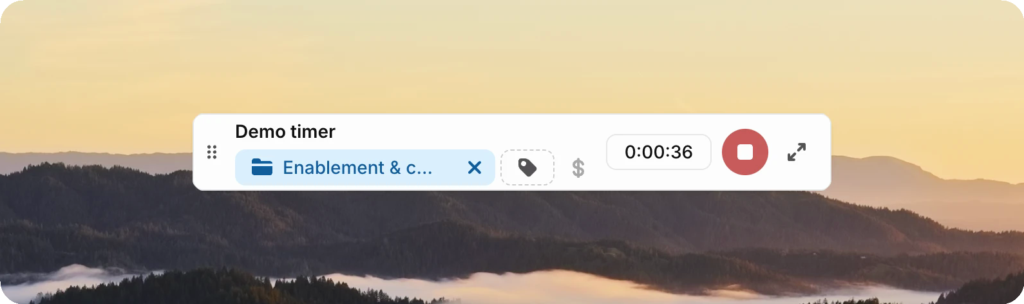
Prefer to keep your timer in sight while you work in other apps? Switch the Toggl desktop app to the mini timer: a small bar with your running time log, its project, tags and billable status, and a Stop button. Turn it on in the desktop app under Settings → Desktop → Window → Use mini timer, or press Cmd+Shift+M on a Mac or Ctrl+M on Windows while the Toggl window is in focus.
Use a keyboard shortcut in the web app
With keyboard shortcuts enabled in the Toggl web app, press S to start or stop the timer when you’re outside a text field or dialog.
Learn more
For more details, refer to our documentation: Toggl Desktop apps & Toggl Mobile apps help

Work tools to elevate your productivity – apps for incredibly simple time tracking and effective project planning.