


Toggl's
Why use Toggl with Google Calendar?
1. Keep yourself accountable to your calendar.
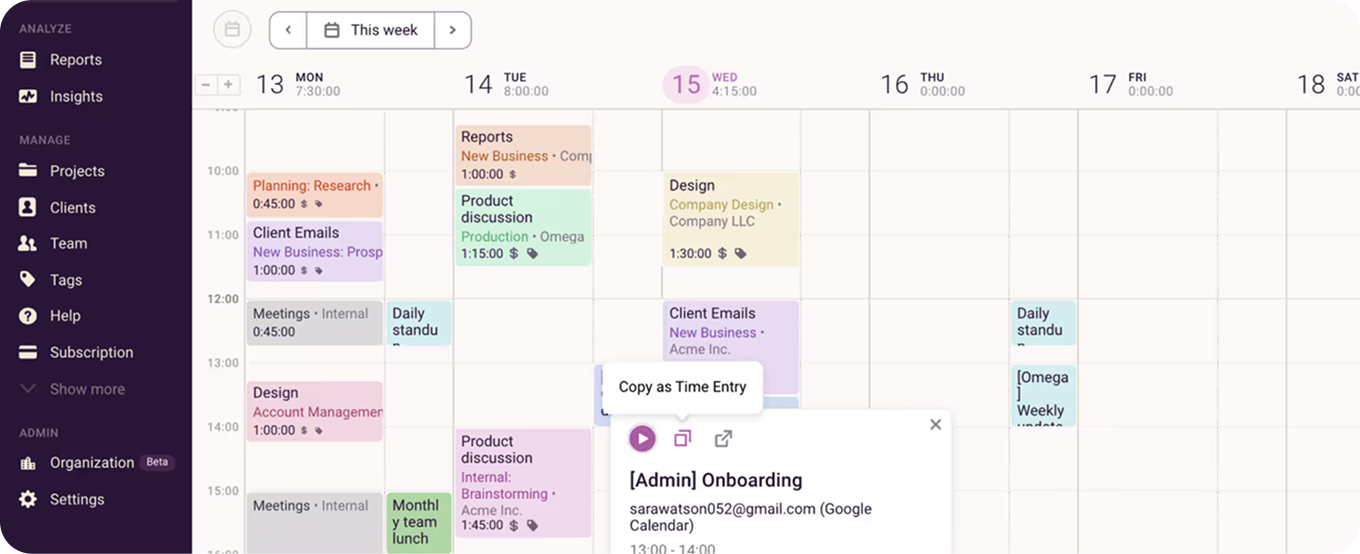
It’s easy to follow through on your plans or schedule around them when you can view your calendar events right in your workspace—and use them to quickly add time entries.
2. Easily spot gaps in your day (and fill them in).
You can use our Calendar view to see your entire workday or workweek in grid form. Link your Google Calendar to your Toggl workspace to add Google events for an even fuller view.Toggl’s Calendar view feature makes it a breeze to duplicate, delete, and move around time entries. And the Google Calendar connection helps you see exactly where you might want to duplicate, delete, and move.
Looking for other calendar integrations?
Toggl also integrates with Outlook Calendar for free. You can also subscribe to your time entries and add them to your calendar with our iCal integration.



Setting it up
- Go to the Profile settings page from the bottom left corner of the sidebar.
- Find the External Calendars section and click Connect for the Google Calendar integration.
- Give Toggl permission to view your calendars. If you have more than one calendar, you can choose specific calendars.
- On your timer page, select one of the calendar views, Weekly or Daily, from the dropdown in the top right corner. You should now see all your calendar events in the calendar view. These events are private and only you can view them.
- For detailed, step-by-step instructions, check out our Knowledge Base.
How It Works
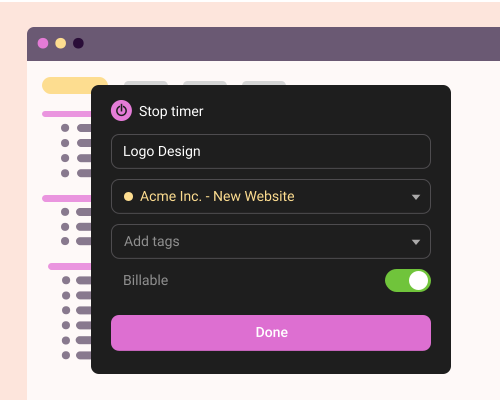
Toggl's free browser extensions embed a Toggl timer into the interface of your everyday apps, allowing you to track time within the app itself.
With additional features like pomodoro timer and idle detection, it's the ultimate tool to maximize your productivity and streamline time tracking into your workflow without needing to jump between tools.


Online, offline or on the go? We have an app for that!
Your data instantly syncs across all apps and devices
- 1
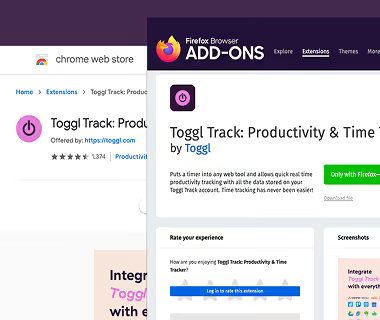
Add the free extension to your browser
Download the Toggl extension and install it. Click here to get the Chrome extension, here for the Firefox extension, and here for the Edge extension.
- 2
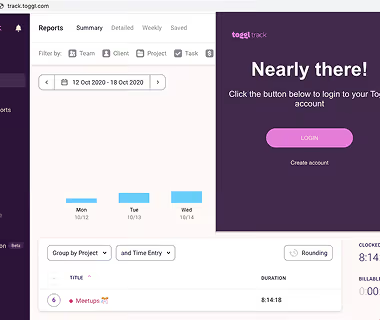
Log in to Toggl & close the tab
Click on the cogwheel icon to access the Settings page. In the Integrations tab, search for Google Calendar extension and select it to enable the integration. Your changes are immediately saved.
- 3

Enable the integration in the Settings page
Review, add, or edit your daily activity in a timeline. Switch to a calendar view for a big-picture look at your workdays.
- 4
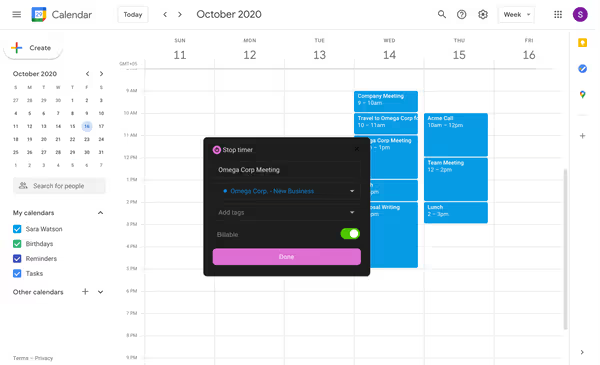
Start the timer in Google Calendar
Head over to Google Calendar. You should now see a Toggl icon in the user interface. Clicking on it will open a popup where you can start the timer, add a time entry description, project or tags. You are now tracking time!
- 5
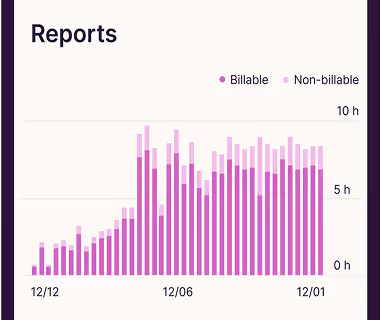
View and export time reports in Toggl’s web app
Head over to Toggl to view your time entries or to export a time report. Voilà, it’s that easy.
- 6



Explore other integrations

Zendesk
This is a legacy integration for Toggl Track which we currently don't support for Toggl. If you're interested in using Zendesk with the new Toggl, please contact us.

Visual Studio
This is a legacy integration for Toggl Track which we currently don't support for Toggl. If you're interested in using Visual Studio with the new Toggl, let us know.
