Every successful project starts with a plan — and the quality of your plan determines everything else that follows.
If you jump straight into “doing” without committing to a solid project planning phase, you’ll wander aimlessly without a clear direction, strategy, or roadmap. That’s why the best project managers see project planning as a separate (and incredibly important) discipline, requiring its own set of skills, processes, and tools.
This guide looks at seven best project planning tools in 2026 across three distinct use cases:
- Project planning for small teams
- Complex project environments
- Enterprise-level project, program, and portfolio planning
We compare each of the following tools’ project planning features, limitations, and pricing to help you choose the right tool for you and your team:
- Toggl
- ClickUp
- Notion
- monday work management
- Jira
- Smartsheet
- Asana
What are project planning tools?
A project planning tool is a specialized platform that maps out the “who, what, and when” of a project. While a general project management tool is great at managing tasks, collaborating on documents, and reporting on progress, a planning tool focuses on the structure of the work, the key milestones, and the resources you’ll need.
In general, project planning tools support three critical pillars:
- Scheduling and sequencing. To plan and visualize the order of events, project timelines and Gantt charts show how dependencies (where one task relies on another) impact your final deadline.
- Resource planning. You need to know who’s available, who’s overbooked, and who has the appropriate skills to deliver the project. Effective resource management helps you avoid the “hero culture” where one person does 80% of the work while others wait for instructions.
- Forecasting and estimation. Reliable online project planning tools help you move away from “gut feelings” and toward data-driven timelines. The best tools use time tracking data to predict how long a project will actually take, using previous timesheets to inform future estimates and increase accuracy and transparency in your plans.
Project planning vs. project management: What are the key differences?
Project planning and project management are two terms often used interchangeably. While there are some similarities, there are also key differences. Here’s how they compare.
| Project planning | Project management | |
| When it happens | Before work begins | Once work is underway |
| Primary focus | Scope, schedule, and resources | Progress, people, and problems |
| Key output | A plan: milestones, timelines, and budgets | A delivered project: on time, on budget |
| Main question | What needs to happen, and when? | Is everything on track, and what needs fixing? |
| Tools and features | Gantt charts, resource planners, time and budget estimations | Task tracking, status updates, continuous time tracking |
Where project planning and project management overlap:
- Both require clear communication and stakeholder alignment
- Both rely on accurate time and resource data
- Any changes in the project plan directly affect how you manage the project, and vice versa
4 key features of project planning software
When you’re evaluating project management platforms, it’s easy to get distracted by flashy dashboards, automatic summaries, or endless notifications. But the most effective planning tools share a specific set of features.
- Visual timelines and Gantt charts. An online Gantt chart or a high-level roadmap helps you spot bottlenecks before they happen. If two major milestones are scheduled for the same Friday, you can see that conflict visually and move things around in real time.
- Capacity and workload management. A good tool shows you the workload of your team members as a great “anti-burnout” feature. Can they realistically handle a new project? Or are they already drowning in subtasks? Effective resource management lets you distribute work fairly and sustainably.
- Reliable time data for estimation. Team time tracking data is the secret sauce of successful planning. Most project failures stem from “wishful thinking” deadlines. We often guess that a task will take five hours, but it actually takes 10. When your tool uses actual historical time data to inform your project scheduling, your plans become “reality-proof.” Built-in time tracking syncs your data automatically, so you can compare “Planned vs. Actual” time without manual entry.
- Scenario planning and dependencies. What happens if your lead developer gets the flu? Or if a client delays their feedback? A robust project planning platform lets you play “what if” by adjusting tasks, milestones, and dependencies to see the ripple effect across the entire project schedule.
7 best project planning tools (by use case)
To whittle down the best project planning tools on the market, we’ve grouped them by who they serve best. Whether you’re looking for a planning solution for a small project team, a complex project environment, or an enterprise organization, one of the following could be a great fit for your project management needs.
1. Toggl
Use case: Easy project planning and capacity management for agencies, teams, and freelancers
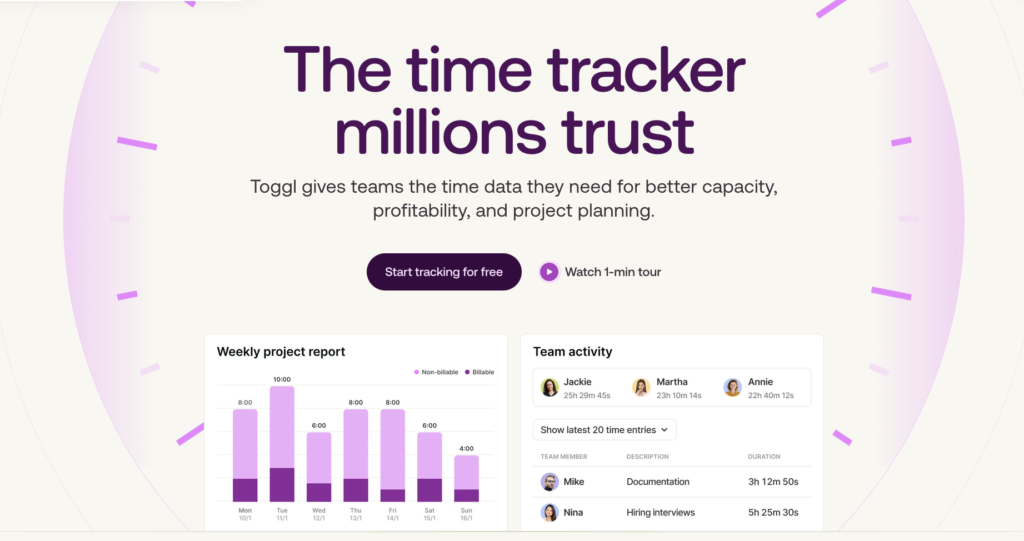
Toggl is a project planning and project management software built for teams who are tired of “bloated” tools that take weeks to learn. By focusing on the link between time and reality, it makes planning simple and effective. The platform is a great fit for those who value clarity over complexity and want to put time tracking at the heart of everything they do.
Project planning views
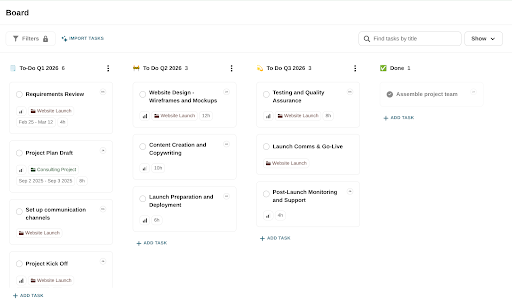
Toggl offers several views that mold to how you work. The Board view provides a Kanban-style layout, allowing you to load up your tasks in a ‘to-do’ bucket, ready to move them through your plan once the project starts. For added planning precision, you can even customize your columns, expanding your planning horizon across months, quarters, or even years.
If you like seeing your work mapped out over time instead, the Timeline view is the perfect place for you. Acting as a visual Gantt chart, you can track milestones and key deliverables at a high level, making it easier to identify bottlenecks or dependencies.
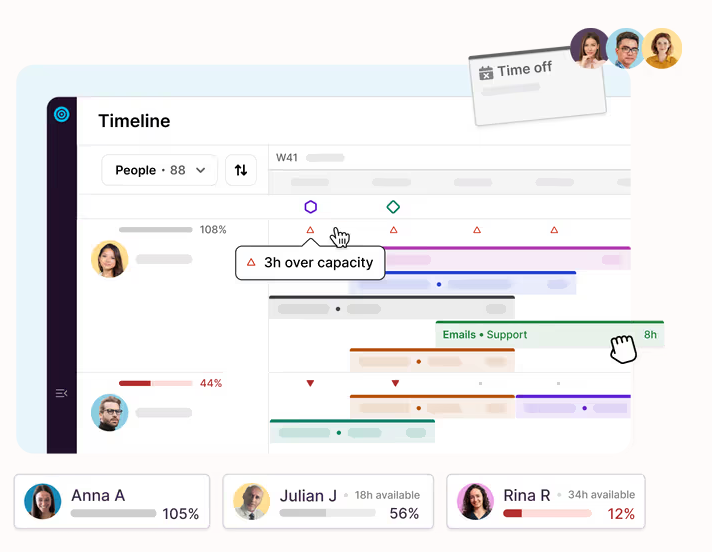
Within the Timeline, features such as project color codes, drag-and-drop timelines, and quick task creation also make planning easier. These signal what should happen when and where any crossovers may exist.
Capacity and resource planning
When mapping out your project tasks, resource planning is another huge consideration, so bring the two together seamlessly in Toggl.
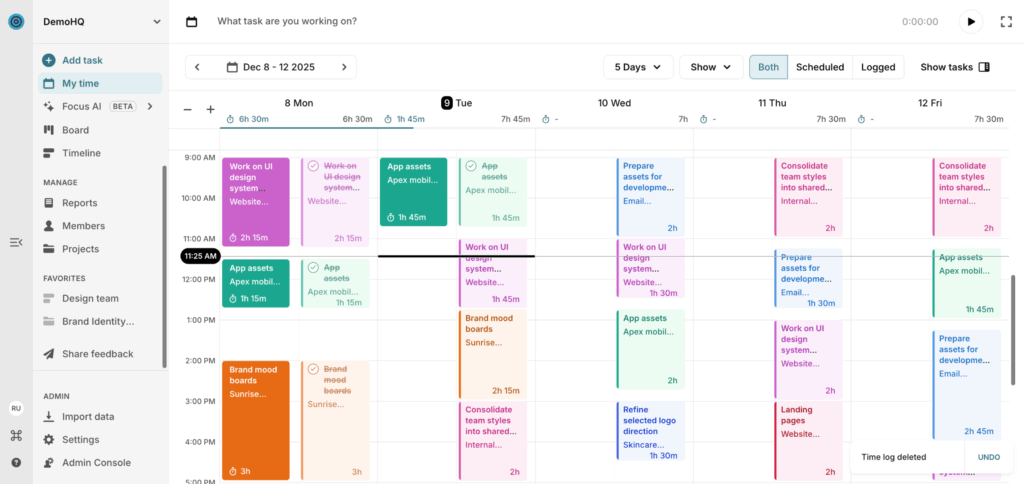
As you plan your project, Toggl highlights “actual capacity” by overlaying public holidays, time records, and PTO to go past who just “seems” free to get a view of who’s “actually” free.
This capacity and resource data builds over time, helping you create increasingly accurate project plans. Better yet, it’ll also inform long-term capacity requirements, empowering hiring, prioritization, and project planning decisions.
Combine time-tracking data and AI support
The best project plans are built on accurate and reliable data, and with Toggl you have that at your fingertips. Look back at previous projects to review task estimates and better inform your planning for future projects.
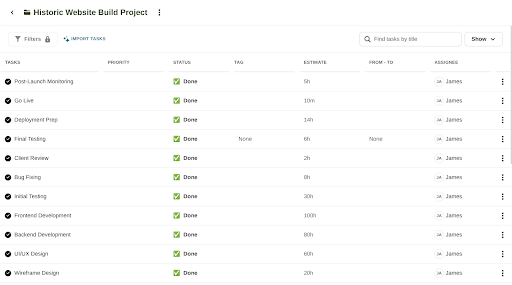
Better yet, the Toggl AI planner does all the heavy lifting for you, while referencing previous projects to create a more accurate draft plan.
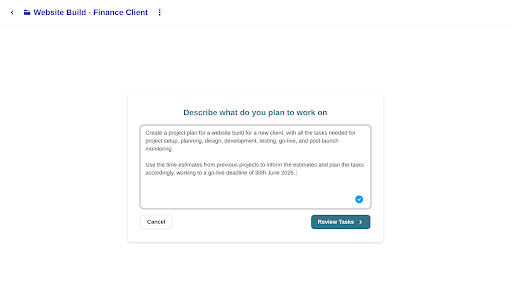
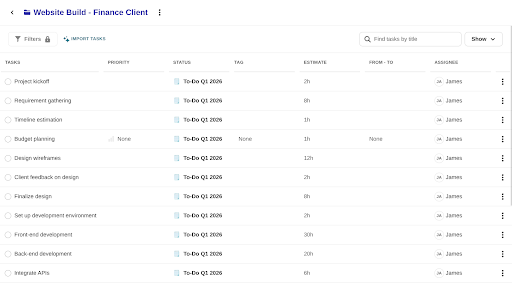
With prompt-driven planning, you have a draft project plan at the click of a button, ready to adjust and update as required for the specifics of your new project.
Limitations
While Toggl is brilliant for visual planning, it’s also deliberately lean. If you require complex logic for multi-layered portfolio management, you might prefer an enterprise tool like Wrike or Smartsheet.
Pricing
- Free: For up to five users with time tracking, planning, and reporting.
- Starter (From $9 per user/mo): Add in milestones, timeline views, and resource planning.
- Premium (From $16 per user/mo): Upgrades to full capacity planning and workload management reporting.
- Enterprise: Custom pricing for scalable support and personalized onboarding.
2. ClickUp
Use case: Small project planning teams
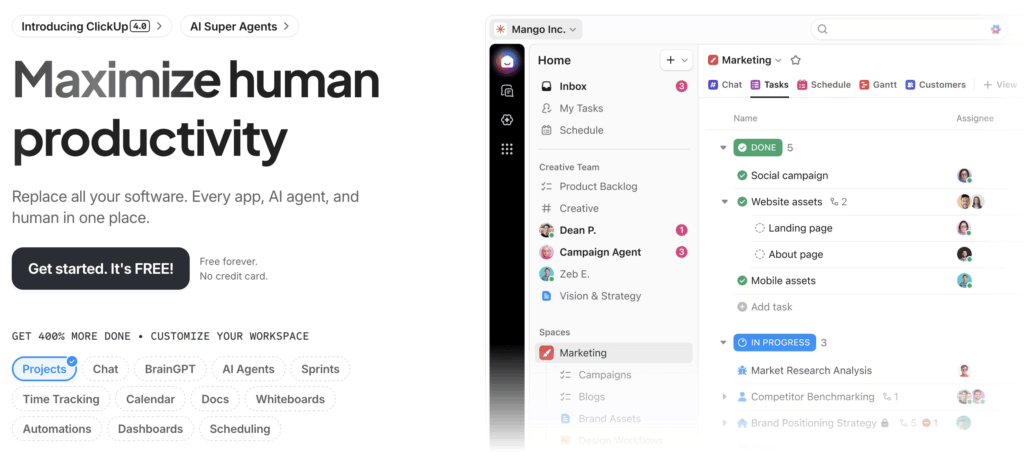
ClickUp aims to be the “all-in-one” app to replace them all. The platform is highly customizable and packed with features for teams that want everything from docs to dashboards in one place. For small teams, it delivers those features at a reasonable price and offers a strong amount of customization and automations, too.
Project planning features
- 15+ different views: Switch between a Kanbanboard, list view, or Gantt charts with one click, depending on how you prefer to plan your projects.
- Custom workflows: Build specific workflows that match how you and your teams work, using templates and ‘if this, do that’ rules for planning and scheduling projects.
- Native whiteboards: Brainstorm and map out your initiatives visually, collaborate on ideas, and spitball how changes to tasks can impact your end-to-end plan.
Limitations
The “all-in-one” nature means there’s a steep learning curve. So, onboarding an entire team can take a lot of time because of the sheer number of buttons and options.
“The app is very tricky to use and can be slow when handling a large amount of data.” — IT professional
Pricing
- Free Forever: Good for personal use but limits key features such as Gantt charts.
- Unlimited (From $7 per user/mo): Adds Gantt charts and resource management to support project planning.
- Business (From $12 per user/mo): Unlocks advanced automation and time-tracking widgets to take your project planning to the next level.
3. Notion
Use case: Complex project environments
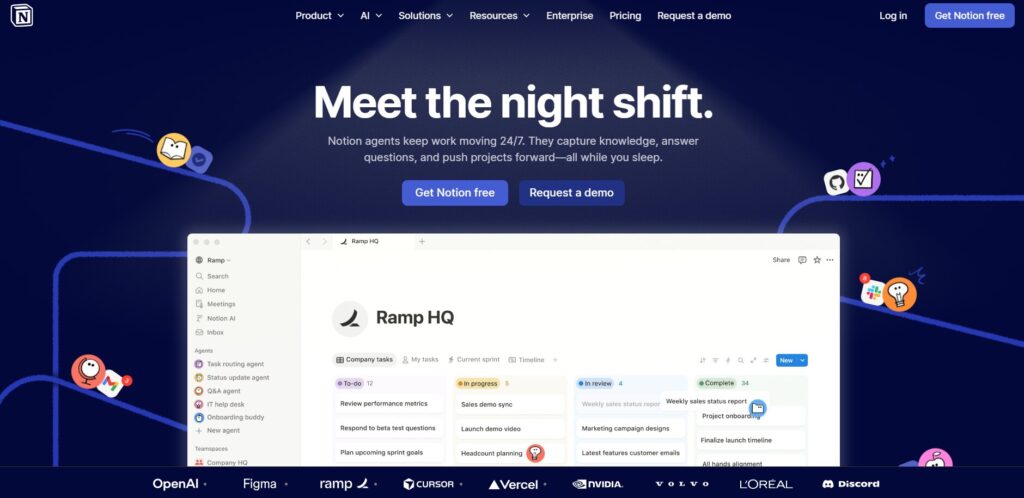
Notion is essentially a blank canvas. It’s perfect for teams who want to build their own project planning tools and workflows from scratch using databases and wikis. While it’s popular with startups for its ‘do everything’ flexibility, it also works well for project planning so long as you have the time to invest in your setup.
Project planning features
- Linked databases: Connect project plans to other databases, systems (e.g., Jira and GitHub), or a library of templates to easily translate plans into action.
- Highly flexible templates: Start with a simple to-do list and grow it into a full project portfolio, with board, timeline, and list views to match your planning style.
- Collaborative wikis: Excellent for storing project plans, deliverables, and documentation that go alongside your broader project management documentation.
Limitations
Because it’s not a “native” project planning tool, it lacks advanced features like automatic dependencies or built-in workload balancing without significant manual setup.
“Building out a project management system in Notion is not super user-friendly, and can be difficult for anyone not intimately familiar with the platform.” – Allison, Marketing Ops
Pricing
- Free: Great for individuals or small teams with basic needs.
- Plus (From $10 per user/mo): For small teams needing unlimited blocks for planning customization.
- Business (From $20 per user/mo): Adds private team spaces and advanced permissions for highly complex medium-sized teams.
4. monday work management
Use case: Complex project environments
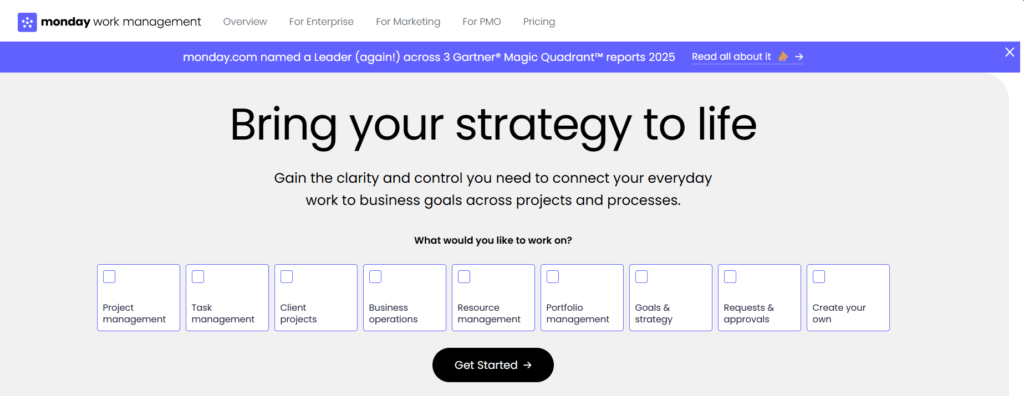
monday work management, built on the monday.com Work OS, is another highly flexible and powerful project planning tool. It has specific use case templates for every stage of the project management lifecycle, so you can match project planning to your workflows. From there, it’s easy to move into delivery mode with resource, time tracking, and capacity management features, alongside powerful project reporting.
Project planning features
- End-to-end workflow: monday work management has specific templates for intake requests through to project closure, so you can start project planning, resource management, and capacity planning straight away.
- Workload view: Assign tasks based on who’s actually free, which improves teamwork efficiency, reduces burnout, and simplifies planning.
- Time tracking: Plan more accurately for future projects by monitoring how long it takes to complete a specific task.
Limitations
While the customization is great, it can become quite expensive and confusing as you scale, especially if you need the advanced reporting and time-tracking features found in higher tiers.
“I will say a few areas could definitely be improved, like, the learning curve. With so many features, it can feel overwhelming, especially for first or new time users.” – Mercy, Founder
Pricing
- Free: Up to two seats but comes with project planning templates out of the box.
- Basic (From $9 per user/mo): Core planning features plus document storage.
- Standard (From $12 per user/mo): Adds timeline, Gantt charts, and calendar for different planning views.
- Pro (From $19 per user/mo): Includes time tracking and private boards for the ultimate planning experience.
5. Jira
Use case: Complex project environments
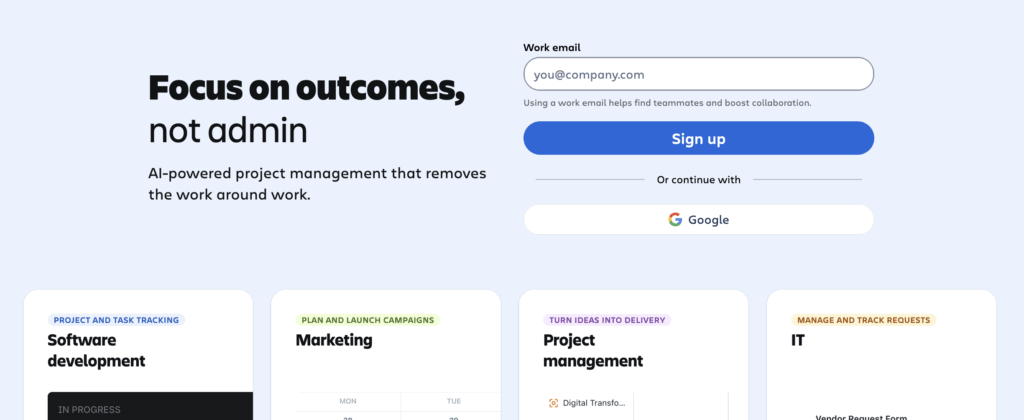
If you’re fluent in software development, Jira will already be in your vocabulary. It’s the industry standard for planning agile technology projects, with dedicated features for sprint plans, retros, and demos as part of the scrum methodology. Its power also comes from complex integrations with developer tools, as well as aligning to goals and powerful automations.
Project planning features
- Sprint planning: If you’re planning projects in sprints, Jira has ready-made tools for managing backlogs, sprint planning, and retrospectives.
- Roadmaps: Visualize long-term plans alongside technical tasks, highlighting dependencies, bottlenecks, and risks.
- Deep integrations and AI agents: Connect seamlessly with coding tools like GitHub and Bitbucket via API, with newly launched AI agent integrations to speed up planning, testing, and design tasks.
Limitations
Jira is notoriously complex. Unless you have a dedicated administrator or a team that already knows it, the onboarding can be a headache for non-technical users.
“It’s not beginner-friendly at all. It took me almost 2–3 weeks to learn all the tasks activities and other things involved.” — Tejender, Digital Marketing
Pricing
- Free: For up to 10 users with tasks, boards, and timelines for planning.
- Standard (From $9 per user/mo): Add automations and AI features.
- Premium (From $18 per user/mo): Adds advanced roadmaps and portfolio management for enterprise-level planning.
6. Smartsheet
Use case: Enterprise-level project, program, and portfolio planning
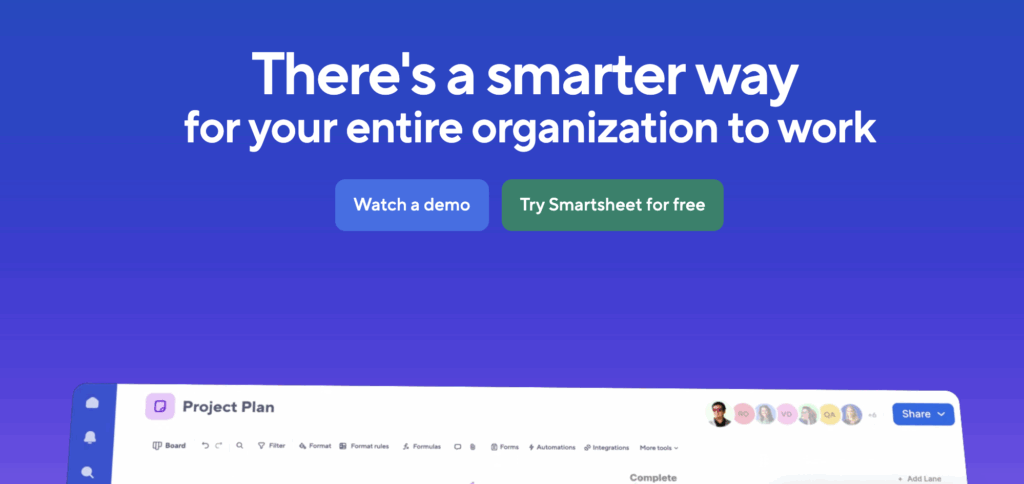
If your team currently lives in Excel, Smartsheet is the natural next step. It combines the power of a spreadsheet with the features of a project planning tool, which scales to a more enterprise-level thanks to its portfolio, asset, and resource management features, too.
Project planning features
- Portfolio management: Projects don’t happen in isolation, so use Smartsheet’s ‘Control Center’ to drive planning consistency and aggregate your project plans across entire portfolios.
- Critical path tracking: If you’re planning large complex projects and programs, critical path tracking displays the impacts of delays and bottlenecks while tracking progress.
- Rich formulas: Use automated formulas to streamline complex calculations within your plan (like budget vs. actuals) all without leaving the tool.
Limitations
The interface can feel a bit “dry” and corporate compared to modern, colorful collaboration tools.
“The interface could be more intuitive, letting users click into tasks for details or linking to templates without cluttering the sheet with unused columns. It’s not well-suited for organizations that need a more flexible project management approach.” – Chelsea, Project Manager
Pricing
- Pro (From $7 per user/mo): For small teams (10 max) with limited views and automations.
- Business (From $25 per user/mo): Add timelines, resourcing, and unlimited automations.
- Enterprise and Advanced Work Management: Two additional custom pricing tiers to add AI formulas and charts and the ‘Control Center’ for portfolio management.
7. Asana
Use case: Enterprise-level project, program, and portfolio planning
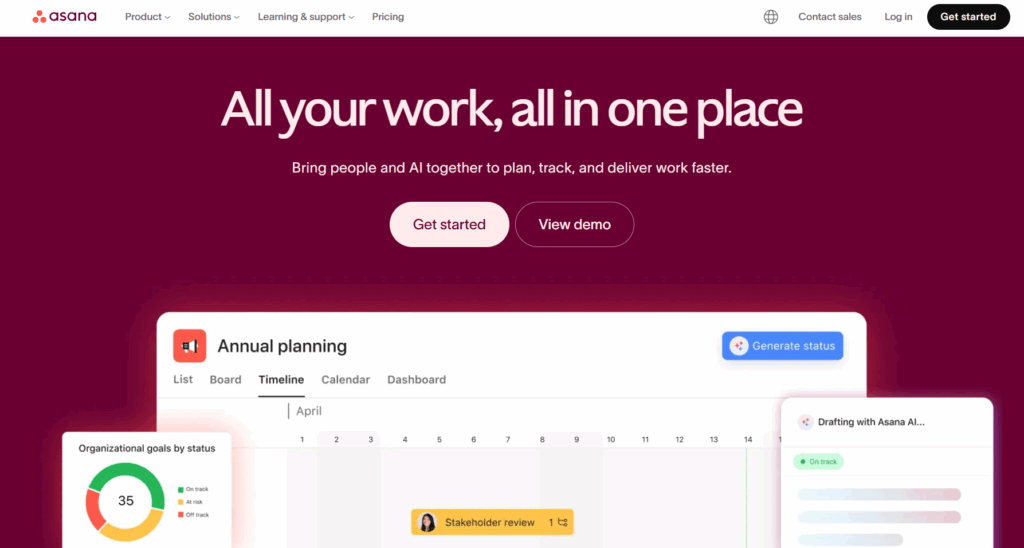
Asana is one of the world’s most well-known, and well used, task management tools and it’s great at project planning too. With multiple project views, templated project intake and planning, and the ability to report and align projects across teams, it’s a great option for those managing busy and complex project roadmaps.
Project planning features
- Goals and portfolios: Connect your projects, and their milestones, to actual business objectives, helping you draw a direct line through your project plans, portfolio roadmaps, and business strategy.
- Planning templates: Simplify how your team handles work requests with customizable intake forms and workflows. This speeds up planning while driving consistency across every project.
- Resource management: See everything on your team’s plate—today, next week, and next month. Then use time-tracking data to accurately staff future project plans.
Limitations
The sheer scale of Asana can be overwhelming for small teams. It also requires a paid plan to access basic planning features like timelines, Gantt charts, and native time tracking.
“For me the downside is the vastness of it all. The endless setup options actually spike my anxiety because anyone can set up whichever way they want, and differing naming conventions for tasks etc can lead to confusion.” – Aimee, Digital Marketing Manager
Pricing
- Personal (Free): Lists, boards, and basic project planning for up to two users.
- Starter (From $10.99 per user/mo): Unlocks timeline view and project dashboards.
- Advanced (From $24.99 per user/mo): Adds portfolio management and workload tracking for enterprise-level project planning.
How to choose the right project planning tool
Selecting a tool isn’t about finding the one with the most features; it’s about finding the one that your team will actually use. Here’s a simple decision-making framework to help you choose:
1. Project and team size
- Solo or small (1-10): Look for free project planning tools like Toggl or ClickUp. You need ease of use over complex metrics.
- Mid-market (40-100): You need visibility. Tools with strong resource management like Toggl or monday work management are your best bet to prevent burnout and keep team members happy.
- Large (500+): Security, permissions, and portfolio management are non-negotiable. Asana or Smartsheet are built for this scale.
2. Project complexity
Do you have many dependencies? If your project has a domino effect — where if one thing falls, everything shifts — you need a tool with an online Gantt chart and critical path tracking. If you’re mostly managing recurring workflows, a Kanban board or list-based tool is usually enough.
3. Integrations
We’ve all got an existing “tech stack.” Make sure your new tool plays nice with Slack, Microsoft Teams, or whatever collaboration tool you already use. Also, check for a solid mobile app and Android/iOS compatibility if your team works on the go.
4. Budget
Before committing to any tool, it’s worth answering a few questions:
- What’s your per-user cost ceiling? Most tools charge per seat, so a price that looks reasonable for a team of five can become significant at fifty. Calculate the real monthly cost at your actual team size, not just the headline price.
- Which features do you really need? Many tools lock their most useful planning features behind higher tiers. Check that the features you need are available at the price point you can afford, rather than one tier above it.
- Are there hidden costs? Look out for charges around storage limits, guest access, API usage, or premium integrations. These can quietly inflate your bill.
- Is there a free plan worth starting with? If you’re unsure, tools like Toggl and ClickUp offer genuinely useful free tiers that let you validate whether the tool works for your team before spending anything.
Create project plans you can trust with Toggl
We’ve covered a lot of ground today. From the sheer flexibility of Notion to the enterprise power of Asana, there’s no shortage of options. But as we’ve seen, the most common pitfall in project planning isn’t a lack of features — it’s a lack of reality.
If your plans are built on guesses, even the most expensive tool won’t save you from missed deadlines. That’s why we believe smarter planning starts with better data.
Toggl helps you bridge that gap by connecting your planning directly to your team’s real-world capacity and time data. It’s no-bloat, easy to adopt, and designed to help you plan with confidence. Ready to stop guessing and start creating plans you can trust?
Sign up for a free Toggl account and see the difference a reality-proof plan can make.
Frequently asked questions (FAQs) for project planning tools
What are project planning tools and how are they different from project management software?
Project planning tools are specialized platforms used to plan the scope, schedule, and resources needed for a project before it begins. On the other hand, the best project management software is equipped with features that deliver the project, such as task management to track project progress, due dates, project status, risks, and issues.
While many project management tools do both, a planning tool has specific features that focus on the upfront part of planning the project. For the best of both worlds, SaaS tools like Toggl balance high-level planning with daily time data to help you plan and track great projects.
What features are essential in a project planning tool?
The most important features of a project planning tool include a visual timeline, resource management to track team capacity, and a way to handle dependencies. Crucially, the right platform should also include time tracking so your planning is based on actual performance data. Without these, you’re just making an educated guess rather than a professional plan.
Are project planning tools suitable for small teams or solo project managers?
Absolutely, project planning tools are definitely suited for small teams and solo project managers who can’t afford to waste time. The free plan of a tool like Toggl can help a solo manager or small teams stay organized without the “bloat” of enterprise software.
Can project planning tools handle complex dependencies and resource constraints?
Yes, enterprise-tier project planning platforms can handle complex dependencies and resource constraints. They use features like “critical path” logic to automatically adjust your project timelines if a prerequisite task is delayed. They also have a portfolio-level view to manage tasks, resources, and stakeholders across multiple projects.
How do I choose between simple and advanced project planning tools?
The best way to decide between simple and advanced project planning tools is to look at your team’s size, project complexity, and other requirements such as integrations. The larger the team and complexity the more chance you’ll need something more advanced.
If you’re a mid-sized team, we’d recommend starting with a user-friendly option like Toggl that offers the essential planning views without the complexity, and only move to “all-in-one” systems if your project portfolio truly demands it.

James Elliott is an APMQ and MSP-certified project professional and writer from London. James has 8 years' experience leading projects and programs for tech, travel, digital, and financial services organizations, managing budgets in excess of £5m and teams of 30+. James writes on various business and project management topics, with a focus on content that empowers readers to learn, take action, and improve their ways of working. You can check out James’ work on his website or by connecting on LinkedIn.