Time tracking only helps if it’s complete. And starting and stopping a timer all day is easy to forget, especially when you’re busy doing the actual work.
That’s why Toggl gives you lots of ways to take the effort out of it. Some log your time completely on their own. Others turn a time log into a single click, or give you a nudge when you forget. You don’t need all of them. Pick the ones that fit how you work, and add more later.
Toggl works on the web, on your computer, on your phone and in your browser, and everything stays in sync. Most of the options below are off until you turn them on, so each section says where to find it.
Which option fits you?
- You forget the timer and piece your day together later: My activity
- You spend long stretches in the same apps: Autotracker
- Your day is full of meetings: Calendar auto-track
- You work in tools like Jira, GitHub, Trello or Notion: The browser extension
- You work away from your desk: The mobile app for iOS or Android
- You’d rather just say what you did: Toggl AI
- You already work with an AI assistant like Claude or Cursor: The Toggl MCP server
All the options at a glance
| Option | Where | Plan | Best for |
|---|---|---|---|
| My activity | Desktop (Mac, Windows) | All plans | Rebuilding the day without guesswork |
| Autotracker | Desktop | All plans | Long stretches in the same apps |
| Smart Suggestions | Desktop | All plans | Starting the right timer faster |
| Reminders and idle detection | Desktop | All plans | Never forgetting the timer |
| Browser extension and auto-track | Chrome, Edge and other Chromium browsers | All plans | Work in web tools |
| Calendar logging and auto-track | Web, desktop, mobile | All plans | Meeting-heavy days |
| Mobile suggestions, widgets and reminders | iPhone, Android | All plans | Work away from your desk |
| Jira and Asana integrations | Web, browser extension | Premium and Enterprise | Teams that plan in Jira or Asana |
| Toggl AI | Web | Starter and up | Logging time in plain language |
| MCP server and CLI | Your AI assistant or terminal | All plans | Tracking from your own tools |
| Pomodoro | Web, desktop, mobile | All plans | Focused work in blocks |
My activity: let your day log itself
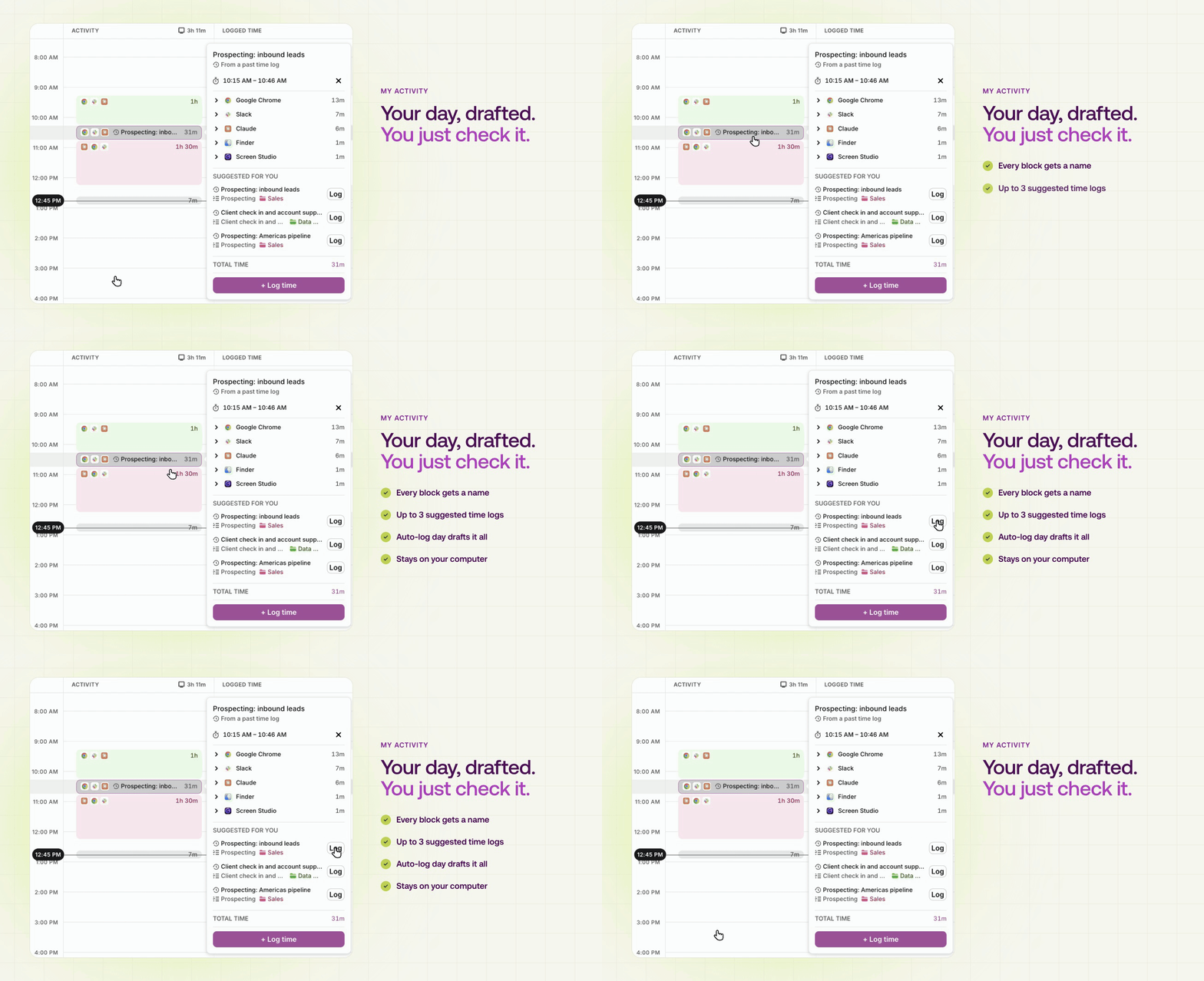
In the Toggl desktop app for Mac or Windows, turn on activity recording, and the desktop app keeps a private record of the apps, windows and websites you use. My activity groups that record into blocks, names them, and suggests time logs based on how you’ve logged similar work before.
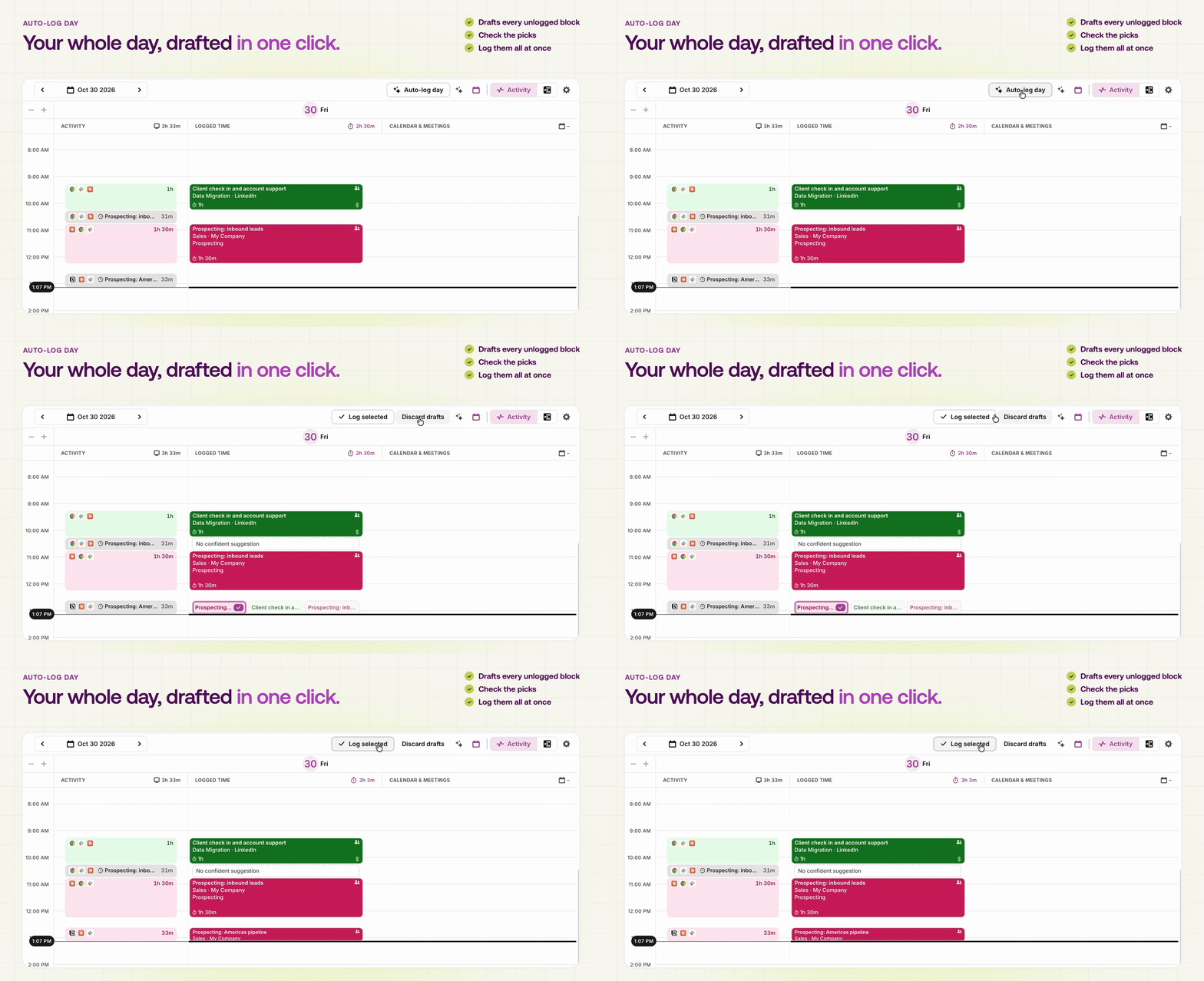
At the end of the day, Auto-log day drafts a time log for every block you haven’t logged yet. Check the drafts, then log them all in one go.
Your activity stays on your computer. Your teammates and admins can’t see it, and only the time logs you choose to save reach Toggl.
Autotracker: timers that start themselves
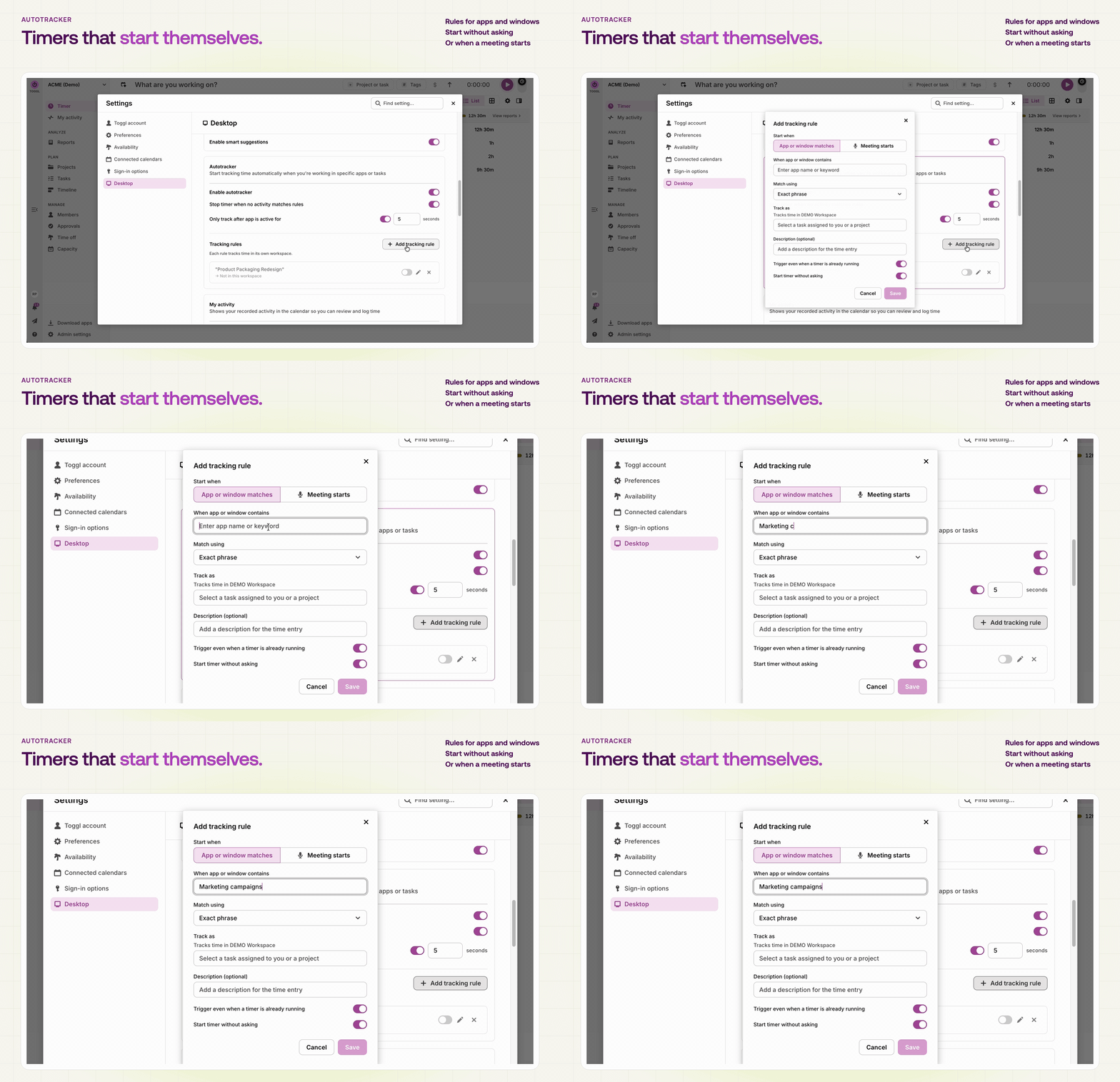
Create a rule that links an app or window to your work. For example: when a window title contains “Figma”, track time on your Website redesign project. When that window is active, Toggl starts the timer for you, or asks first if you prefer.
Rules can also start a timer when a meeting begins and stop it when you hang up. Toggl knows you’re in a meeting when an app is using your microphone. It never records audio.
To set it up, open the desktop app’s settings, go to Desktop, then Autotracker, and add a rule.
Smart Suggestions: A head start on every timer
With Smart Suggestions on, Toggl suggests what you’re probably working on when you start a timer, based on the app you have open and your past time logs. Everything is processed on your computer. Turn it on in the desktop app’s settings.
Reminders and idle detection: Nudges at the right moment
Reminders tell you when no timer is running, on the days and hours you choose. Idle detection does the opposite: if you step away with a timer running, Toggl asks what to do with that time when you’re back. Keep it, discard it, or log it separately, so a lunch break doesn’t end up on a client project. Both are in the desktop app’s settings.
Shortcuts and the menu bar
Set a global shortcut to start or stop the timer from any app, and on a Mac, see your running timer in the menu bar.
In your browser: the Toggl browser extension
Track time inside the tools you already use
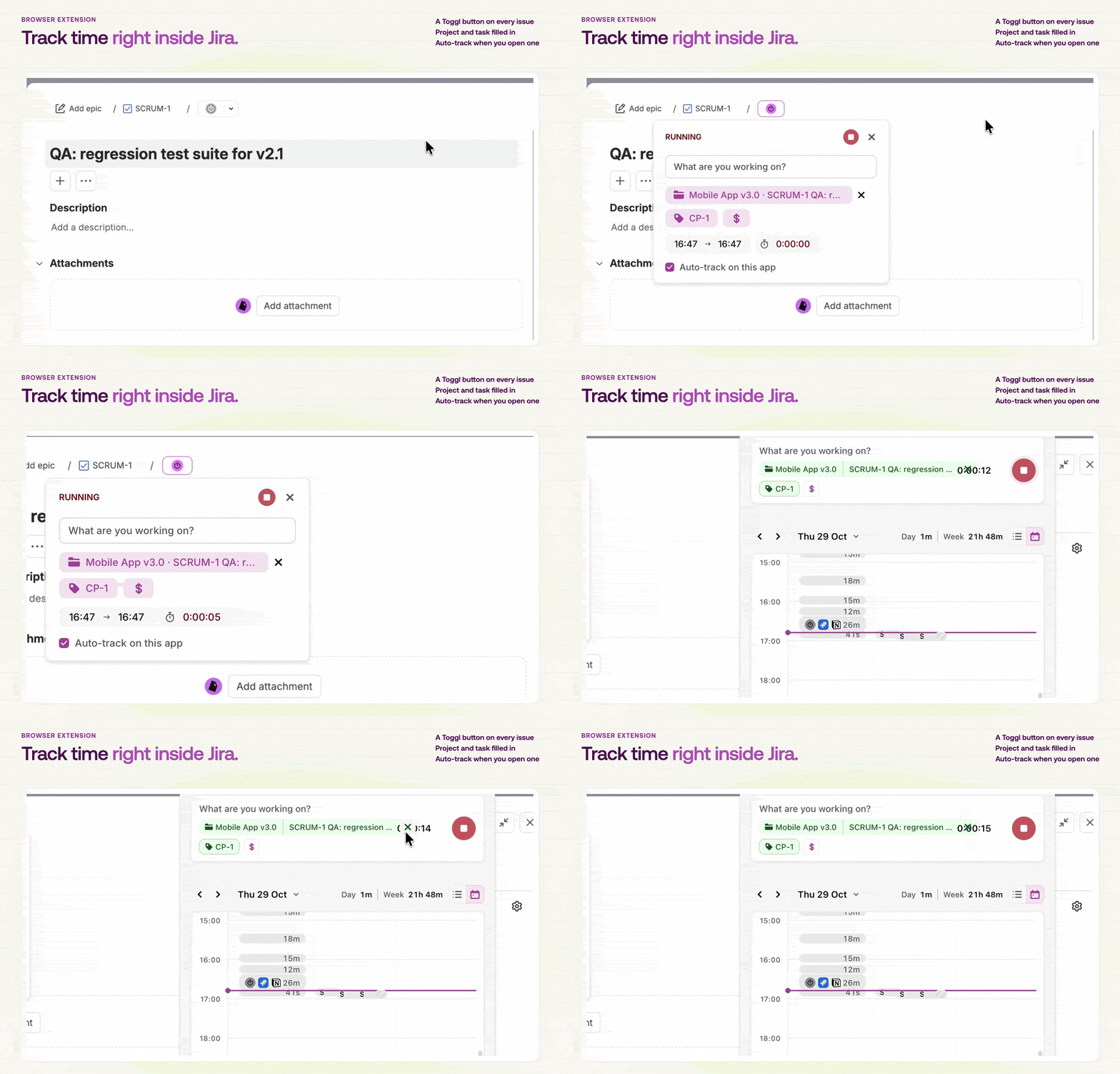
The Toggl extension for Chrome and other Chromium browsers, such as Edge, adds a Toggl button to 16+ tools, including Asana, Basecamp, ClickUp, GitHub, Gmail, Google Docs, HubSpot, Jira, Notion, Slack, Trello and Zendesk. Click it to start a timer for the task, ticket or page you’re looking at. You can also right-click any page to start a timer, or add buttons to other sites.
Auto-track: Start when you open, stop when you close
In GitHub, Jira, Trello, Notion, HubSpot, Todoist and Odoo, auto-track starts a timer when you open an issue, card or page, and stops it when you close the tab. Turn it on for each tool in the extension’s integrations panel. The extension also offers to turn it on once you’ve started timers on a site a couple of times.
In your calendar: Turn meetings into time logs
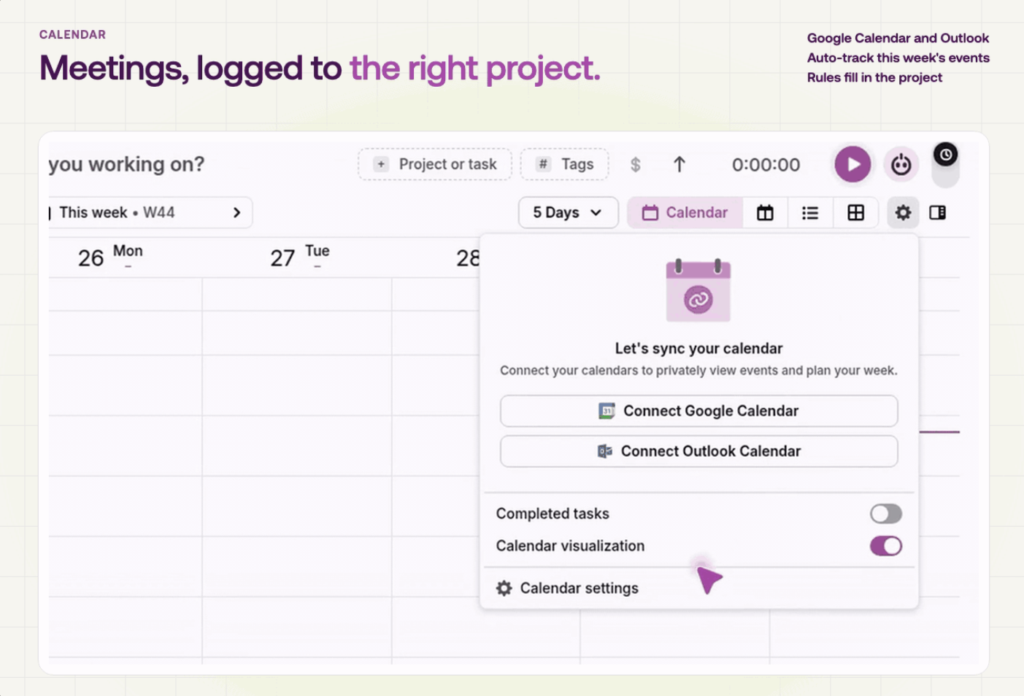
Connect Google Calendar or Outlook on any plan, including Free, and your events show up in Toggl next to your time logs. Log any event in one click, and its title becomes the time log’s description.
Or let Toggl do it for you. Turn on auto-track for a calendar, and Toggl logs this week’s events once they’ve started. Add matching rules to fill in the rest: for example, any event with “Acme” in the title goes to the Acme project and is marked billable.
The same one-click logging works for work you’ve planned in Toggl. When a planned block is done, log it as it is. To set it up, go to Settings, then Connected calendars.
On your phone: The Toggl mobile app
The Toggl app for iPhone and Android keeps tracking quick when you’re away from your desk:
- Suggestions on the Timer screen start a timer in one tap, based on your calendar and your recent time logs.
- Calendar events can be logged in one tap.
- Home screen widgets start and stop the timer without opening the app, and on iPhone your running timer shows on the Lock Screen.
- Smart reminders nudge you on weekdays if you haven’t tracked anything yet.
In your project tools: Jira and Asana
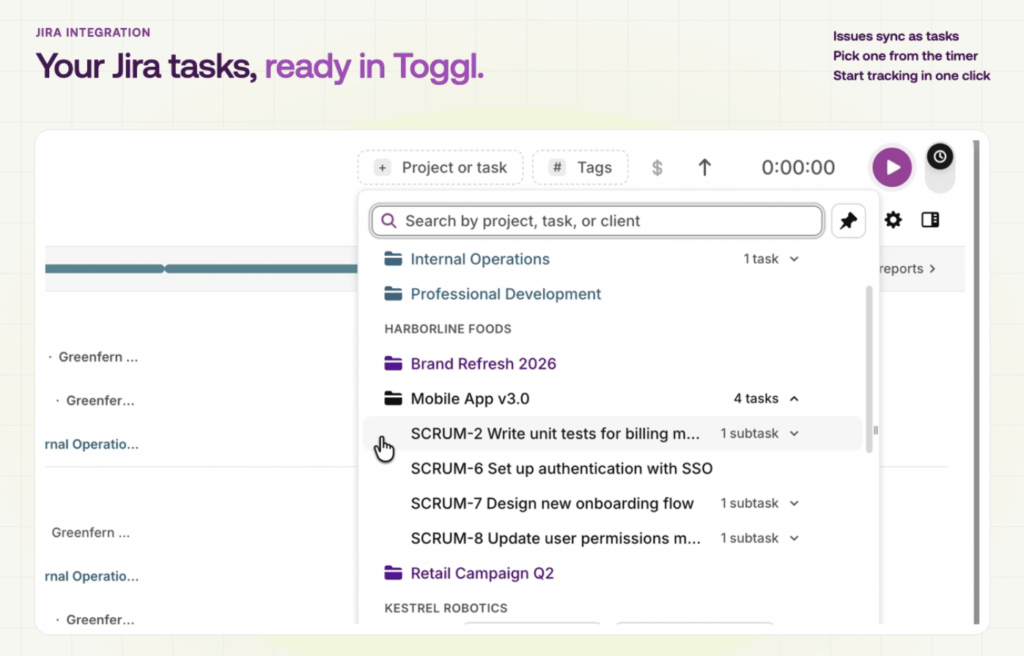
On Premium and Enterprise, the Jira and Asana integrations bring your projects, tasks and tags into Toggl, so you track time against the same work your team already manages there. With the browser extension, you can also start a timer or log a set amount of time right from a Jira issue.
With AI: Just say what you did
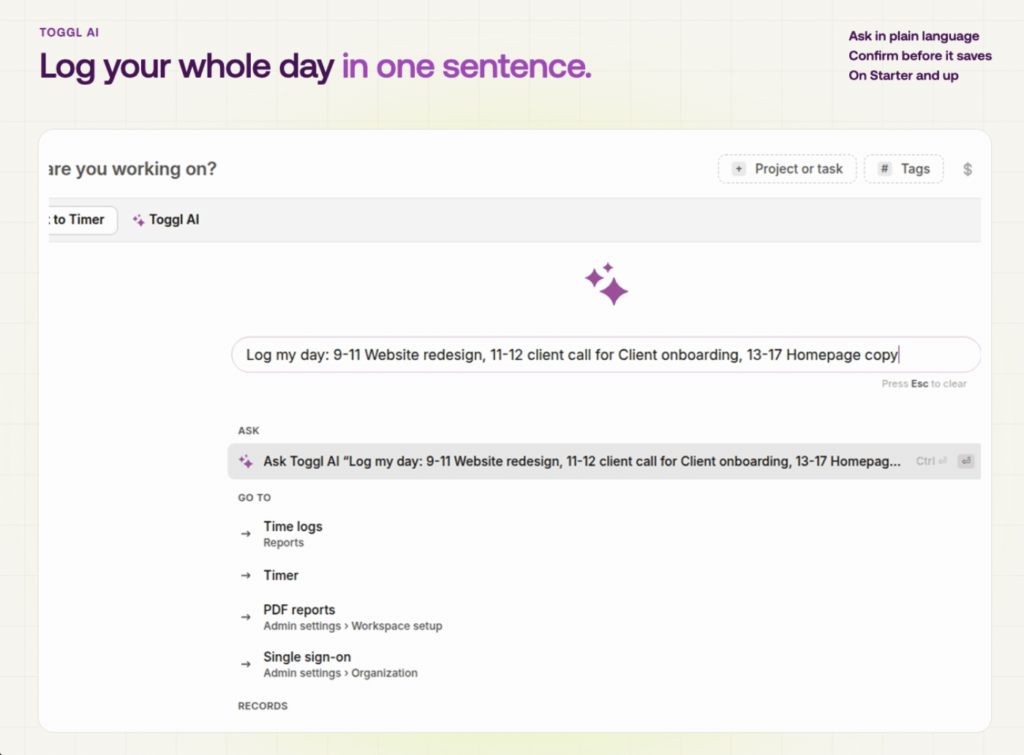
On Starter and up, you can ask Toggl AI to log time for you in plain language, like “Log 1h 30m on Website redesign yesterday from 14:00”. Toggl shows you the time log and asks you to confirm before saving it. Open it from Ask Toggl in the sidebar of the web app.
Log time from your own AI assistant
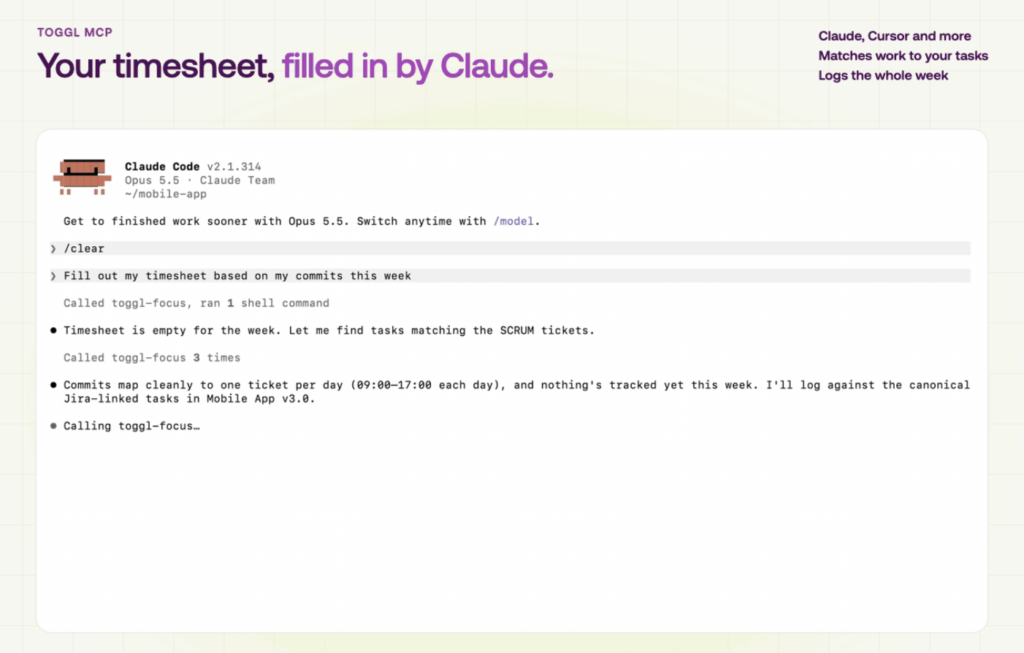
If you already work with an AI assistant, let it handle your time logs too. Connect the Toggl MCP server to Claude Desktop, Cursor, Codex or any other assistant that supports MCP, and sign in to Toggl once. Then let it do the tracking for you.
A developer using Claude Code, for example, can ask: “Fill out my timesheet based on my commits this week.” Claude reads the commit history, matches each day’s work to the right Jira task in Toggl, and fills in the whole week.
You can also ask it to start and stop timers as you work, or to log a single block, like “Log 2 hours on Website redesign for this morning”.
The assistant works with your own permissions, so it can only log time where you could log it yourself.
The MCP server works on every plan. On Free, report data is limited to 30 requests a month. Prefer the terminal? The Toggl CLI does the same with commands like toggl time-entries start.
Bonus: Focus sessions with Pomodoro
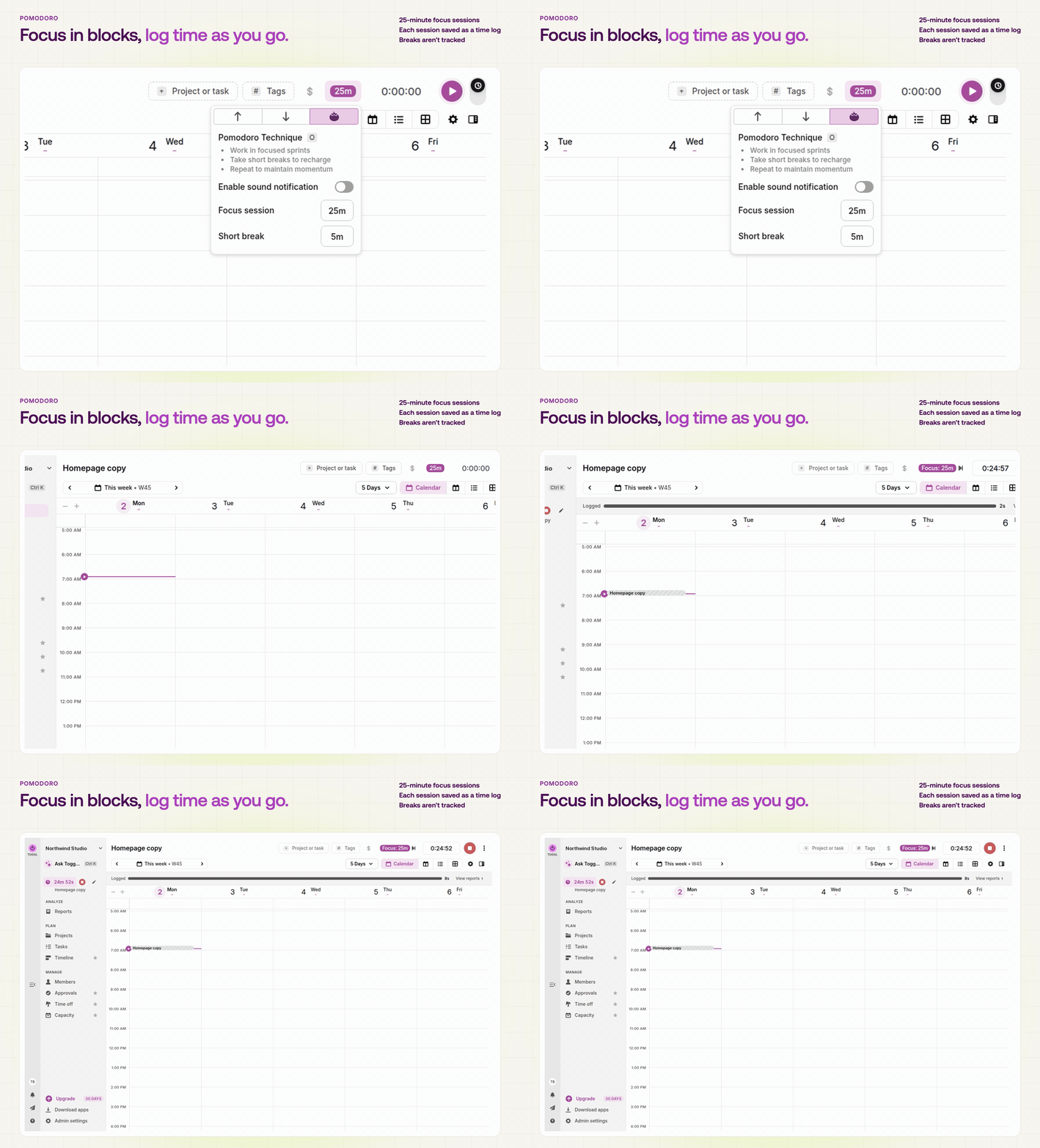
Switch the timer to Pomodoro mode on the web, desktop or mobile app. Each focus session is saved as its own time log, and breaks aren’t tracked, so your timesheet fills in while you work in 25-minute blocks.
Where to start
If you’re new to Toggl, start with two: install the desktop app and turn on My activity, then connect your calendar and turn on auto-track. Together they cover most of a typical workday. Add the rest as you find your rhythm.

Work tools to elevate your productivity – apps for incredibly simple time tracking and effective project planning.


