
Native integration
Native Jira Time Tracking Integration
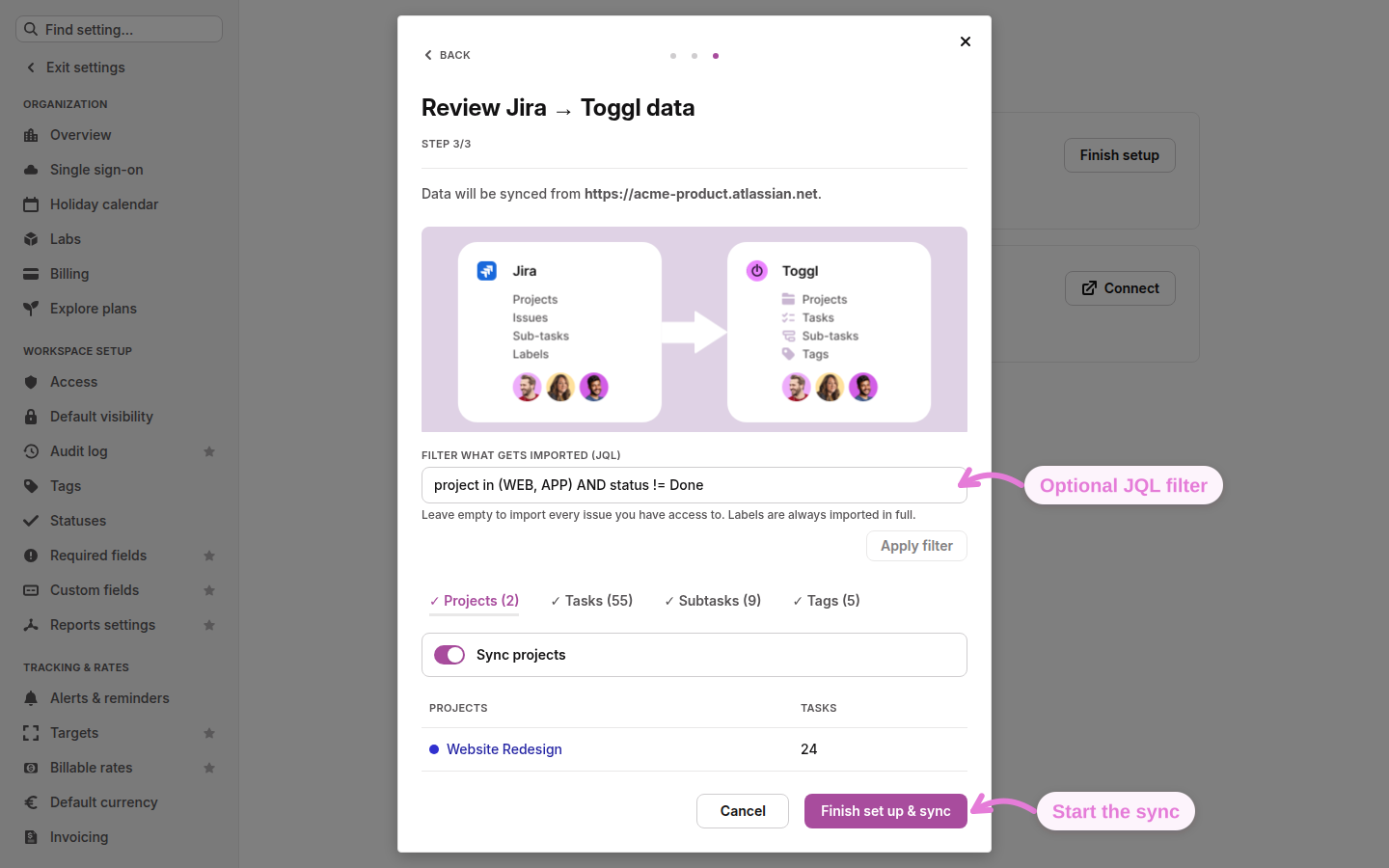
The native integration lets all your Jira projects, issues, sub-tasks, and labels appear in Toggl automatically and in real-time. The sync is one-way, from Jira to Toggl, so anything you change in Toggl stays there and is not sent back to Jira.
The native Jira integration requires a Toggl Premium or Enterprise plan.
Setting it up
Open Integrations and connect Jira
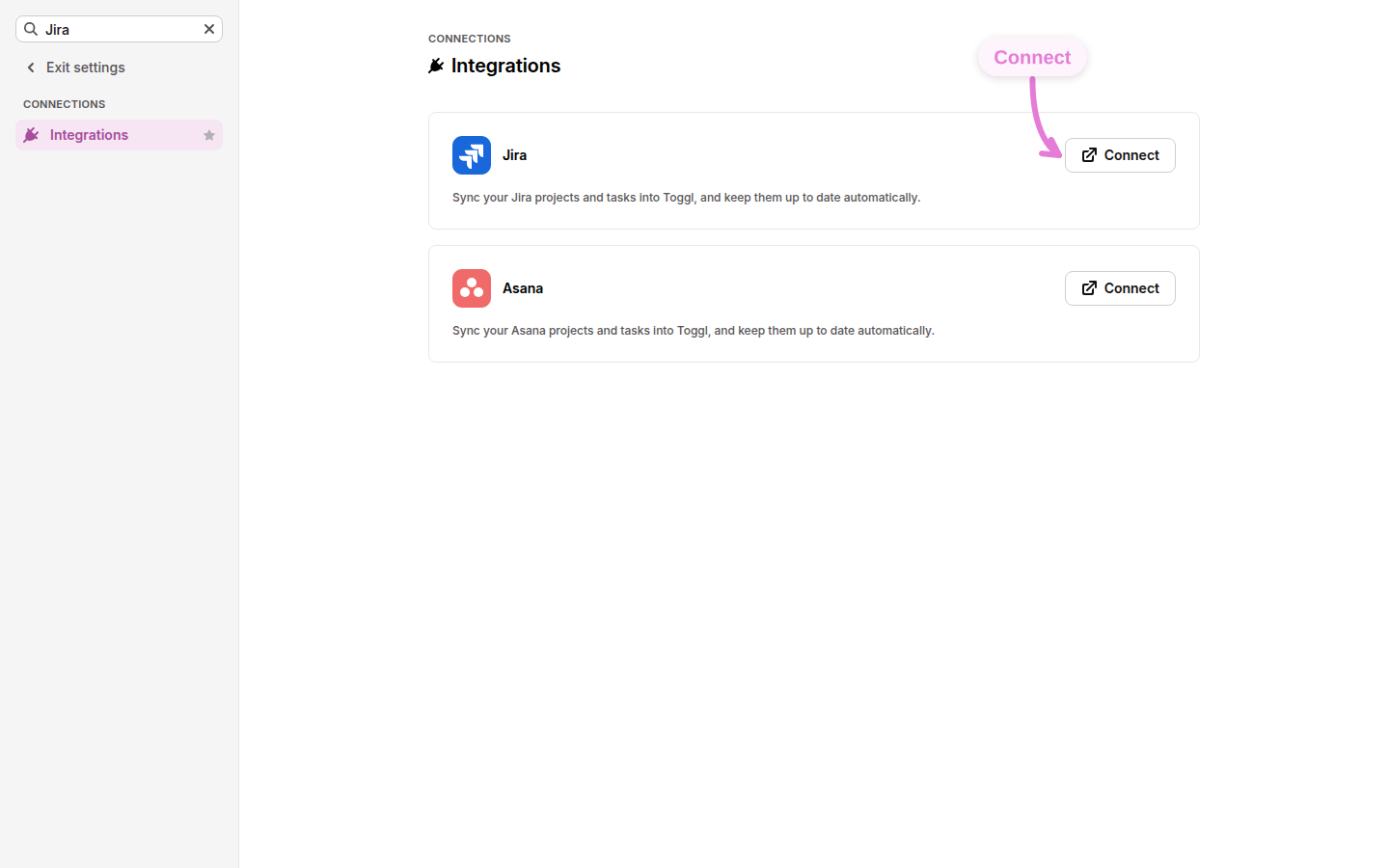
Go to Admin settings, type "Jira" in Find setting… and select Integrations. The star next to it means it's a paid-plan feature.
Approve access in Atlassian
Atlassian opens its own consent screen. Sign in, allow Toggl access, and you're sent back to the setup wizard in Toggl.
Choose the site and import members
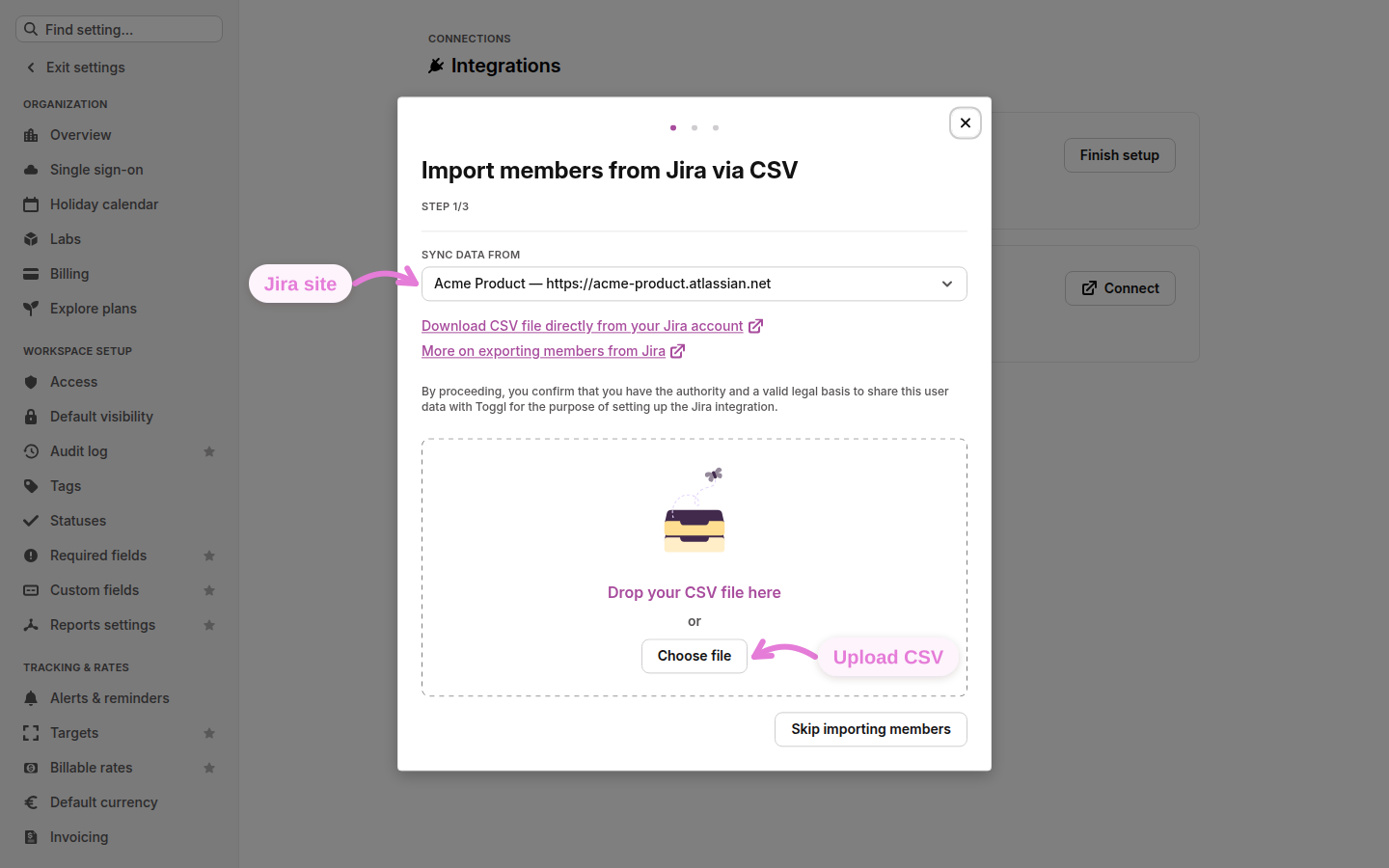
If your Atlassian account has more than one Jira site, pick one under Sync data from. Download the user CSV from Atlassian admin (the link is in the wizard), then drop it in or click Choose file.
Import members and send invites (optional)
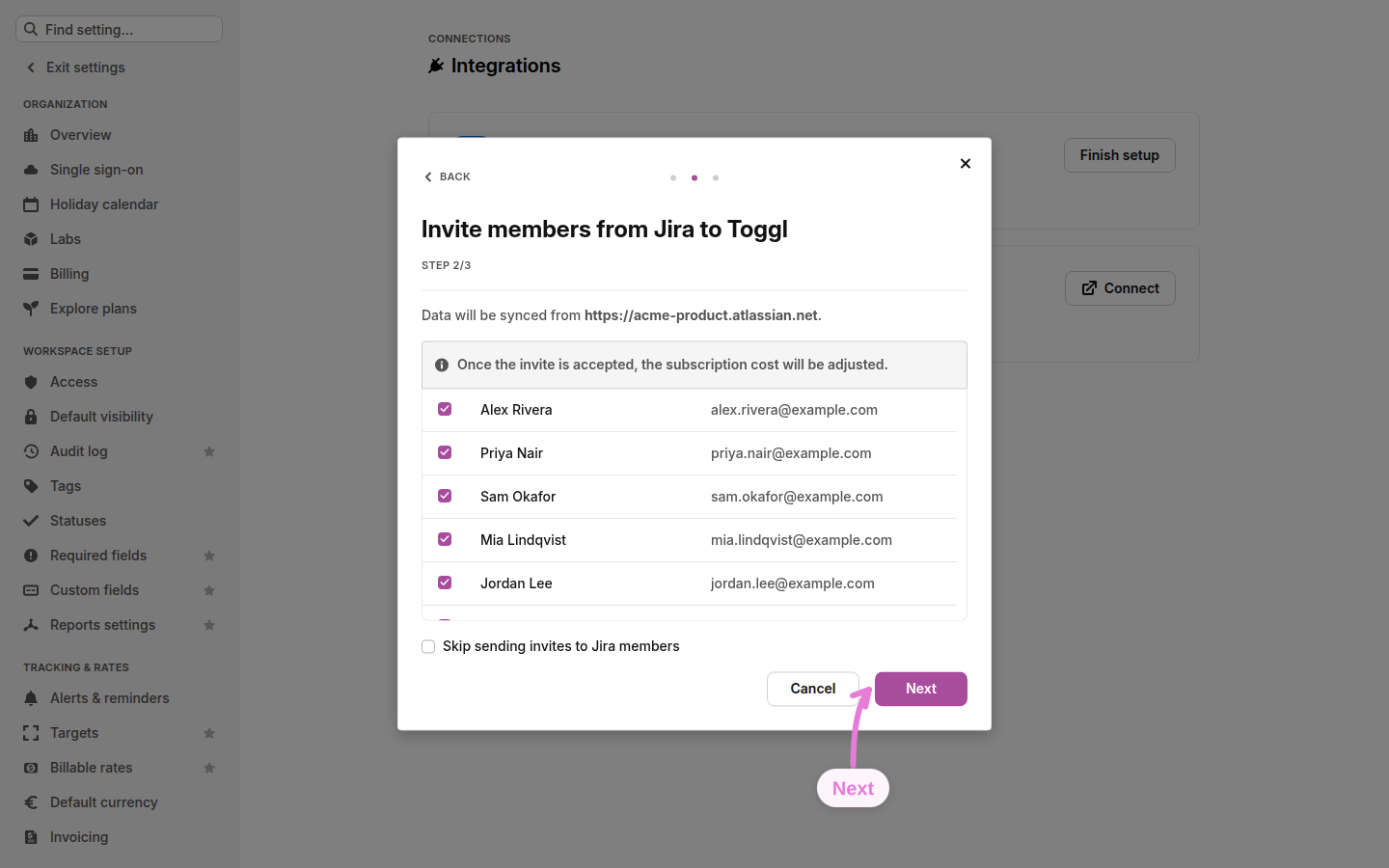
You can import members or skip this step. Untick anyone you don't want or tick Skip sending invites to Jira members to add them without an invitation email.
Review and start the sync
Optionally add a JQL filter and click Apply filter. Leave it empty to import every issue you can access. Check the tabs for Projects, Tasks, Subtasks and Tags, then click Finish set up & sync.
Learn more about Toggl's Jira integration.


Toggl's browser extension for Jira doesn't require a paid plan.
Setting it up
Add the Toggl extension
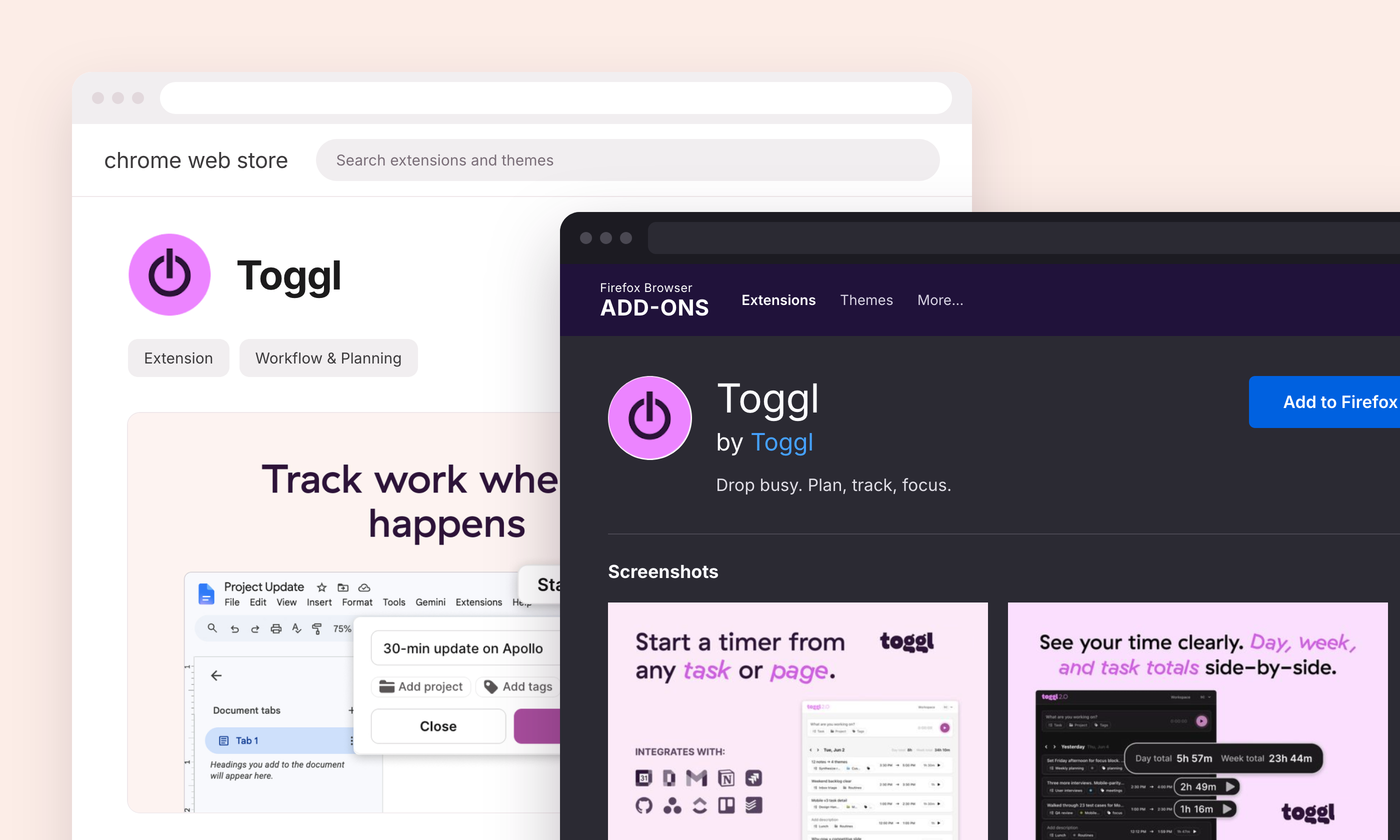
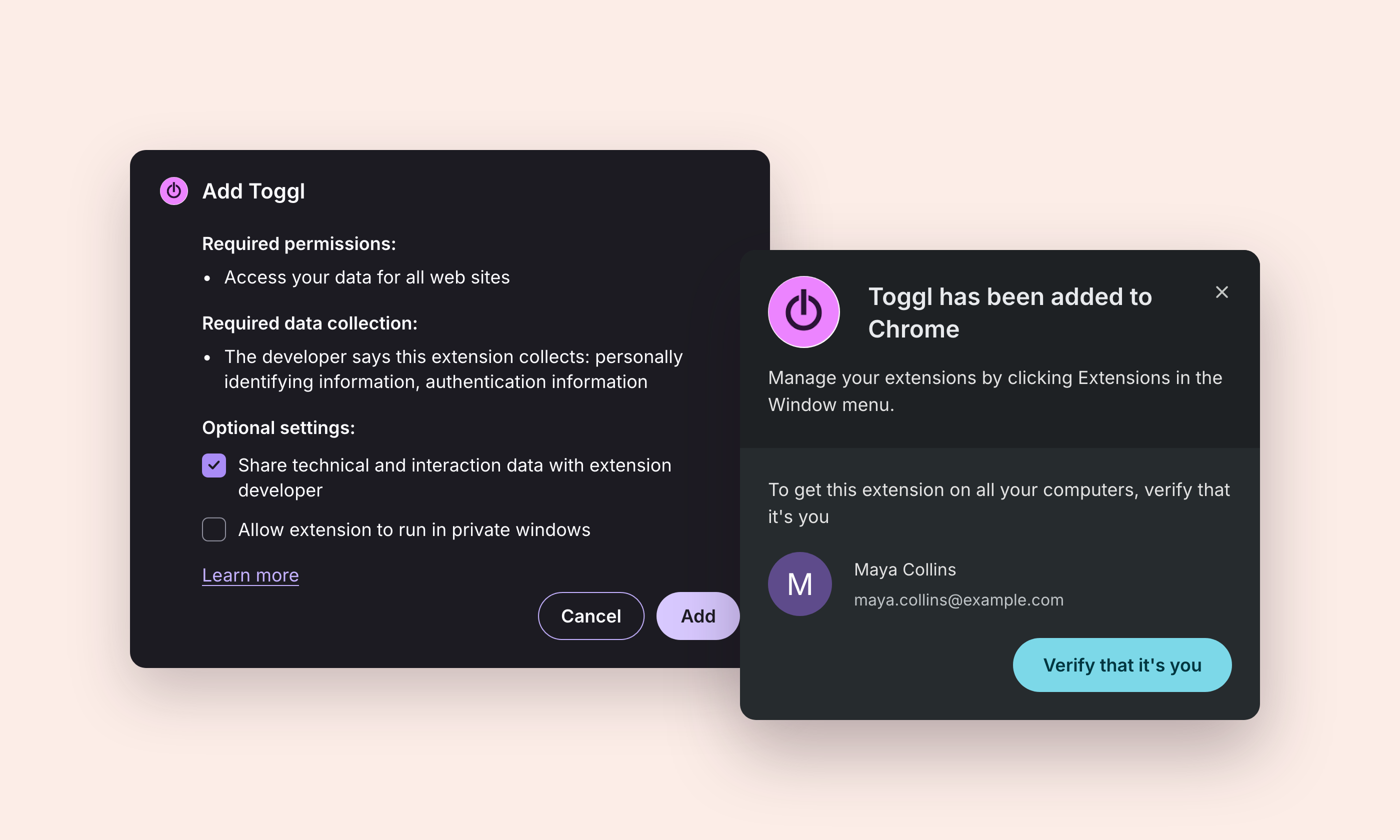
Install the Toggl extension from the Chrome Web Store for Chrome, Edge and other Chromium browsers, or from Firefox Add-ons for Firefox.
Log in
Click the Toggl icon next to the address bar, choose Log in, and sign in with your Toggl account.
Enable Jira
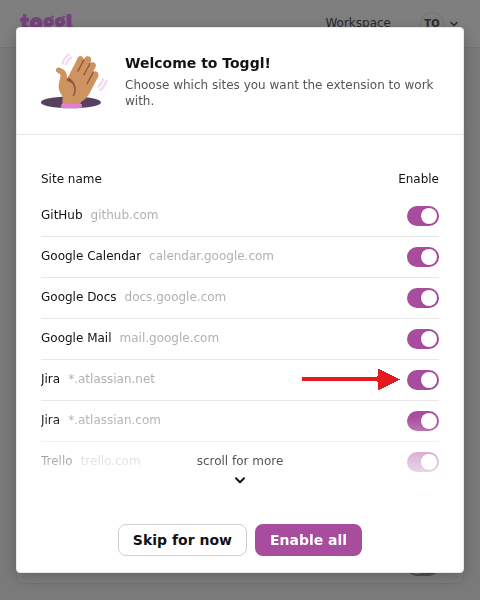
The first time you log in, a Welcome to Toggl! screen lists the supported sites, with Jira already switched on. Click Enable all, or turn some off and click Enable selected. To change this later, open the avatar menu → Integrations, search "Jira", and switch on Jira *.atlassian.net (or *.atlassian.com)
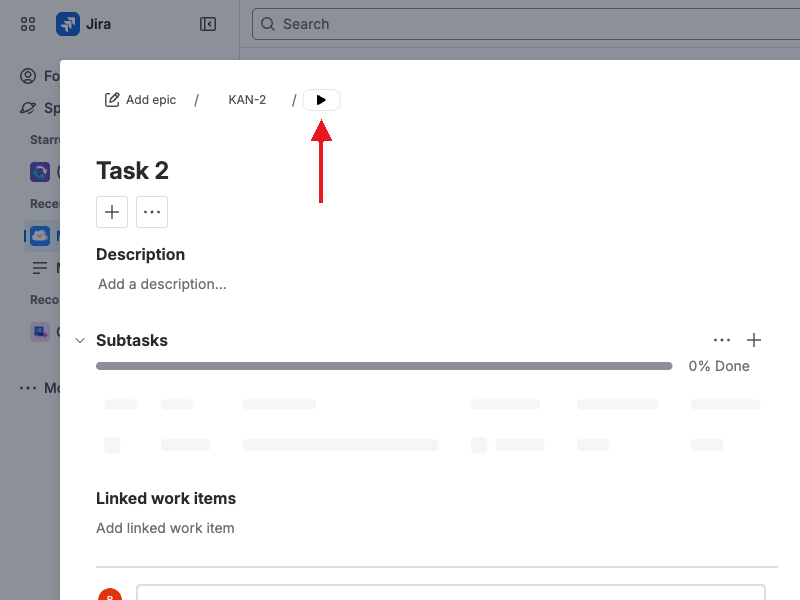
Open a Jira issue
The Toggl button appears right after the issue key in the breadcrumb. That works when the issue opens over a board or as its full page.
Start a timer or log time
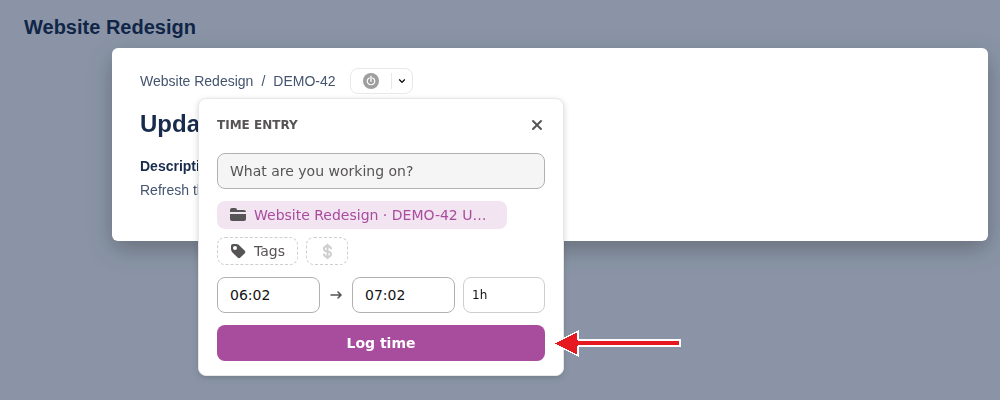
Click the button to start a timer. The issue key and title become the task, and the Jira project is picked up. Alternatively, open the chevron, pick 15min / 30min / 1h / 2h, adjust the time entry if needed, and click Log time.