


Toggl's
Asana time tracking with Toggl. Seamless workflow, minimal admin.
Manage projects and track time in one go. Track time on Asana projects by importing Asana users, projects, and tasks to your Toggl workspace as Toggl users, projects, and tasks.
To import Asana tasks into your workspace as tasks, you’ll need a paid plan, as Tasks are a Starter plan feature.



Setting it up
- Go to the Integrations page in the Toggl web application through the Setting menu in the sidebar.
- Click Enable for the Asana integration.
- You will be redirected to Asana to complete the setup. Log into Asana and grant permissions to Toggl.
- You will be redirected to Toggl. You can now see that users, projects and tasks are successfully imported.
- Click on the “Sync Now” button to manually sync users, projects and tasks respectively to keep your data in Toggl up to date.
Note: Fetching projects is limited by the user's scope. The integration will only pull projects that you can access and manage in Asana. It won't automatically pull all projects from the workspace.
For more information or caveats, check out our Knowledge Base.
How It Works
Toggl's free browser extensions embed a Toggl timer into the interface of your everyday apps, allowing you to track time within the app itself.
With additional features like pomodoro timer and idle detection, it's the ultimate tool to maximize your productivity and streamline time tracking into your workflow without needing to jump between tools.


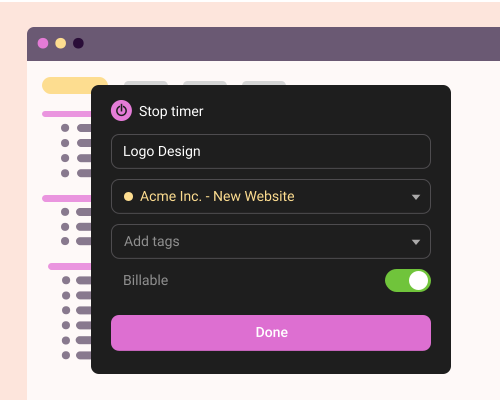
Online, offline or on the go? We have an app for that!
Your data instantly syncs across all apps and devices
- 1
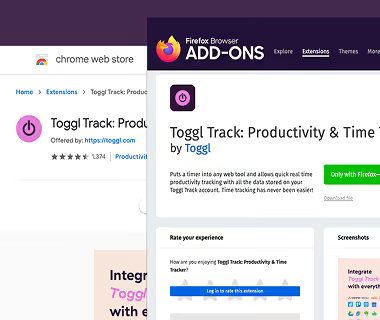
Add the free extension to your browser
Download the Toggl extension and install it. Click here to get the Chrome extension, here for the Firefox extension, and here for the Edge extension.
- 2
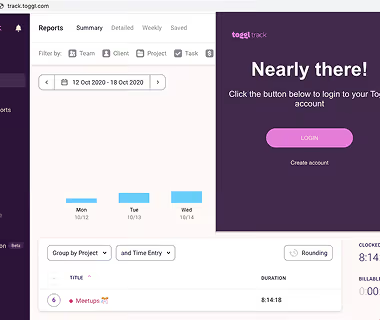
Log in to Toggl & close the tab
Click on the cogwheel icon to access the Settings page. In the Integrations tab, search for Asana extension and select it to enable the integration. Your changes are immediately saved.
- 3

Enable the integration in the Settings page
Review, add, or edit your daily activity in a timeline. Switch to a calendar view for a big-picture look at your workdays.
- 4
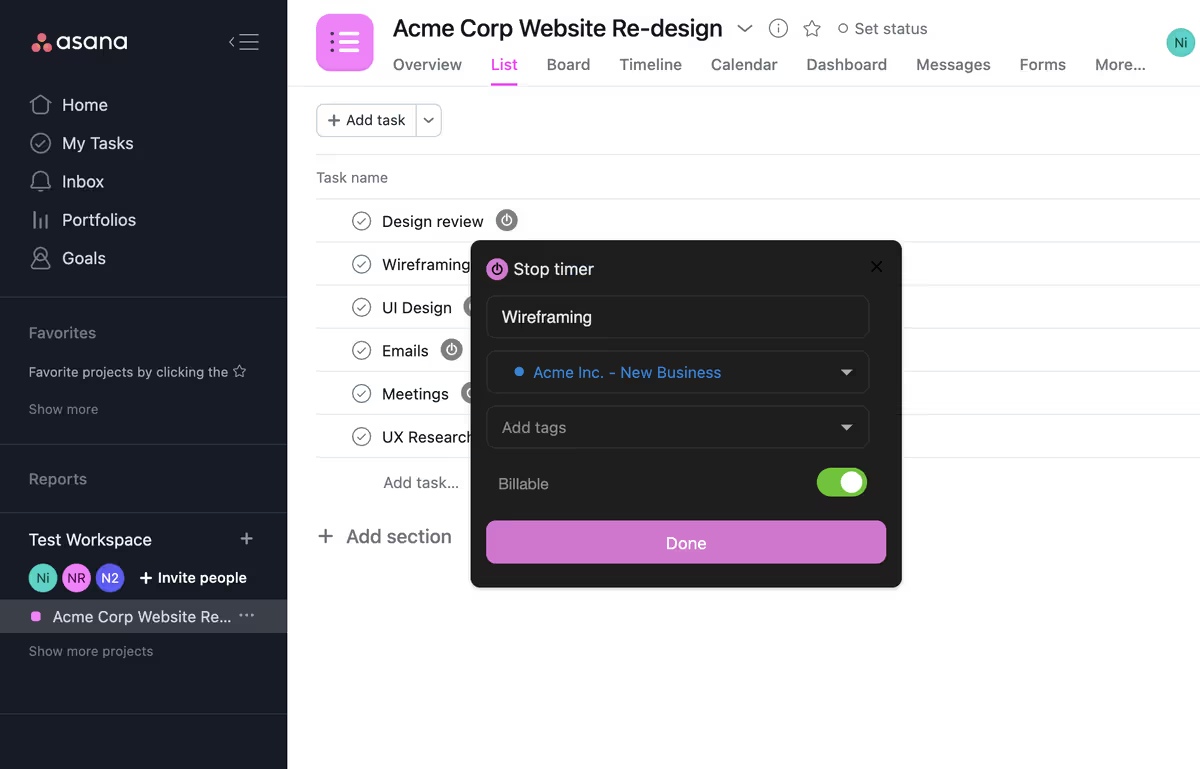
Start the timer in Asana
Head over to Asana. You should now see a Toggl icon in the user interface. Clicking on it will open a popup where you can start the timer, add a time entry description, project or tags. You are now tracking time!
- 5
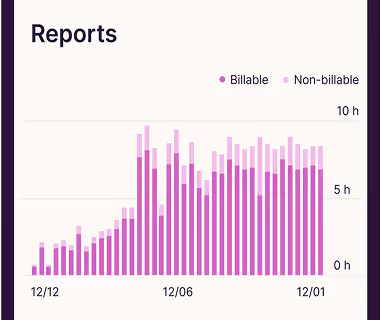
View and export time reports in Toggl’s web app
Head over to Toggl to view your time entries or to export a time report. Voilà, it’s that easy.
- 6



Explore other integrations

Zendesk
This is a legacy integration for Toggl Track which we currently don't support for Toggl. If you're interested in using Zendesk with the new Toggl, please contact us.

Visual Studio
This is a legacy integration for Toggl Track which we currently don't support for Toggl. If you're interested in using Visual Studio with the new Toggl, let us know.
