Even in the age of AI, most teams are measuring and optimizing for the appearance of productivity rather than the real thing. To fix that, the right stack of productivity tools should make work effort visible and give you real data on where your time goes.
Four categories of productivity tools will help you build the perfect stack:
- Time tracking and productivity measurement
- Task and project management
- Team communication tools
- Async documentation and knowledge management
This guide explores the best team productivity tools in each category, and how to build a stack that works for your team.
The 11 best team productivity tools
| Tool | Category | Best for | Free plan/ free trial | Starting price |
| Toggl | Time tracking and productivity measurement | Turning time data into business insights | Free plan (up to 5 users) + 30-day trial | $9/user/month |
| Harvest | Time tracking and productivity measurement | Converting billable hours into invoices | Free plan + 30-day trial | $9/user/month |
| Clockify | Time tracking and productivity measurement | Standardizing timesheets across teams | Free plan + 7-day trial | $3.99/user/month |
| Asana | Task and project management | Growing teams moving beyond basic task tracking | Free plan (2 users) + 30-day trial | $10.99/user/month |
| ClickUp | Task and project management t | Teams consolidating multiple tools into one workspace | Free plan + 15-day trial | $7/user/month |
| Trello | Task and project management | Teams that want simple, visual task tracking | Free plan (up to 10 users) + 14-day trial | $5/user/month |
| Slack | Team communication | Structuring and automating team communication | Free plan + 7-30 day trial | $4.38/user/month |
| Microsoft Teams | Team communication | Teams already using Microsoft 365 | Free plan + 30-day trial | $4/user/month |
| Loom | Team communication | Async video updates and knowledge sharing | Free plan (25 videos) + 14-day trial | $18/user/month |
| Notion | Async documentation and knowledge management | Flexible, doc-first teams | Free plan + 30-day trial | $9/user/month |
| Confluence | Async documentation and knowledge management | Larger teams using the Atlassian ecosystem | Free plan (up to 10 users) + 7-day trial | $5.42/user/month |
Our evaluation criteria
We started by defining the key players in each category: task and project management, team communication, time tracking and productivity measurement, and async documentation and knowledge management — all essential components of team productivity.
From there, we built feature matrices for each category and then compared how individual apps stacked up against that baseline. We weighed up feature depth, pricing, user review scores, and direct feedback.
Many of the recommended tools are used by different Toggl teams (and contributors), so their experiences, too, go into each assessment.
Best time tracking and productivity measurement tools
Most productivity stacks are missing a critical layer: measurement.
Coordination tools are great, but they organize work. The missing information is how long you spend working across projects or what that effort costs. As a result, you end up optimizing for structure and activity, rather than outcomes.
Time tracking closes that loop by making effort visible, turning a well-organized stack into a genuinely productive one. But time tracking apps only work if people use them consistently, so convenience is a major factor.
Toggl
Best for: Turning time into accurate capacity decisions and business analytics
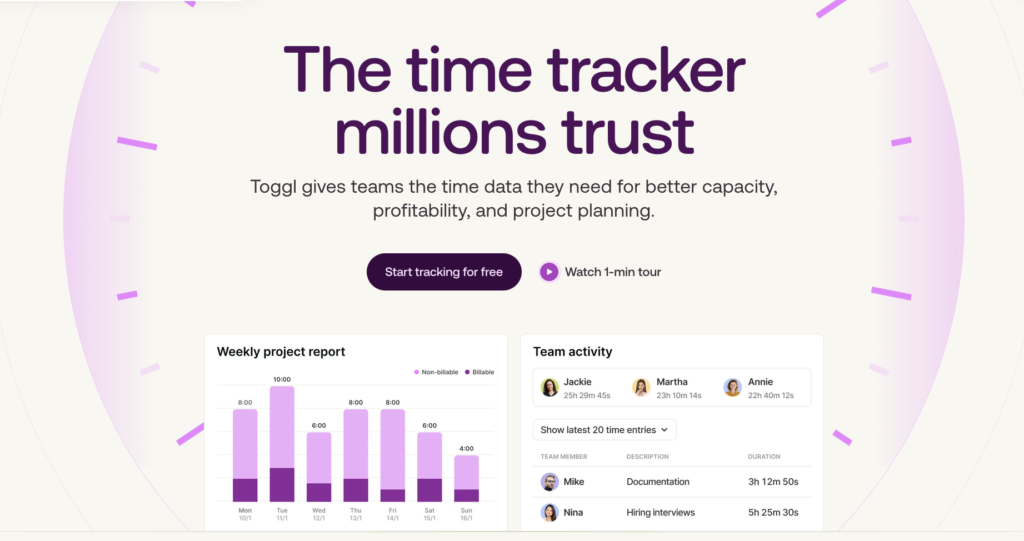
Most teams only discover they have a productivity problem when a deadline slips or a project goes over budget. Time tracking highlights those signals weeks earlier.
Toggl sits at the measurement layer of a productivity stack, capturing how work unfolds across projects, clients, and teams. It turns time data into clear information about cost, efficiency, and profitability, without adding friction to your workflows.
The starting point is ease of use. Time tracking only works if people stick with it, and Toggl leans heavily into reducing friction. You can track manually or automatically from any device or embed one-click timers directly into tools like Asana or Jira, or sync entries from Google and Outlook calendars.
That means your team can track time without breaking flow, which is important if your goal is to save time. For example, Skeleton Technologies cut the time spent reviewing and correcting timesheets from 80+ hours to under one hour. That’s the kind of operational drag most teams accept as normal until it disappears.
Know how your team spends its time
Unlike other tools, Toggl treats time as the input, not the outcome, and the entire reporting experience is based on that.
The Summary Report shows how time is distributed across projects, clients, and billable versus non-billable work. From there, you can drill deeper using filters like task, tags, duration, or billable status, and combine them with conditional logic.
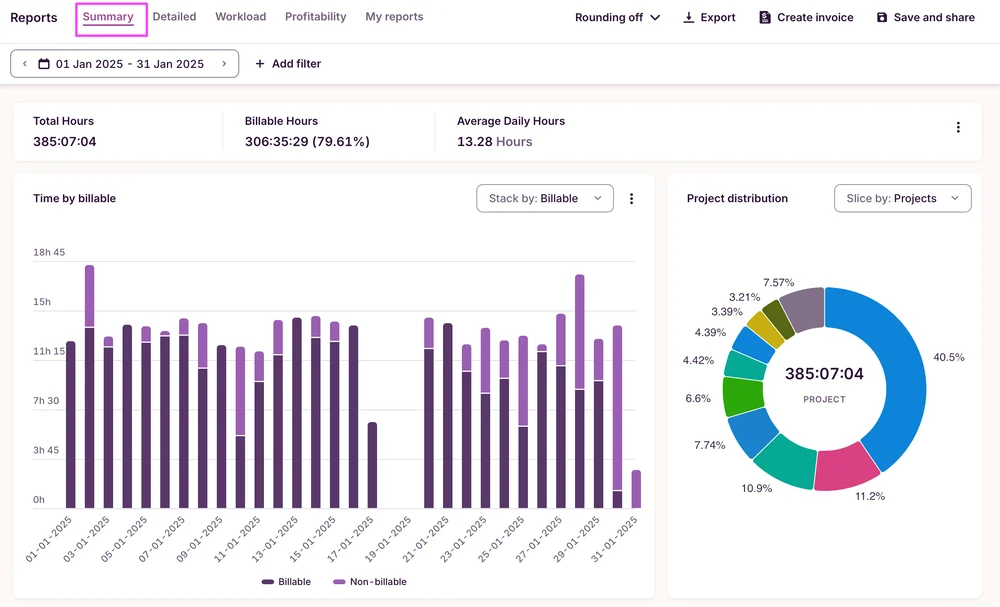
Filtering helps you get quick answers to pressing operational questions like: how much time a specific activity consumes, or what a given business function costs in labor terms.
Project-level visibility that changes behavior
The Project Dashboard gives you further intel. You can review estimated versus actual time, alongside execution costs. Toggl uses tracked hours to forecast completion timelines and highlight when a project is drifting.
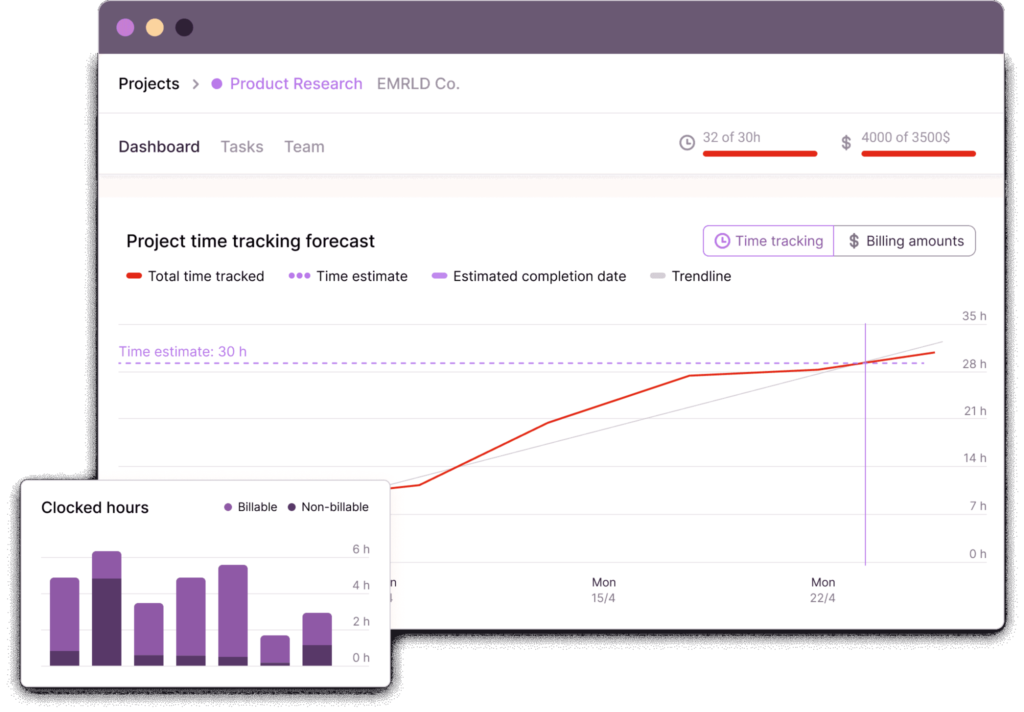
Underneath, the billing charts map billable revenue, internal costs, and fixed fees over time, with a trendline that projects where things are heading.
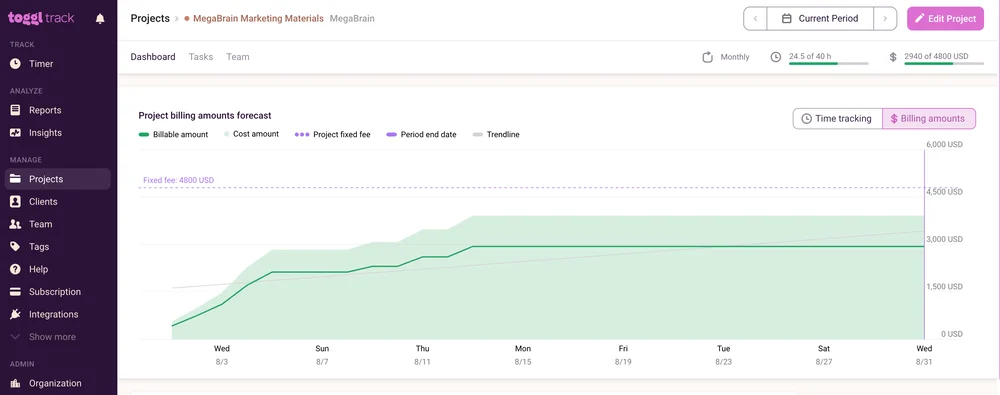
This winning combination shifts time tracking from retrospective reporting into something closer to early warning.
Platinum Companies used visibility to catch revenue leakage early across their hospitality operations. In one case, the company missing billable hours identified quickly enough to recover $18,000 that would have otherwise have been lost.
Workload and Profitability reporting shape the strategy
Beyond individual projects, Toggl extends into workload and profitability analysis.
Workload Reports show how time and revenue are distributed across people and projects, helping teams rebalance effort before burnout or underutilization sets in.
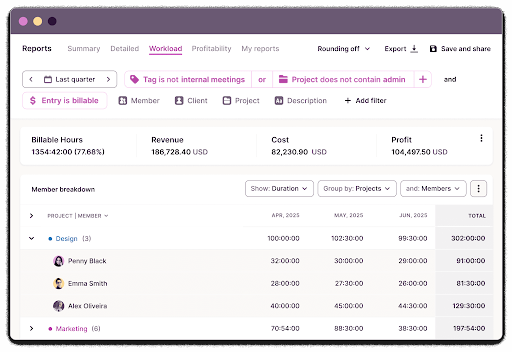
Profitability Report goes further, breaking down revenue, cost, and margin by client, project, or team member, with trendlines that show how those metrics evolve.
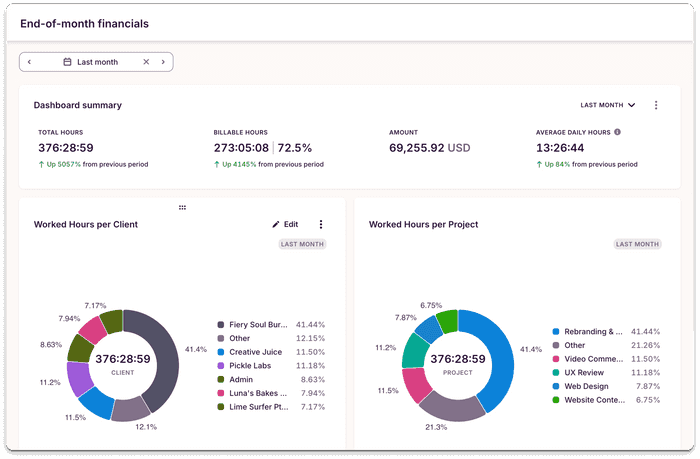
For agencies, especially, this becomes a strategic layer. Talk Shop Media, for example, uses custom profitability reports to identify underperforming accounts and adjust accordingly, without wasting hours on manual data wrangling.
When Toggl makes a great addition to your stack
Toggl sits alongside Jira, Asana, Slack, GitHub, and your other favorite tools, capturing what happens across your business and turning this data into actionable insights.
And that’s the part many teams overlook. Productivity doesn’t magically surge because you added another tool. It improves when you can finally see how work happens and make proactive changes to your workflows.
Pros
- Low-friction time-tracking across devices and business apps
- Deep reporting with granular filters and drill-downs
- Slots seamlessly into the existing stack without disrupting workflows
- Capacity planning based on accurate work hours data, PTO, and vacation days
- Built-in task and project management with Kanban boards, Gantt charts, and more
Cons
- Requires consistent usage for accurate insights
- Reporting depth can feel overwhelming at first
- No built-in invoicing (yet)
Pricing
- Forever free plan for five users
- Free 30-day trial
- Paid plans start from $9/user per month
Harvest
Best for: Converting billable hours into invoices quickly
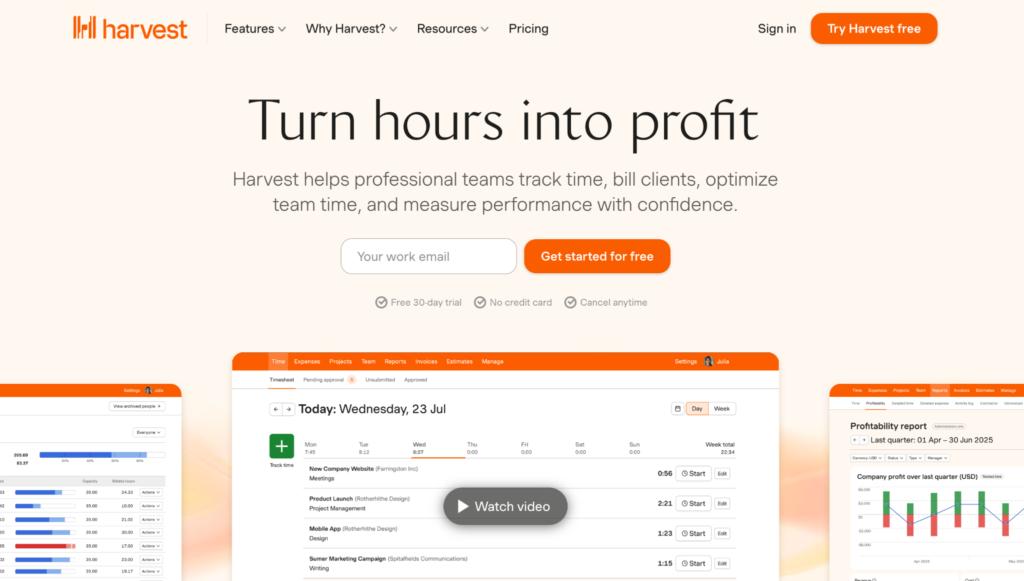
Harvest connects time tracking directly to billing, making it easy to translate work into revenue without extra steps. Its narrow focus makes it a good fit for invoicing workflows, but less of a match for deep operational insights.
You log hours as you work (via a browser extension, desktop, or mobile apps) and assign entries to projects or clients. From here, you can convert the data into clean, client-ready invoices. Its Stripe and PayPal integration allows you to pay invoices with a click.
To boot, you get essential analytics to track project budgets, analyze billable and non-billable hours, and track profitability levels across clients and projects. As time logging, expenses, budgets, and payments all live in the same flow, there’s less back-and-forth between systems.
Pros
- Built-in expense tracking alongside time entries
- Clean reports on time, costs, and budgets
- Invoice generation with built-in payments
Cons
- Useful only for professional services firms
- More basic reporting compared to other tools
- No automation features
Pricing
- Forever free plan
- Free 30-day trial
- Paid plans start from $9/seat per month
Clockify
Best for: Standardizing timesheets and attendance management
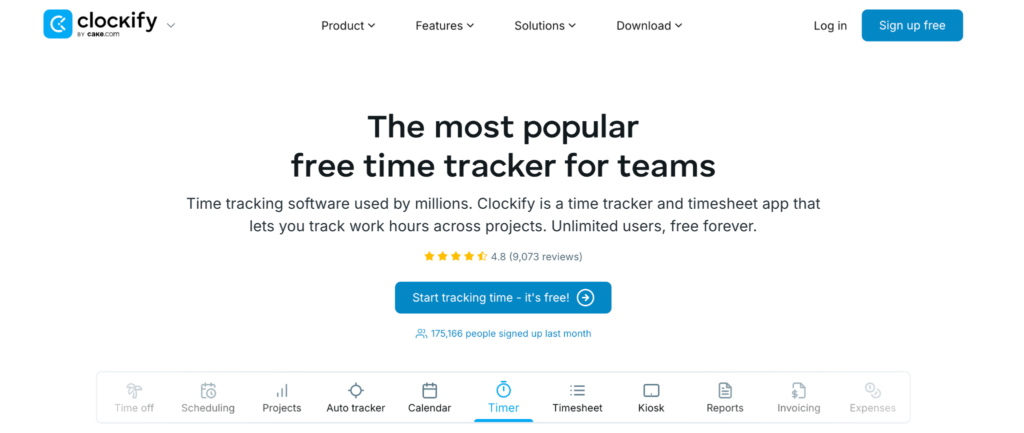
Clockify standardizes time tracking across teams with flexible logging and unlimited usage, making it easy to enforce consistency at scale. Similar to Toggl, you can log time with automatic timers, manual entries, or shared timesheets. Alternatively, you can set up a shared employee device for employees to clock in and out.
Unlike other tracking tools, Clockify leans more into coverage rather than workflow depth. Features like approval-based timesheets, kiosks, breaks, time tracking target reminders, and GPS tracking appeal more to companies that need consistent, organization-wide tracking — not just individual use. As a result, Clockify is often used by larger or distributed teams that want a single system for capturing time without worrying about per-seat limits.
The flip side is more limited reporting, primarily focused on time entry audits, attendance, overtime, and tracked activity, rather than productivity per se. You can, however, track labor costs and profits in multiple currencies, based on billable user rates.
Pros
- Unlimited time tracking on the free plan
- Multiple tracking modes (timer, manual, kiosk)
- Timesheet approvals and tracking reminders
Cons
- Limited filters and customization in reporting
- Somewhat clunky, cluttered interface
- Limited security features
Pricing
- Forever free plan
- Free 7-day trial
- Paid plans start from $3.99/user per month
Best task and project management tools
Task and project management tools promise clarity. They show work in progress, assigned tasks, and blocked items, so teams can move without constant check-ins.
But most of them stop at status. They show progress, not effort. Without a way to understand how much time work consumes, teams end up optimizing for vanity metrics.
That’s why this category works best as the execution layer of your productivity stack, not the ‘silver bullet’ for productive work per se.
Asana
Best for: Growing teams moving beyond basic task tracking
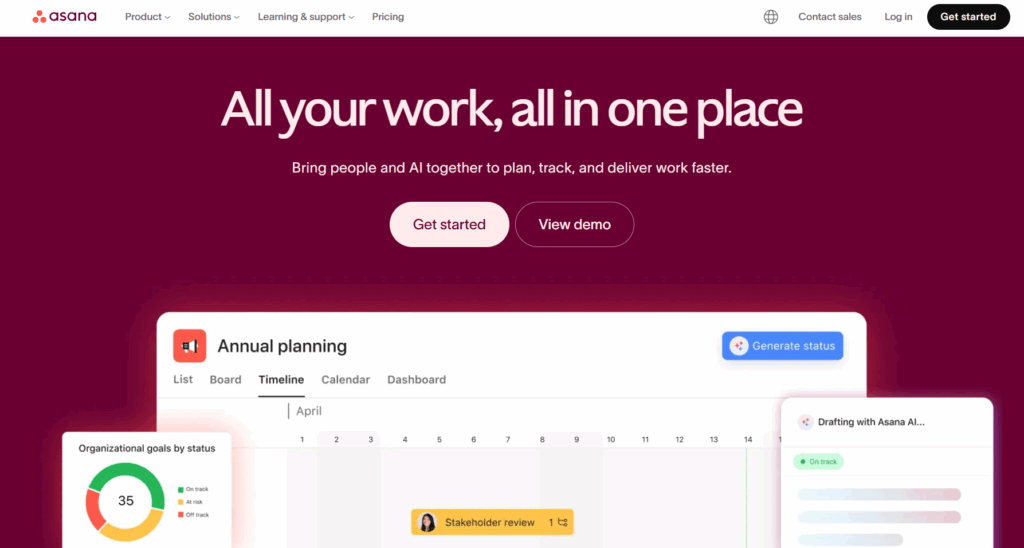
Asana offers a good balance of simplicity and scalability. It doesn’t lock you into a specific project management methodology from the get-go, but it does lean more toward Kanban-style Agile workflows.
Asana offers multiple views, like List, Board, Calendar, Timeline, Gantt, or Workload, which all deliver on the promise of visibility. You can structure and see work across different dimensions. Goals tie broader initiatives to specific milestones and KPIs. You can also group work into portfolios to track progress at a higher level. This structure, paired with built-in collaborative features, reduces the constant back-and-forth that slows teams down when work lives across too many channels.
That said, Asana focuses more on statuses more than productivity. It doesn’t tell you how much effort work takes or whether it’s sustainable, which is where pairing Asana with a time tracking tool can fill the gap. Also, top features, like advanced reporting, automation, custom fields, and advanced search, sit behind paid plans.
Pros
- Strong cross-project visibility with portfolios and goals
- Scales well beyond simple task management
- Wide range of integrations with popular work tools
Cons
- Limited reporting on workload and time usage
- Notification overload is a common complaint
- No native budgeting or profitability tracking
Pricing
- Forever free plan for two users
- Free 30-day trial
- Paid plans start from $10.99/seat/mo
ClickUp
Best for: Teams wanting to consolidate multiple tools into one workspace
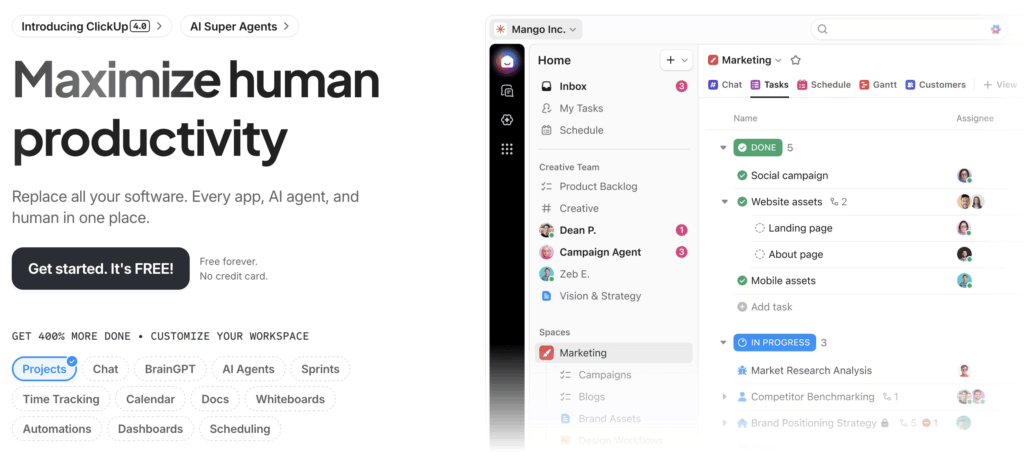
ClickUp leans hard into the idea that your work should live in one place. Planning, docs, file sharing, communication tools, AI agents — it’s all there. The upside is consolidation. The downside is ongoing workspace housekeeping.
You can build out custom workflows, define your own task structures, and layer in automation to move work forward on autopilot. You’re not forced into a predefined system, and you can shape the workspace around how your team operates.
But ClickUp demands intent. It gives you the “building blocks” for creating productive workflows, but the payoff depends entirely on how you set them up, and that can be an onerous task.
Pros
- An all-in-one platform that can replace multiple subscriptions
- 12 different views to stack projects and track tasks
- Automation and AI features for knowledge management
Cons
- Steeper learning curve with more upfront setup
- Easy to overbuild workflows and add unnecessary overhead
- Performance can lag on larger, more complex projects
Pricing
- Forever free plan for five spaces
- 15-day free trial
- Paid plans start from $7/user/mo
Trello
Best for: Teams that want instant task clarity without complex setup
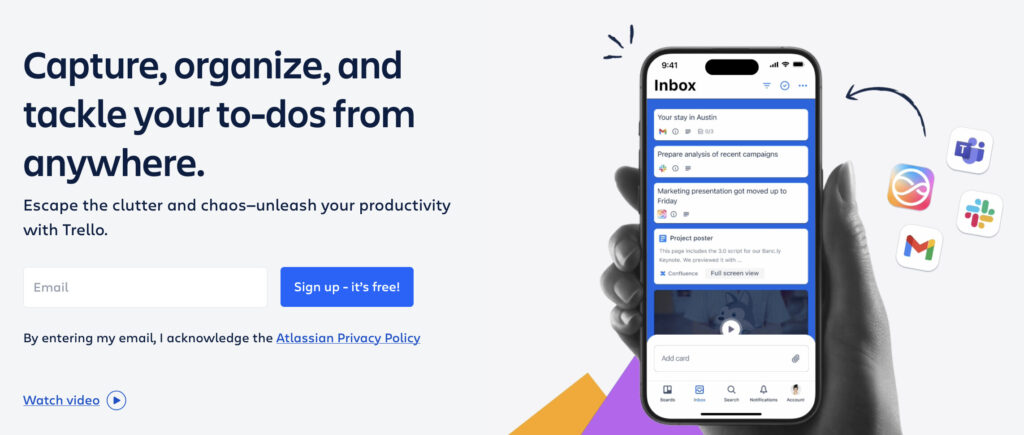
Trello works best when you need instant clarity on work statuses without lengthy setup. You can aggregate tasks in personal to-do lists, then lay them out on a Kanban board across columns that reflect statuses. Each card can hold loads of details, for example, due dates, checklists, attachments, and comments.
But Trello doesn’t have complex reporting views or multi-step workflows. It just gives you a clear, visual way to track what’s happening right now. So, it may feel limiting when dependencies and cross-team coordination enter the picture. That said, you can stretch Trello’s capabilities further through integrations and Power-Ups, adding features like task estimation or extra card fields.
But it still leans toward visibility over control. If your main goal is to keep work moving and easy to follow, Trello does that well without turning coordination into a project of its own.
Pros
- Clean, customizable Kanban boards (and extra premium views)
- Extremely user-friendly with almost no learning curve
- Generous free plan for small businesses
Cons
- Limited reporting and analytics out of the box
- No native time tracking or workload management
- Unsuitable for complex projects with dependencies
Pricing
- Free forever plan for up to 10 collaborators
- 14-day free trial
- Paid pricing starts at $5/user/mo
Best team communication and collaboration tools
Communication tools promise alignment by centralizing conversations, decisions, and updates so there are fewer messy email chains and pointless meetings.
Without structure, these quickly become a firehose of more messages, endless notifications, constant context-switching. Instead of reducing coordination overhead, they amplify it. Stay focused by using collaboration apps to move existing work forward rather than creating extra scattered to-dos.
Slack
Best for: Structuring and automating routine communication
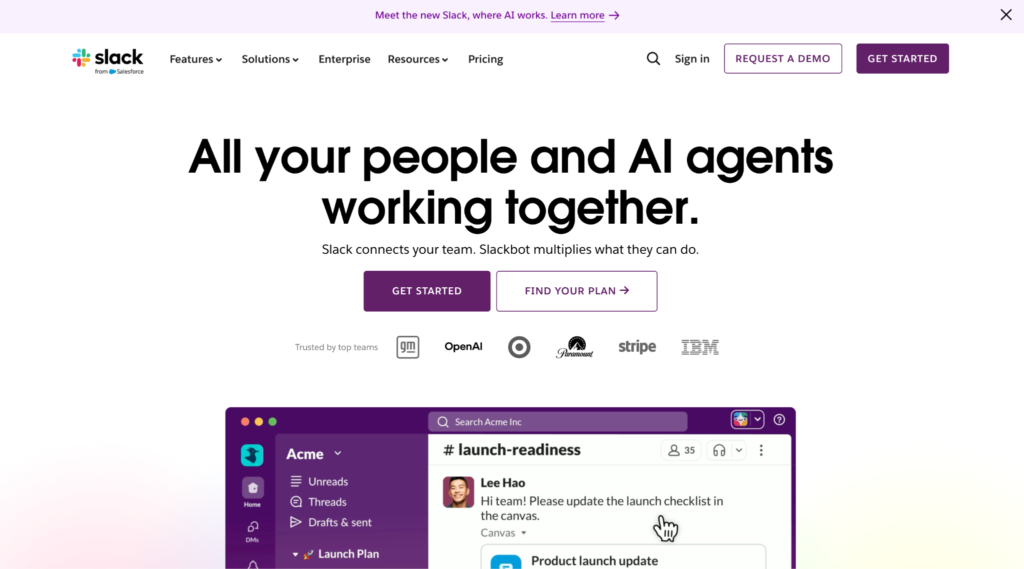
Slack is the ultimate alternative to a messy inbox. It supports more organized, real-time (or async) conversations using channels, which are structured spaces for projects and teams.
Thanks to deep integrations with other apps, Slack isn’t your ordinary chat. You can mold it into a central layer that aggregates updates and files from across your stack (e.g., from Google Drive, Jira, Salesforce CRM, or GitHub) and sends all of that comms to the right people at the right time.
More recently, Slack has leaned into automation. AI features like conversation summaries, translations, and AI-generated workflows cut through message overload, while Workflow Builder helps teams route requests, manage approvals, and standardize recurring processes. If you can configure these features properly, Slack can become an effective coordination layer, rather than an endless source of out-of-context updates.
Pros
- Convenient conversation labeling and powerful search
- Cross-app workflow automation to centralize data exchanges
- AI-powered conversation and file summaries
Cons
- Important conversations can quickly get buried in busy workspaces
- Excessive notifications can break focus and lead to work fragmentation
- May create always-on pressure for some team members
Pricing
- Free forever plan with feature limits
- 7-30-day free trial
- Paid pricing starts at $4.38/user/mo
Microsoft Teams
Best for: Teams already using the Office 365 stack

It’s pretty hard to argue against using Microsoft Teams if your teams already use Office 365 tools. It plugs directly into Outlook for meeting scheduling, SharePoint for document storage, OneNote for note-taking, Loop for task management, and Dynamics 365 for customer workflows. This level of continuity chips away at a common source of friction: figuring out where things live and how to access them, as long as they live within the Microsoft ecosystem.
Team collaboration follows a fairly structured model. Channels, threads, messages, and video calls all sit in a single environment, with files and meeting context layered directly into the conversation. The layout does quite a bit of heavy lifting here, keeping discussions and artifacts close enough to feel coherent without fully collapsing into each other.
Microsoft Teams also makes a strong play in automation. Bots and lightweight workflows can route requests or trigger follow-ups with minimal input, sometimes as simple as a reaction (e.g., 👀 can forward a message to another channel.) With the right setup, it cuts out a lot of the follow-ups. And for most teams, that’s where work stalls.
Pros
- Deep integration with Microsoft 365 tools
- Reliable video conferencing, built into daily workflows
- Effective automation with rules and bots
Cons
- No way to mark messages as unread to review later
- File search isn’t always very efficient
- Large workspaces can be slow to load
Pricing
- Free forever plan with usage limits
- 30-day free trial
- Paid pricing starts at $4/user/mo
Loom
Best for: Async video updates and knowledge sharing
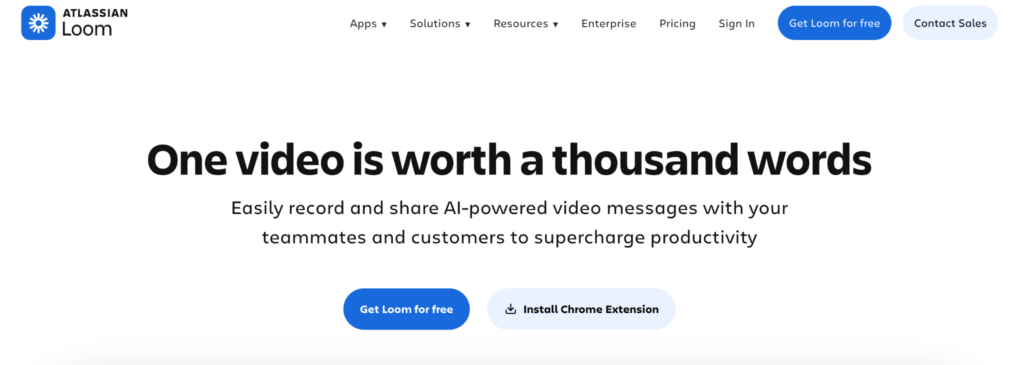
More of an add-on, rather than a standalone communication tool, Loom changes how teams share updates. Instead of repeating explanations or scheduling meetings, you record once and reuse the context, which is especially useful for walkthroughs, onboarding, and feedback. Beyond recording, Loom lets you capture meetings, generate summaries, and share key points without asking everyone to attend.
Ease of use is Loom’s strong point. You can shoot a high-quality video with just a browser extension and whip up an attractive finish using built-in video editing features like trim, stitch, backgrounds, text overlays, and others. Built-in tools like auto-background noise suppression and speaker notes streamline production, too.
The AI layer further eliminates repetitive tasks. It cleans up filler words, turns recordings into structured documents, and even pulls in screenshots to create step-by-step guides, using templates like SOP, Step-by-step guide, PR description, QA steps, and Code docs. Effectively, Loom cuts down on repeat explanations and status calls, replacing them with clear, reusable context in multiple formats.
Once again, Loom can be a great way to create more async communication practices, but it shouldn’t become the “default” way for sharing new to-dos or important process knowledge because video is harder to scan and reference.
Pros
- Combines screen recording and front camera view
- Turns videos into structured docs with screenshots
- AI summaries and transcripts save time on follow-ups
Cons
- Not a standalone collaboration platform
- Basic video editing toolkit
- Slower processing of longer recordings
Pricing
- Free forever plan for 25 videos
- 14-day free trial
- Paid pricing starts at $18/user/mo
Best async documentation and knowledge management tools
Documentation tools promise to keep institutional knowledge alive. They capture decisions, processes, and context so teams don’t have to repeat themselves.
But they decay quickly without ownership. Outdated docs create as much confusion as no docs at all. When maintained well, this category becomes the memory layer of your stack, reducing interruptions and freeing up time for actual work.
Notion
Best for: Building a workspace that matches how you think
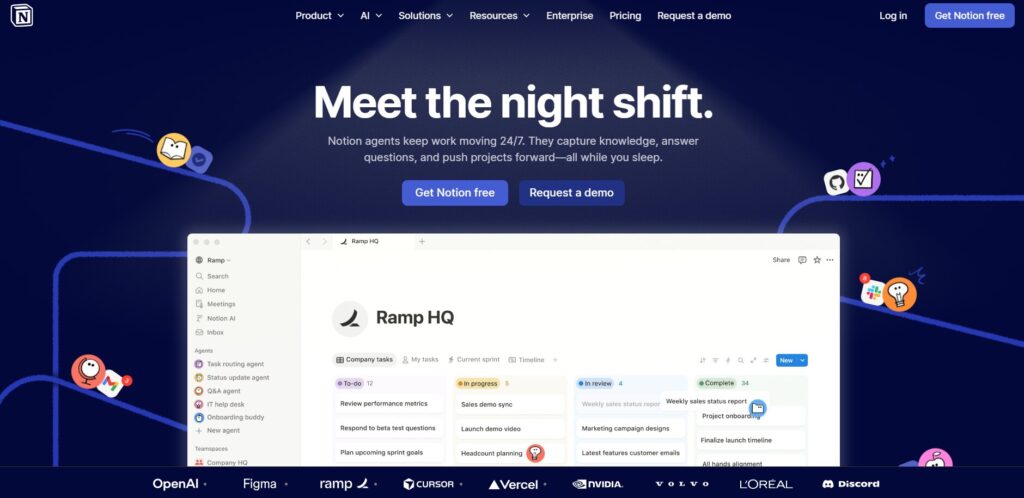
Notion gives teams a shared space to capture, organize, and preserve context using a flexible page-based structure. This avoids you having to hunt down institutional knowledge across the entire Google Workspace or Microsoft ecosystem.
You can structure Notion pages into databases, linked together, and viewed in different ways. Or transform them into wikis, onboarding guides, inventories, CRM-style trackers, reporting dashboards, or any other format that works for your use case. All of your team’s information stays accessible, searchable, and connected to the work it supports. If you want, you can also build a project management layer in Notion, like a simpler task tracker or project timeline views to keep execution and documentation closely linked.
This degree of versatility makes Notion one of the best productivity tools for smaller teams with a strong writing culture, who love working in docs rather than tasks. But without a clear structure, a Notion workspace can quickly turn into a well-designed mess.
Pros
- Highly flexible to suit different business functions
- Multiple views (table, board, timeline) for organizing knowledge
- Reduces tool sprawl by centralizing information
Cons
- Requires setup and diligent upkeep
- Can become messy as usage scales
- Performance can slow with large databases
Pricing
- Forever free plan with feature limits
- Free 30-day trial
- Paid plans start from $9/seat per month
Confluence
Best for: Bigger teams working with Atlassian products
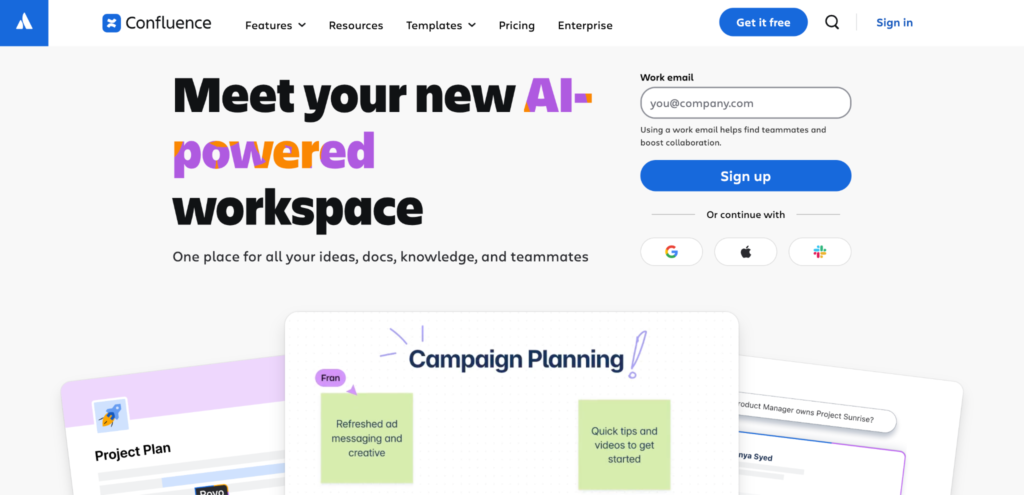
Confluence helps larger teams establish a shared, well-structured institutional knowledge base. Documents, meeting notes, project plans, and procedural guides live in one system, so information doesn’t get lost in motion. It scales well, but requires discipline; without it, complexity and friction creep in super fast.
Everything sits within Pages and Spaces, creating a clear hierarchy across departments and projects. Templates for strategy docs, planning sessions, and notes reduce setup time, while a personalized homepage locates drafts, updates, and activity so you can stay aligned without chasing context. Whiteboards add a more flexible layer for brainstorming and early-stage thinking, before ideas turn into formal documentation.
Confluence also works as a connective layer across tools. You can reference items from Jira, Figma, or OneDrive inside pages, and even turn whiteboard ideas into to-dos without switching screens. The database-style views make it possible to pull in and visualize information from multiple sources, with real-time updates and customizable layouts for different stakeholders.
Pros
- Scalable, configurable hub for organizing long-running projects
- Convenient page hierarchy and items cross-linking
- Version control for easier change management
Cons
- Steeper learning curve for new users
- Pages with embedded elements can be slow-loading
- Permissions and ownership aren’t always obvious
Pricing
- Forever free plan for up to 10 users
- Free 7-day trial
- Paid plans start from $5.42/seat per month
How to choose team productivity tools
Most productivity tools pitch the same features, so deciding among them comes down to how your team operates. To simplify your options, consider the following:
- Team size. Tools behave differently at different scales. Some stay fast and simple for small groups, but start to strain as coordination grows. Others only start to pay off when cross-team coordination and handoffs multiply.
- Workflow type. Project-based work needs timelines and dependencies. Continuous operations lean on repeatable processes and visibility. Client services bring in time tracking and billing, which shifts the expectations from your tool.
- Working style. Remote setups rely more on async communication and easily accessible documentation. Smaller, in-office teams rely less on written communication at first, but this often changes with headcount.
- Integration requirements. Productivity apps rarely work in isolation. If they don’t connect cleanly with the rest of your stack, they’d create more friction than they remove.
- Budget. Most tools support core workflows like task management and real-time collaboration at lower tiers. Costs usually rise when you need better reporting, permissions, or automation.
Pick a few tools and test the free plans before you commit. The right tools should fit into your workflow with minimal friction, not demand extra effort just to use them.
How to build your team’s productivity stack
Let’s be honest: tools aren’t the real problem. Most teams have a workflow problem that’s been papered over with more software.
You’ve added an app here and another one there because they each promised to “boost productivity”, even though your workflow wasn’t adapted to make the most use of it. As a result, throughput increases along with inefficiencies, already baked into your business process.
To avoid that, have a look at your core stack first — usually a task or project management app, paired with one or more communication tool(s).
This layer defines how work is assigned, discussed, and moved forward. When it’s working, it creates clarity around ownership and progress. When it’s messy, everything downstream inherits that confusion.
To diagnose the issues, add in a time tracking app (this is the most revealing layer, so it doesn’t make sense to consider it optional). Time tracking gives you a lagging indicator of how work unfolds across your team:
- Where does the time cluster?
- Where does it leak?
- Where are people stuck doing overhead work?
Time data doesn’t fix anything by itself, but it spots friction, like high admin overhead, broken communication loops, and redundant steps. Each of these patterns is easy to overlook until you see them quantified.
Once you know where the problems are, you can optimize the rest of the stack to match how your team works. For example:
- Adjust project management views so they reflect actual timelines
- Strip out approval steps that exist out of habit rather than necessity.
- Introduce automation where it removes repetition instead of adding complexity
- Rework notification settings to only identify relevant updates
- Tighten handoff points between teams so work doesn’t stall in transition
- Introduce simple tagging or categorization to make work easier to track and filter
With that done, async documentation starts to earn its place. When communication overhead becomes a drag on output, structured knowledge management acts as a pressure release valve. Think fewer repeated questions, fewer status pings, and more durable context.
Why Toggl completes your productivity stack
Most teams aren’t short on tools. In fact, many are wrestling with endless layers of coordination and updates instead of doing value-added work.
That’s why adding one more “all-in-one” tools rarely fixes anything. Productivity doesn’t come from stacking more features. It requires more thoughtful workflow design, optimized around outcomes, not activity or presence.
This is where a measurement layer changes the equation.
Toggl shows you where most teams’ efforts are concentrated and where employee productivity leaks, so you can fix the system, not just manage the symptoms. Understand how the workload is distributed, what causes delays, and where you can improve profitability, and you’ll get your answers.
Book a team demo or create a free Toggl account to decode where your team’s time goes.
Frequently asked questions (FAQs) about team productivity tools
What’s the difference between team productivity tools and project management tools?
Project management tools shape execution by defining tasks, ownership, priorities, statuses, and timelines so coordinated work moves forward with clarity.
Team productivity tools operate closer to the work itself. They shape how time is spent, how people communicate, how information gets exchanged, and where friction shows up day to day.
In well-functioning teams, the two reinforce each other. The project layer provides clarity and direction. The productivity layer reveals friction and helps you adjust.
How many productivity tools does a team need?
Most teams can run effectively on three to six tools. A core stack typically covers task and/or project management, communication, time tracking, and knowledge management. Any extra tools tend to overlap or introduce friction unless they cover a very specific gap in the workflow.
Are free team productivity tools good enough?
Yes, in many cases, free team productivity tools are enough to get a solid system in place for a two-to-five person team. They can cover the core workflows and allow you to test the setup before committing.
Limits tend to show up as your team grows bigger or needs deeper analytics, which is usually the point where upgrading starts to make sense.
What’s the best team productivity tool for remote teams?
Some of the best team productivity tools for remote work are:
- Asana or ClickUp for work coordination, collaboration, and goal oversight.
- Toggl to measure how long work takes, where time management can be improved, and how much capacity you have to take on new work
- Slack or Microsoft Teams for day-to-day communication and quick decision-making
- Notion or Confluence for knowledge management and keeping context accessible
How does time tracking improve team productivity?
Time tracking cuts through guesswork. It shows where time is spent, and that tends to expose inefficiencies teams have been rationalizing for months. Once the data is visible, it becomes much harder to justify bloated processes or constant context switching, and much easier to tighten how work flows.

Elena is a senior content strategist and writer specializing in technology, finance, and people management. With over a decade of experience, she has helped shape the narratives of industry leaders like Xendit, UXCam, and Intellias. Her bylines appear in Tech.Co, The Next Web, and The Huffington Post, while her ghostwritten thought leadership pieces have been featured in Forbes, Smashing Magazine, and VentureBeat. As the lead writer behind HLB Global’s Annual Business Leader Survey, she translates complex data and economic trends into actionable insights for executives in 150+ countries. Armed with a Master’s in Political Science, Elena blends analytical depth with sharp storytelling to create content that matters.