There are hundreds of apps promising to make you more productive. Timers, trackers, dashboards, scorecards, habit streaks, focus scores. At some point, the tooling itself becomes the thing eating your time.
So, we cut through it. This guide covers 10 productivity tracking tools worth considering in 2026, from simple time trackers for freelancers to workforce analytics platforms for distributed teams.
Instead of a simple tool list, you’ll find a practical guide to choosing the right tracker for your situation. Our breakdown covers key features worth looking for, a transparent look at pricing across free and paid options, and real user reviews for every tool, so you know what it’s like to use them day-to-day.
This list draws on our 20+ years of experience building time tracking and productivity software. Additionally, our writers spend hours researching the features, limitations, and customer reviews of each tool to categorize them based on their main use cases. As a result, all options below are proven, secure, and worth your time.
The 10 best productivity trackers: Quick comparison
Not every tool is right for every situation. A freelancer billing by the hour needs something completely different from a manager reviewing team output, which is different again from someone trying to protect their deep work time. The comparison table below is a good place to find your starting point.
| Tool | Best for | Tracking approach | Pricing |
| Toggl | Agencies, remote teams of all sizes, and freelancers | Manual timer + optional automatic background tracking (privacy-first) | Free plan (five users); paid from $9/user/mo |
| Clockify | Budget-conscious individuals and teams | Manual timers, timesheets; optional screenshots & GPS | Free plan (unlimited users); paid from $3.99/user/mo |
| Harvest | Service teams billing clients hourly | Manual timers with invoicing workflow | Free plan (1 user); paid from $9/user/mo |
| Timely | Teams wanting automatic time capture | Automatic activity capture + AI timesheets (no surveillance) | Paid from $9/user/mo |
| RescueTime | Individuals improving focus habits | Automatic background activity tracking | Free Lite plan; paid from $7/mo |
| TimeDoctor | Distributed teams needing oversight | Time tracking + screenshots + activity monitoring | Paid from $6.70/user/mo |
| Hubstaff | Remote + field teams | Time tracking + screenshots + GPS tracking | Free plan (1 user); paid from $4.99/user/mo |
| ActivTrak | Enterprises analyzing workforce productivity | Automatic activity analytics; optional screenshots | Free plan (3 users); paid from $10/user/mo |
| Rize | Individuals wanting AI productivity insights | Automatic AI activity tracking + focus analytics | Paid from $9.99/mo |
| Memtime | Privacy-focused consultants | Automatic local activity timeline (no cloud storage) | Paid from $14/user/mo |
What is a productivity tracker?
A productivity tracker is any tool that helps you measure, analyze, and improve your time management. These trackers range from simply recording how many hours you spend on tasks to analytics tools that offer insights on your working patterns and habits.
See if this sounds familiar: You finish the week exhausted. But somehow, you still can’t point to what you accomplished, and your to-do-list has stayed stubbornly full.
That’s the problem productivity trackers solve. They replace “feeling” busy with a tangible record of what you did, so you get a better understanding of where your time goes.
Productivity tracker vs. time tracker: What’s the difference?
Productivity tracker and time tracker are two terms used interchangeably, but they’re not quite the same thing.
- Time trackers answer: how long? They log hours against tasks, projects, and clients.
- Productivity trackers answer: how well? They track the quality of work that happened in those hours, showing where time might’ve gotten lost and which habits are helping or hurting you.
These two trackers overlap significantly, which is why they’re easily confused. But knowing you worked eight hours and knowing whether those eight hours moved the needle are two very different things.
How productivity trackers work: Core mechanics
At its core, a productivity tracker captures what you’re working on and organizes the information into meaningful insights that let you make better decisions about your time. Here’s how the main mechanics typically work.
Time capture
Either you’re starting and stopping a timer manually, or the tool is running in the background, detecting activity based on your open apps and windows. Either way, that raw time gets tagged to specific tasks, projects, or clients so you can answer questions like “How much time did we spend on the Henderson account this month?” rather than just “How many hours did I work?”
Goals and guardrails
Some tools let you set targets, like a minimum number of deep work hours per day or a cap on time in meetings. If you get off course, they gently nudge you back on track with an alert or notification.
Surveillance features
Certain productivity trackers go beyond logging time. Those built for remote team management also track app usage, websites visited, screenshots, keystrokes, and even location, though not all of them do. Tools like Toggl and Timely sit at the opposite end of the spectrum, with no surveillance features of any kind.
The same features mean very different things depending on the context. For individuals tracking their own personal time, any type of deep time tracking can be genuinely eye-opening, providing a clear record of where the day went. For teams, those same features can turn into employee monitoring, sometimes without a say in what’s captured. And for organizations in regulated industries like legal, finance, or government contracting, this level of oversight may even be a compliance requirement.
In our 20+ years of experience in the time tracking and productivity space, we’ve seen that surveillance monitoring in knowledge work is more likely to erode trust than improve output. Unless you have a specific legal or contractual reason to monitor, we recommend avoiding this invasive monitoring. When people actively choose to track their own time, the data tends to be more accurate and the results are better.
That’s why this article flags surveillance features explicitly for every tool that includes them.
Key features to look for in a productivity tracker
Not every feature matters for every use case, so rather than a generic checklist, here’s how to think about what you need in a productivity tracker app.
Must-have productivity tracking features for most individuals and teams
- Manual time tracking with one-click timers
- Automatic time tracking for background detection of apps, windows, and activity
- Calendar integrations to log meeting time automatically
- Task and project organization to tag tracked time with specific work and support task management
- Reporting and analytics with summaries of how you spent your time
- Cross-platform apps that sync on web, desktop, and mobile in real time
- Integrations with your current tools
Productivity tracking features worth considering
- Billable rates to track billable hours and generate accurate invoices
- Team dashboards and workload reports for quick looks at team time distribution
- Timesheet approvals for teams that feed time data into payroll
- Goal-setting and focus/Pomodoro sessions for deep work time
- Idle detection to flag non-working time and keep accurate records
- Mobile and offline tracking that syncs when you return online
The 10 best productivity trackers in 2026
The tools below aren’t all trying to do the same thing, which is why the right choice depends on your situation more than any feature comparison or pre-set templates. We’ve covered what each one is built for, what it costs, and what real users think of it.
1. Toggl
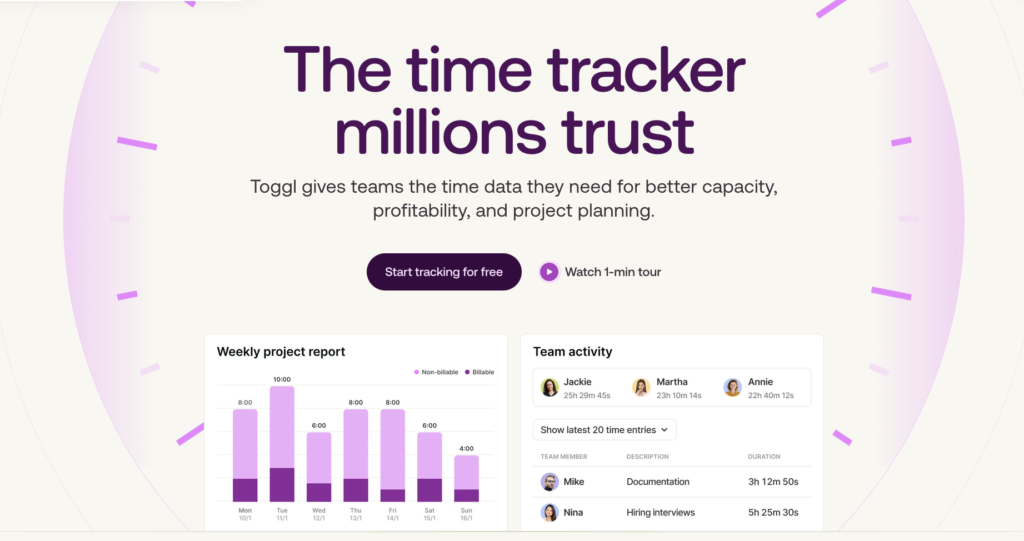
Toggl is built around a clear philosophy: logging time should be the easiest thing you do all day, and the insight it gives you should make that two seconds worth it. That’s why it has a one-click timer, automatic tracking, and syncs in real time across intuitive web, desktop, and mobile apps.
More than 70,000 companies have used Toggl, including teams at Amazon, LinkedIn, and SAP. On G2, it scores 9.1/10 for ease of setup. For a tool that only works if you remember to use it, that’s the number that counts.
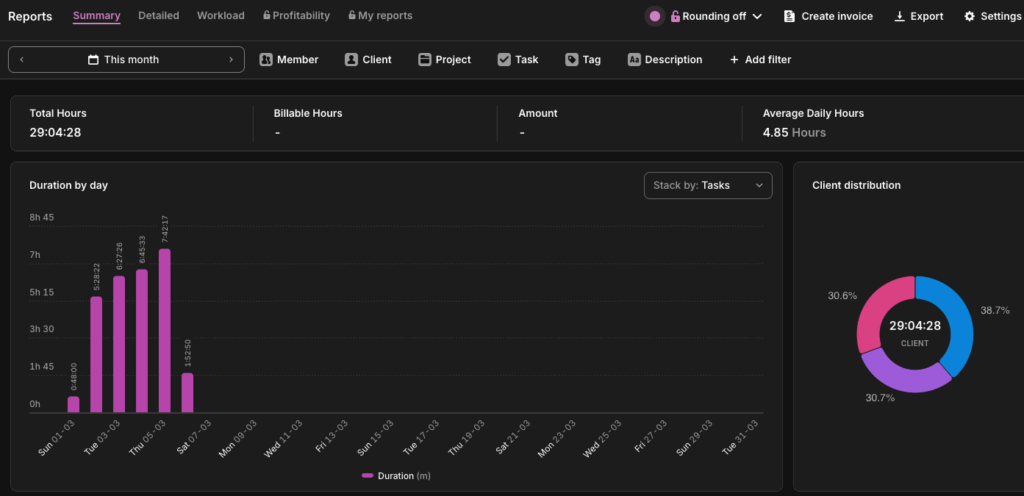
Checking hours worked this month and comparing against monthly client retainers.
Toggl as a productivity tracker for freelancers and individuals
Toggl doesn’t get in your way when you’re trying to track time. The full feature set is available on the web, so you’re not forced to download yet another app. And unlike some trackers, it has no interest in watching what you do — no screenshots, no keystroke logging, nothing like that.
What you get instead is a clear record of how long things take, which turns out to be the thing freelancers need most: to understand their own work well enough to price it, pace it, and communicate effectively with clients.
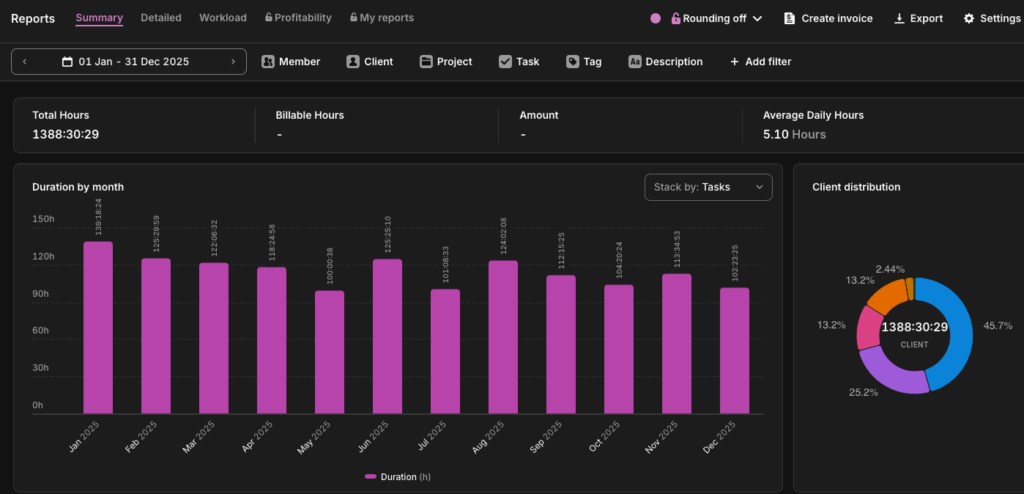
Seeing how your working hours split by client over a year.
Key features for freelancers and individuals
- One-click timers take two seconds to start, and setting a required project or client field means time never gets tracked to the void
- Detailed, filterable reports let you slice time data by client, project, task, or custom tag and export to PDF
- Calendar integration syncs tracked time alongside your external calendar (e.g., Google Calendar or Outlook), so the planned day and the actual day sit side-by-side
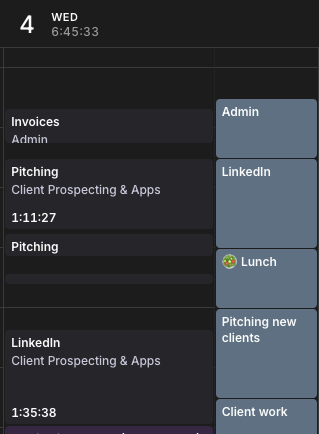
Toggl’s calendar view showing tracked time side-by-side with planned time (synced with Google Calendar).
- Tags add a layer of context beyond projects; tag entries by time of day, energy level, or work type to build a picture of when you do your best work
Finding your most productive hours by filtering tasks by time of day.
- Billable rates apply at the project, client, or task level so you can set your rate once and let the reports calculate what you’re owed
- PDF invoices are generated directly from your time reports, with custom branding and the ability to control exactly what clients see
Toggl as a productivity tracker for teams
The easier a tool is to use, the more accurately it reflects how your team works. Toggl’s two-second timer is why it gets 100% team adoption.
Working with reliable time data lets managers plan capacity and have better conversations with their teams about workload. Shared project visibility, team dashboards, and simple reporting give managers a reliable picture without micromanaging how people log.
Key features for teams
- Simple enough for full team adoption, with one-click timers and an interface so intuitive that logging time never becomes a productivity blocker
- Time off management lets teams track vacation, sick days, and leave directly in Toggl, so capacity planning and time data stay accurate without tool hopping
- Capacity planning: Combine time off management with accurate time data and utilization and workload reporting to make accurate plans that hold up in the real world
- Project management: Use simple Kanban boards with time embedded in tasks, Gantt charts, and online calendar planners to manage work your work
- Flexible integrations that embed a timer directly into the tools your team already uses, like Jira, Asana, Slack, GitHub, and more
- Team reporting covers revenue and productivity analysis, profitability tracking at project, task, client, and member levels, utilization reports, project forecasting, and timesheet approvals
- Personalized onboarding with a dedicated Customer Success Manager, custom training sessions, and priority support for Enterprise clients
Pricing
The free plan covers five users with unlimited tracking, projects, and clients. Paid plans start at $9/user/mo and unlock features like billable rates, revenue reporting, and a second workspace. Project forecasting, profitability tracking, and timesheet approvals are available at higher tiers.
What customers say
“Toggl helped me get a clear picture of how my time is actually spent during the day. Instead of guessing, I can log small tasks and later check where my focus went, which makes daily work feel more planned and less scattered. Being able to start and stop the timer in one click makes it easy to track these small work blocks without breaking my flow. The initial setup was simple, and I didn’t need any technical steps to begin.” — Ishan S., Manager & Dietician
2. Clockify
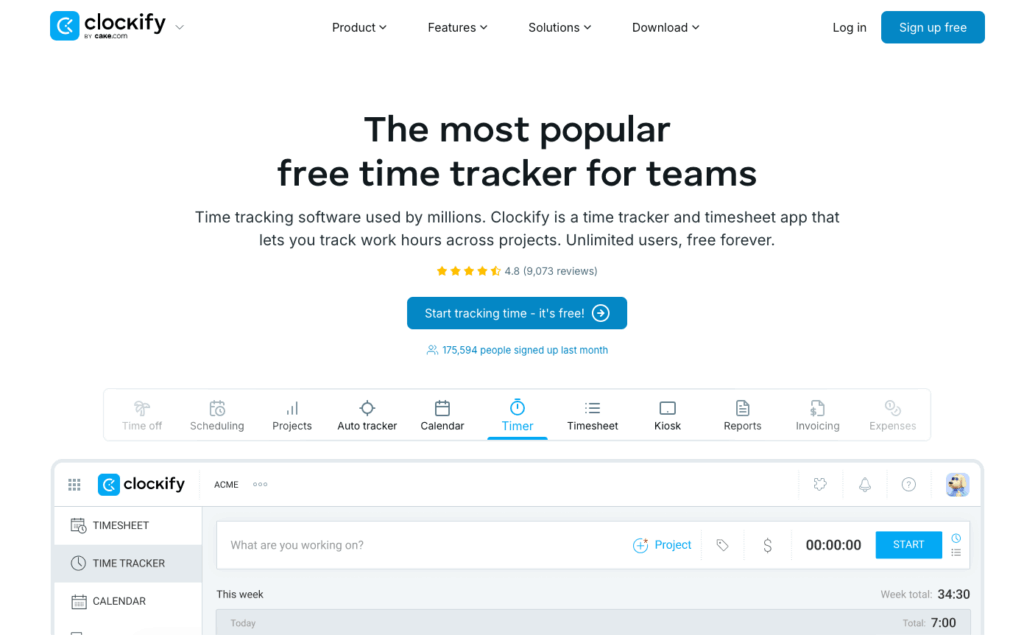
Clockify’s headline is its free forever plan, available for unlimited users and unlimited projects. Budget-conscious teams like startups, nonprofits, and small agencies find this offer genuinely appealing. The paid tiers are also some of the most affordable in the category, starting at $3.99 per user per month.
The feature set covers time tracking, timesheets, calendar views, project budgeting, 90+ integrations, and invoicing on paid plans. You can also use the Kiosk mode to let team members clock in and out on shared devices using a PIN.
Key features
- One-click timer and manual time entry with timesheet and calendar views
- Project and client organization with budget tracking and cost estimates
- Kiosk mode for shared-device clock-in via PIN
- 90+ integrations including Asana, Trello, Slack, and QuickBooks
- Invoicing available on Standard plan and above
- GPS tracking and screenshots available on Pro plan
Limitations
The free features could be somewhat limited for your use case.
Pricing
The free plan gives you unlimited users and unlimited projects. Paid plans start at $3.99/user/mo, progressively adding invoicing, timesheet approvals, project forecasting, GPS tracking, and SSO at higher tiers.
What customers say
“This is a straight out of box turnkey solution. Creating new clients and projects is extremely straightforward, which makes it much easier to handle reporting for billing and invoicing. Clockify is utilized by my team through our entire workday. I honestly can’t imagine how I managed this process before using Clockify! I haven’t had to involve Customer Support at all.” — Victoria M., CDI & Coding Compliance Sr. Manager
3. Harvest
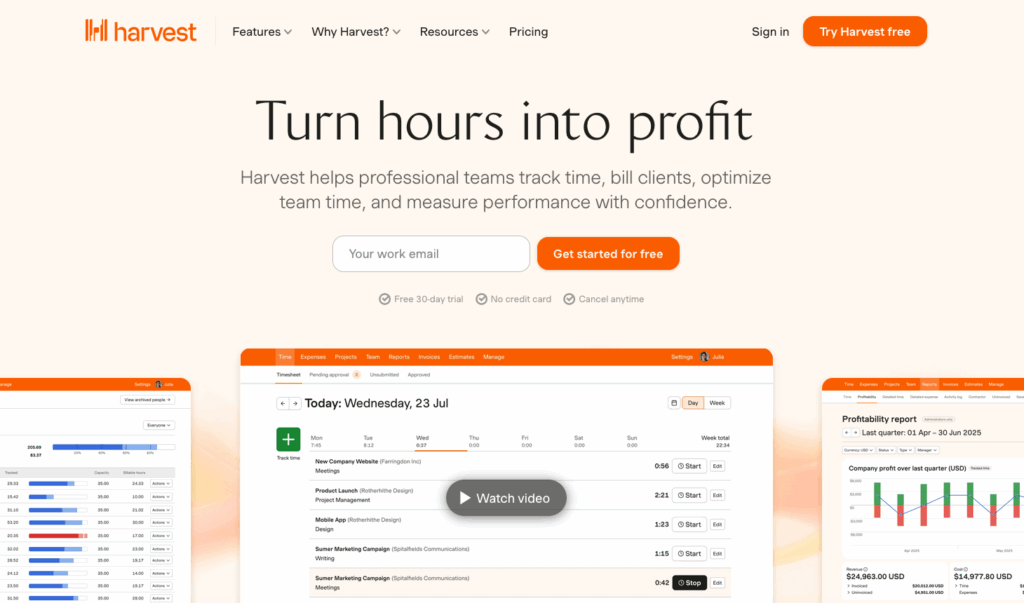
Harvest has been around since 2006 because it does one thing exceptionally well: getting you from tracked hours to a paid invoice as smoothly as possible. Clients can pay directly via Stripe or PayPal from the invoice itself. If you offer professional services that bill by the hour, this easy workflow is key to keeping your clients happy.
There’s no automatic capture and the interface is pleasant and well-loved by long-time users. You can also set up budget monitoring alerts for when thresholds get crossed, making it a useful tool for project managers.
Key features
- One-click timers with mobile, desktop, and browser support
- Expense tracking with receipt attachments
- Visual project budget monitoring with configurable threshold alerts
- Automated timesheet reminders for the team
- Invoice generation with online payment via Stripe and PayPal
- 50+ integrations including Asana, Slack, QuickBooks Online, and Xero
- Profitability reporting, timesheet approvals, SSO, and audit trails on Enterprise
Limitations
The reporting and analytics might feel a bit light for some agencies requiring deeper data or insights.
Pricing
Harvest has a free plan, capped at one seat and two projects. That’s enough to try it out, but not enough to run a team on. The Teams plan at $9/seat/mo removes those limits and unlocks full invoicing, payment collection, and budget monitoring.
What customers say
“Harvest is easy to learn and use. I needed something fast when I took on a consulting client. I found Harvest, downloaded the trial, set up a project, entered some time, and generated an invoice. I was able to do all of that within an hour. Entering/tracking time using the timer via the start/stop button is great! I can do that from my desktop or from my phone.” — Information Technology user
4. Timely
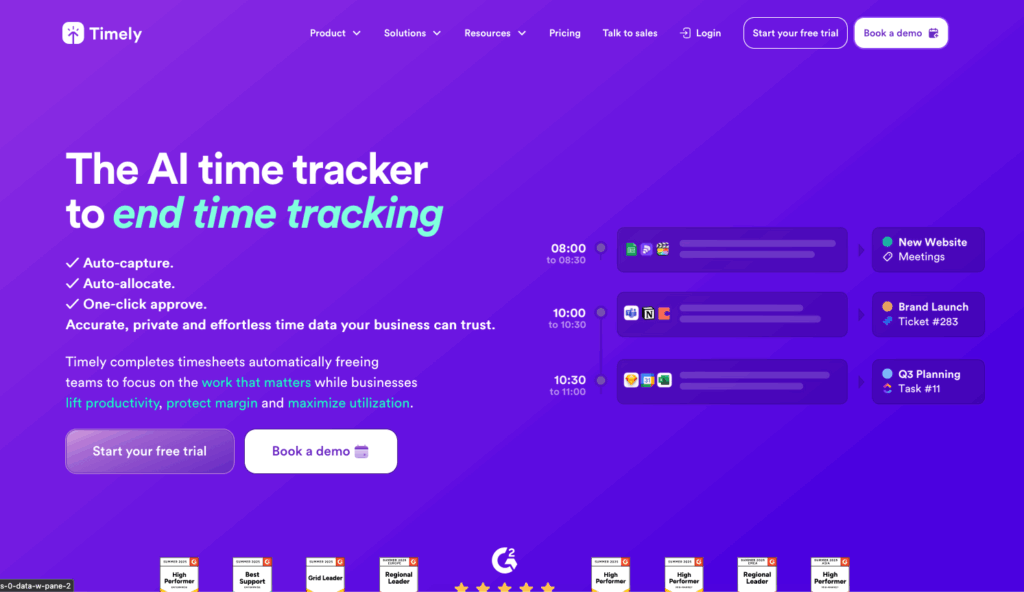
The core belief behind Timely is no one should have to fill out a timesheet manually. Its Memory Tracker runs in the background, capturing everything you work on (apps, websites, files, calendar events) and stores it in a completely private timeline only you can see. An AI then drafts a timesheet you can review and adjust.
Timely is a strong offering in the automatic capture category for teams, and, like Toggl, has a clear anti-surveillance stance on productivity tracking. No screenshots, no mouse tracking, and no manager access to raw activity data.
Key features
- Memory Tracker silently captures all digital activity and organizes it into a private, user-only timeline
- AI drafts timesheets based on captured activity, which you can review and approve in under two minutes
- Real-time project dashboards with budget and profitability tracking
- Team capacity planning and workload visibility
- Integrations with Asana, ClickUp, Jira, Google Calendar, Outlook, Zoom, Teams, and QuickBooks
- Privacy-first architecture
Limitations
Although the AI timesheets can be extremely helpful, you still have to go in manually to review to ensure total accuracy.
Pricing
There’s no free plan. Plans start at $9/user/mo covering core tracking and AI timesheet drafting. Higher tiers add project budgets, profitability tracking, and team capacity planning, with custom pricing available for larger organizations.
What customers say
“I like Timely’s memory feature that tracks my activity across all platforms because it allows me to go back in time and see what I did in the past days. It really helps when I don’t have time to track what I’m doing in real-time.” — Ericson D., Revenue Operations Manager
5. RescueTime
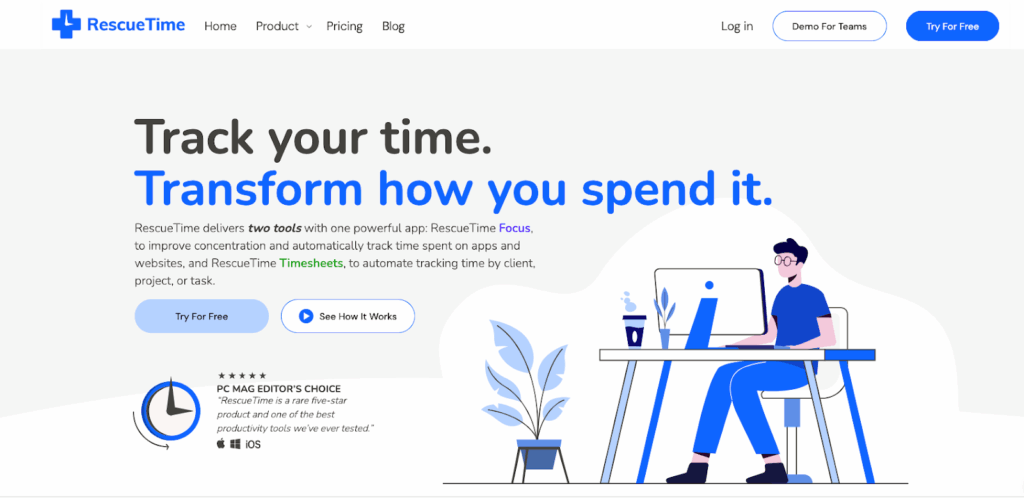
RescueTime is a different kind of tool, one built on self-awareness over billing. Rather than asking you to start and stop timers, it runs passively in the background all day. It measures what you do and categorizes all of your activities as productive or unproductive. The platform then converts the data into a daily Productivity Score out of 100.
Key features
- Full passive tracking runs in the background with no timers to start or stop
- Automatic productivity categorization with a daily Productivity Score
- Timesheets populated with your recorded activity which you can review, adjust, and export for billing and invoices
- Focus Sessions that block distracting websites
- Goal-setting tools and weekly email reports with habit analysis
- Distraction alerts and focus streak tracking
- Available on Windows, macOS, and Android (no iOS activity tracking)
Limitations
Getting the app set up with the proper tags can take some time and organization, so go in knowing you’ll have to spend time on that upfront.
Pricing
RescueTime offers a limited Free Lite plan. Paid plans for individuals start at $7/mo for focus and distraction blocking, with timesheet generation available on higher tiers. Team plans are also available.
What customers say
“Using Rescue Time has been invaluable as an easy way to track my productivity & effectiveness. It has enabled me to reduce my distractions as well as use my more productive times more efficiently.” — Jem F., CEO in Health, Wellness and Fitness
6. TimeDoctor
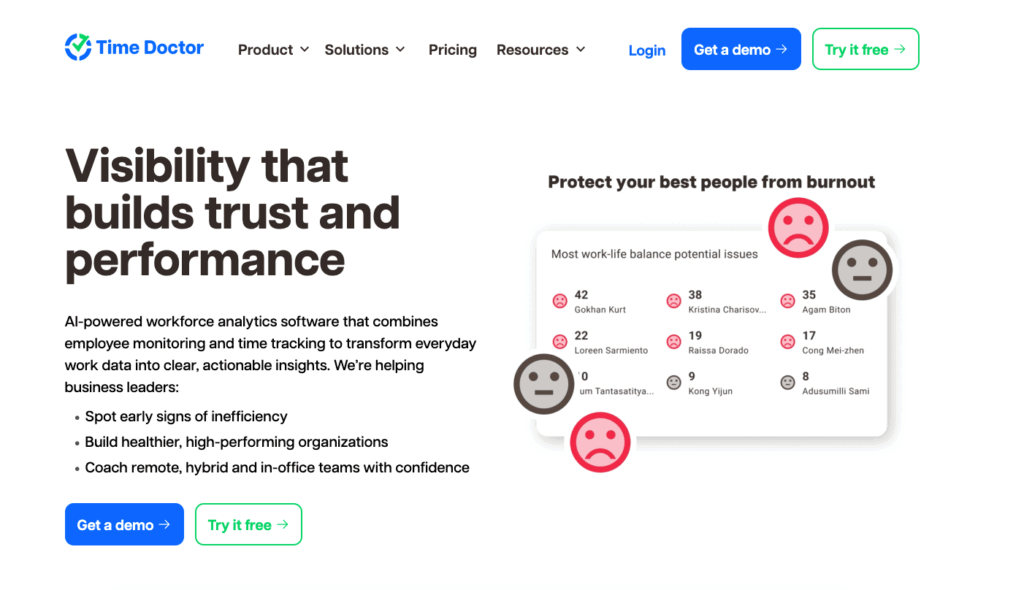
TimeDoctor is a workforce analytics platform that tracks time and activity, but also has detailed productivity reports and payroll management. When users clock in, TimeDoctor takes random screenshots and monitors the level of mouse and keyboard activity, before saving them in a time usage report.
It’s built for organizations managing distributed teams at scale, particularly in business process outsourcing (BPO) and IT services. Be sure to carefully evaluate its monitoring features before deciding if it’s the right productivity tool for your team.
Key features
- Time tracking with manual timers, idle detection, and distraction alerts for unproductive websites
- Screenshots at configurable intervals and employees can view their own
- Website and application usage logging, visible to managers
- Keyboard and mouse activity measured as a percentage (specific keystrokes aren’t logged)
- Video screen recording available on Premium
- Payroll management integrations with Gusto, ADP, and Wise
- 60+ integrations; ISO 27001, SOC 2, GDPR, and HIPAA compliant
- No stealth mode, so employees always know when tracking is active
Limitations
If the app records time incorrectly, employees need manager approval before they can adjust it.
Pricing
There’s no free plan. Paid plans start at $6.70/user/mo covering time tracking, screenshots, and activity monitoring. Video screen recording and the more advanced analytics features are locked to higher tiers.
What customers say
“We have been using it [Time Doctor] for more than 4 years and it has proved to be a great tool to manage the in-house and remote employees. It is pretty convenient to install and work with. It allows us to track time and improve productivity.” — Ryan H., HR Manager
7. Hubstaff
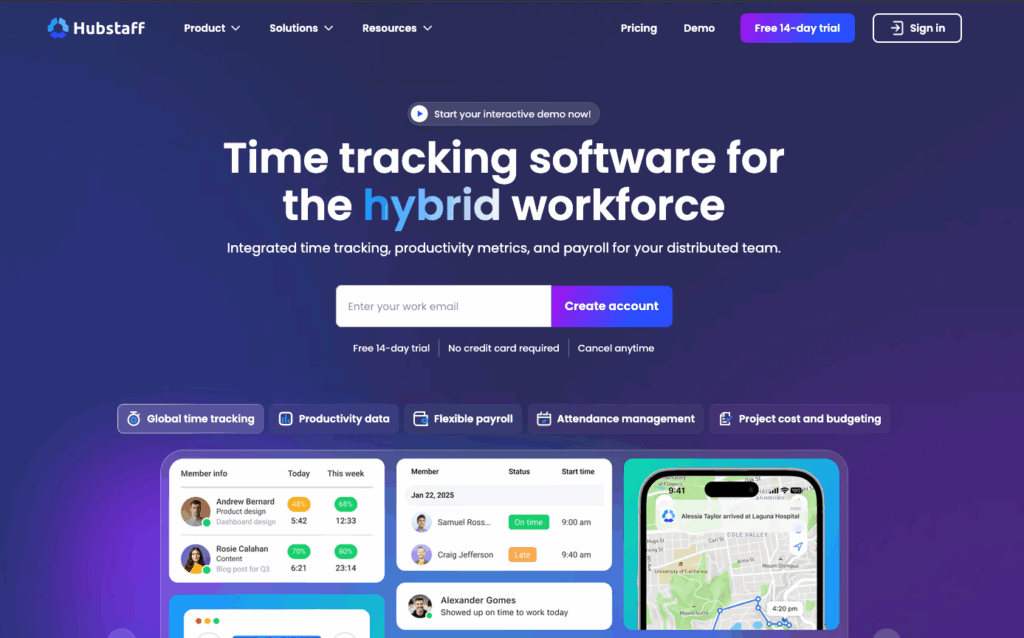
Hubstaff is designed for field-based and in-office teams. GPS tracking and geofencing mean a construction company can auto-clock workers when they arrive on site; a remote software team can use the same account for time and activity tracking without ever touching the location features.
Hubstaff also has employee monitoring features you should be clear about with your team before implementing them.
Key features
- Time tracking with idle detection and manual entry across desktop, mobile, and browser
- Screenshots at 1-3 per 10-minute interval; employees can view and delete their own
- App and URL tracking logs which applications and websites are used during tracked time
- Activity level monitoring measures keyboard and mouse engagement as a percentage (specific keystrokes aren’t logged)
- GPS location tracking with routes, timestamps, and time at locations as a paid add-on at $3.33 per seat per month
- Geofencing auto-clocks employees in and out at job sites
- Scheduling, payroll, and PTO management built in
Limitations
Some employees feel the screenshots can be intrusive. Users also report the features are also generally less customizable.
Pricing
Hubstaff has a free plan limited to one user. Paid plans start at $4.99/user/mo, with scheduling, project budgets, and invoicing unlocking at higher tiers.
What customers say
“Hubstaff features a user-friendly interface. Instead of just acting like a simple timer, it shows how time is being used. The dashboard is clean, organized, and easy to use. This allows the team to adopt the software quickly without extensive training.” — Priya S., Digital Marketing Manager
8. ActivTrak
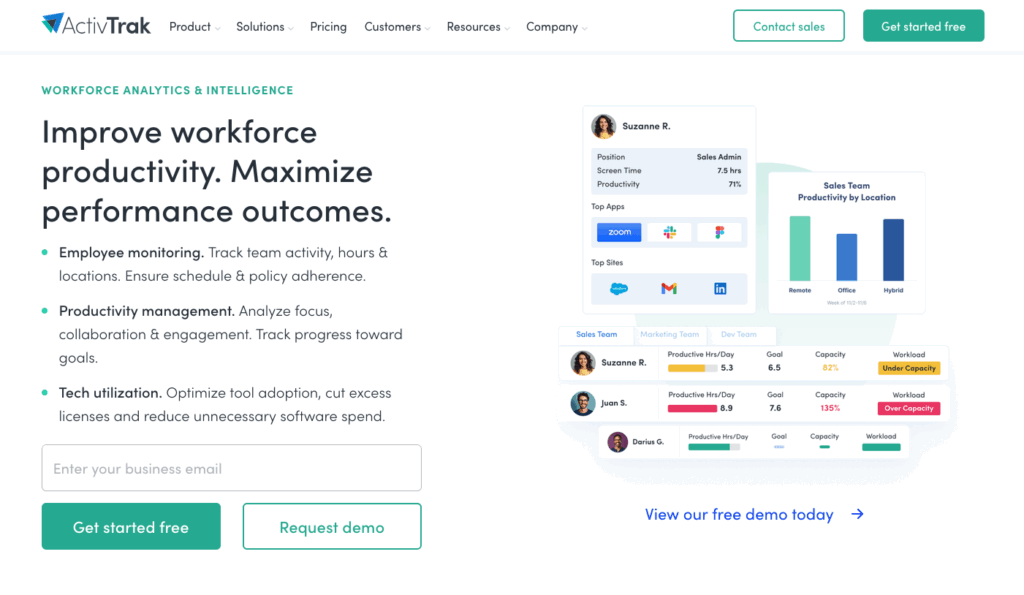
ActivTrak is built specifically to help leaders understand productivity patterns, so they can spot burnout risk and optimize capacity across large teams. You get dashboards and strategic insights from ActivTrak, rather than timesheets.
Screenshots are an optional paid add-on at $2/user/mo, not a default feature. The core platform tracks application and website usage, categorizes productivity, measures focus time, and provides AI-driven coaching recommendations.
Key features
- Automatic application and website usage tracking with productivity categorization
- Focus time measurement and context-switching analysis
- AI-powered coaching recommendations via ActivTrak Coach
- Workforce capacity planning with burnout risk detection
- Technology use tracking to identify underused or redundant tools
- Screenshots available as paid add-on feature
- Annual billing only; five-user minimum on paid plans
Limitations
ActivTrak collects comprehensive data which can be useful, but also a bit overwhelming and time-consuming to sift through.
Pricing
ActivTrak has a free plan for up to three users, which is genuinely useful for evaluating the platform before committing. Paid plans start at $10/user/mo (five-user minimum), with capacity planning and the full coaching suite unlocking at higher tiers. All paid plans require annual billing.
What customers say
“We have both remote and hybrid teams and ActivTrak has been very helpful when it comes to visibility and managing employee engagements. With ActivTrak in place, it is easy to know how time is spent which makes it easy for our team leaders to understand any underlying productivity issues and rectify them on time.” — Gerald S., Digital Marketer
9. Rize
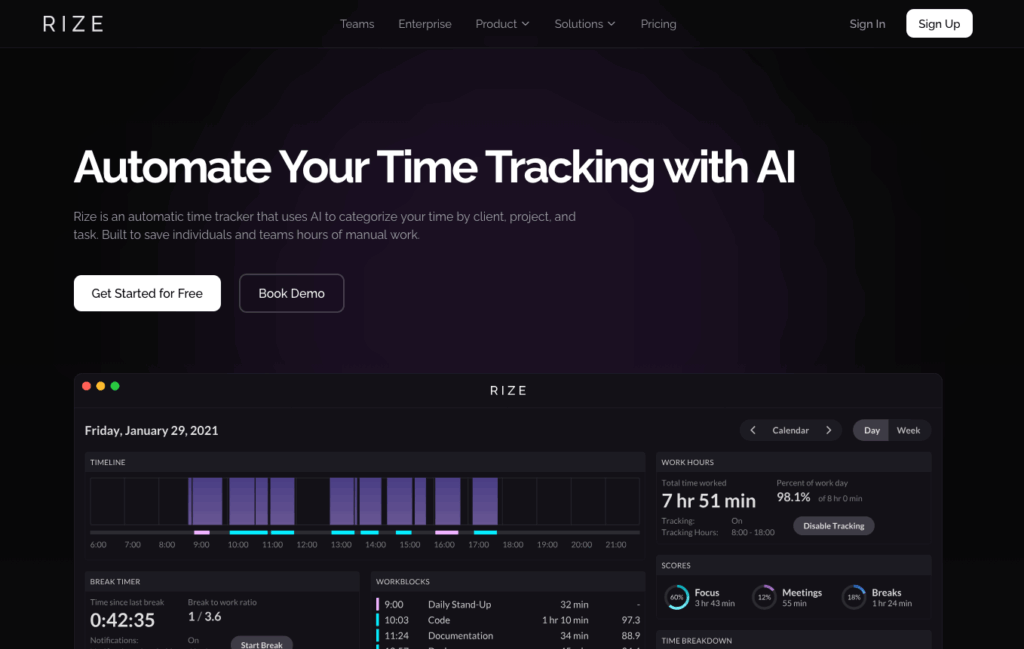
Rize is a desktop-only AI tracker (macOS and Windows) that automatically categorizes everything you work on using machine learning. It becomes more accurate the more you use it. Its standout feature is deep focus analytics which tracks context switching and measures a personalized Focus Quality Score across 20+ work attributes.
Key features
- Fully automatic time tracking; no timers, no manual entry
- AI categorization by client, project, and task that improves with use over time
- Focus Quality Score across 20+ work attributes
- Built-in distraction blocker and focus music library
- Automated email reports with PDF attachments, daily and weekly
- Desktop only (macOS and Windows); no mobile or web app
Limitations
When recategorizing activities, updates can sometimes be slower according to some users.
Pricing
There’s no free plan. Individual plans start at $9.99/mo covering automatic tracking and focus analytics. Team pricing adds shared dashboards and team-level insights.
What customers say
“One of its main features is its ability to track my time usage and identify when I’m having too many distractors or when I’m working too much or too little. This insight has been invaluable for improving my efficiency.” — Rodrigo Wörner
10. Memtime
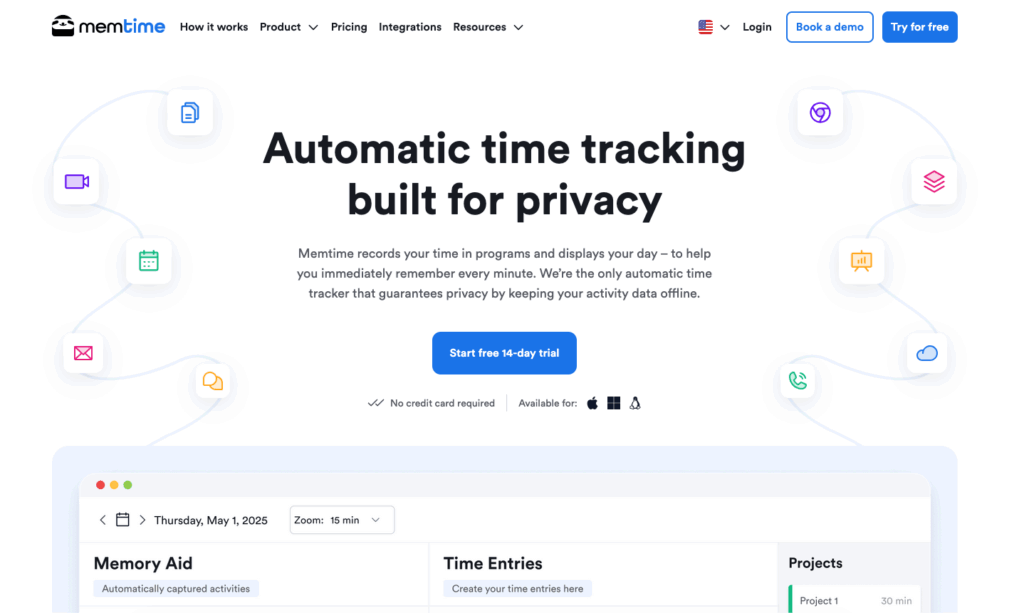
For the creators of Memtime, the biggest culprit behind lost billable hours isn’t laziness; it’s forgetfulness. The tool runs silently in the background on Windows, macOS, or Linux, recording every computer activity and displaying it as a private visual timeline. You can also drag, drop, and assign time to projects after the fact. Memtime also keeps activity data on your local device and never uploads it to the cloud.
Key features
- Fully automatic passive tracking with visual timeline; no timers and no manual logging
- All activity data stored locally
- Drag-and-drop time blocks from the timeline to projects retroactively
- 100+ software integrations on the Connect plan and above, including Jira, Asana, and Xero
- Calendar sync with Google, Outlook, and iCloud
- Custom reporting with PDF, CSV, and XLSX export
- Available on Windows, macOS, and Linux
Limitations
While the local data storage feature is good for those concerned about privacy, it also means there’s no syncing across devices.
Pricing
Memtime starts at $14/user/mo for unlimited timeline tracking and manual project assignment. The integrations only unlock on higher tiers.
What customers say
“I use Memtime to automatically track my work time in the background, which lets me accurately log hours without interrupting my workflow. I appreciate how it helps me stay organized, review how I spend my time, and easily sync tracked activities with Zoho for precise and effortless time reporting.” — Laurent H.
How to choose the right productivity tracker: 5 questions to ask
When looking for a productivity tracking tool, the overarching goal is to find one you’ll open every day without a second thought. Sure, extra features are great … until you tinker with them so much they distract you from doing anything worth tracking. Before comparing tools and features, answer these questions honestly:
Am I tracking for myself or for a team?
This question shapes almost every other decision. If it’s just you, choose something simple and fast, with a clean interface. If you’re choosing a team tool, you’ll need an extra layer that delivers shared reporting, user permissions, and project organization across multiple users. Some tools do both well — many are better at one or the other.
Do I need this tool to bill clients?
If you’re a freelancer, agency, or anyone who bills by the hour, you need a tool built around accurate invoicing — not one that includes it as an afterthought. You’ll want to look for billable rate configuration, client and project organization, and the ability to generate invoices or export cleanly to your accounting software.
Am I willing to manually log my time?
Be honest. Will you, or your team, reliably remember to start and stop a timer? If it’s a firm no, then you should strongly consider tools with automatic logging.
What do I want to learn about my productivity habits?
“Where is my time going?” (personal insight), “Are we profitable on this client?” (billing and project management), and “Is my team overloaded?” (workload visibility) are three different questions. Each points toward a different type of tool. If you want personal insights, distraction blocking features might be more interesting for you; if you need billing, look for billable rate setting features.
What’s my position on monitoring?
If you’re evaluating tools for a team, get clear about where you stand on surveillance features. There’s a meaningful difference between time tracking that lets people see into their own work and monitoring software that lets managers watch their employees’ every move.
What tools do we already use?
Your team is more likely to use a productivity tracker that’s embedded directly in your project management tool and syncs with your calendar and accounting software. If they have to jump around between systems whenever they want to log time, they’ll either log halfheartedly or not at all. And as soon as your time data becomes patchy, you’re only getting part of the story.
How to get the most out of a productivity tracker
Picking the right tool is only half the job. Most people set up a tracker, log time for a few days, then never look at the data. Here are some tips to get the most value out of your tracker and achieve productivity excellence.
Start with one clear goal
Are you trying to figure out where your time is going? Which client is most profitable? Keep your team on track? Trying to answer all of these questions right out of the gate will overcomplicate things. Pick one, set up your tracker to answer it, then add more as you go.
Track for one week before changing any settings
Yes, you started using a productivity tracking app to be more efficient. But before you can optimize, you need to observe your current patterns. Run a normal week, track what you can, and resist the urge to adjust your behavior based on what you’re seeing.
Build in a weekly review habit
A productivity tracker without a review habit is just a log. Take 20-30 minutes at the end of each week to learn which tasks absorbed the most time and whether your “deep work” hours are trending up or down. Also cross-check the time you tracked against your plans. Did you run over or under?
Educate your team before launching the tool
Time tracking data that appears without context reads as surveillance, even when that’s not your intention. Before rolling out any tracker to a team, clarify what you will and won’t use the data for. When your team understands why you’re doing it, they’re more likely to track consistently.
Remember: productivity tracking works best as a reflection and planning tool, not a real-time activity monitor for micromanaging your team.
Find the productivity tracker that fits how you work
There’s no single best productivity tracker. The right tool depends on what you’re trying to learn and how much friction you’re willing to tolerate to find out.
If you’re a freelancer or agency billing by the hour, you need accurate time data to invoice with confidence. If you’re a manager trying to understand team capacity, you need reporting that tells a story, not a spreadsheet with time stamps. If you’re trying to improve how you work, you need a tool that runs in the background and observes your patterns without interrupting you.
Not sure where to start? Toggl’s free plan is a natural first stop: robust time tracking software with unlimited projects and clients, no surveillance features, and a setup simple enough to use from day one without a tutorial. Give Toggl a try for free and see what you do with your time.
Frequently asked questions (FAQs) about productivity tracker tools
Are productivity trackers legal for employee monitoring?
Yes, productivity trackers are generally legal for employee monitoring, but with some conditions. In most jurisdictions, employers can monitor company-owned devices during work hours as long as they inform employees. But the legal conditions around disclosure, consent, and data retention vary significantly by country and region. If you want to deploy a tracker at your company, get legal advice first to make sure you comply with all relevant laws and regulations.
Do productivity trackers invade privacy?
Whether users find productivity trackers invasive depends entirely on the tool and how it’s used.
A timer you start manually isn’t usually invasive. A tool that takes random screenshots, logs every website visited, or tracks GPS location is a different matter. Most tools in this list are transparent about what they’re tracking and give users control over their own data, but be sure to read a tool’s privacy policy before you start using it with your team.
Can productivity trackers improve team performance?
Yes, productivity trackers can improve team performance, but not automatically. Simply collecting data for the sake of it doesn’t improve anything. The teams that benefit most are the ones using time data to have real conversations about workload, capacity, and where they spend their time.
What is the best free productivity tracker?
The best free productivity tracker depends on what you need. For straightforward and privacy-first time tracking with room to grow, Toggl’s free plan covers up to five users with unlimited projects and clients, and no feature walls on the core tracking functionality. For budget-conscious individuals, Clockify offers unlimited projects on its free plan. For individuals focused on focus and habits, RescueTime’s Free Lite plan is worth trying.

Courtney is a content strategist who helps B2B SaaS companies turn complex offerings into messaging their audience actually understands. She writes about SaaS tools and productivity for the teams that use them most: agencies, consultancies, and professional service firms. She's been in this space since 2019, long enough to know which game-changing apps actually changed anything.
![Why the Brain Sucks at Time Management [Comic]](https://toggl.com/blog/wp-content/uploads/2015/02/perception-of-time-673x404.jpg)