Microsoft Planner is a visually straightforward planning tool that’s already in the Microsoft 365 stack, playing nicely with Teams and Outlook. As a task execution layer, it does the job well enough.
But if you want to do some proper project planning, Microsoft Planner’s core experience falls short. It gates features like Gantt-style planning, templates, resource management, and reporting on higher tiers. It also doesn’t offer time tracking, dependency mapping, or profitability analysis.
Unlocking meaningful functionality usually means layering in additional Microsoft tools, licenses, and costs. What starts simple can turn into a surprisingly expensive and fragmented setup.
That feels particularly acute for former Microsoft Project Online users, pushed to migrate before the official sunset deadline in September 2026. Many are landing in Planner by default, and then hitting its ceiling just as quickly.
If you’ve outgrown Planner’s limitations and need better visibility, stronger planning, and more control over how work gets done, here are the nine Microsoft Planner alternatives worth considering.
9 Best Microsoft Planner alternatives at a glance
| Tool | Best for | Free plan/ free trial | Starting price | Advantages over Microsoft Planner |
| Toggl | Teams that want planning driven by real workload data | Free plan (up to five users) + free trial | $9/user/mo | Built-in time tracking Drag-and-drop timelines Capacity planning & workload visibility |
| Asana | Structured project management with strong collaboration | Free plan + trial | $10.99/user/mo | Goal & portfolio tracking Workflow builder with unlimited rules Better cross-project reporting |
| ClickUp | Creating customizable workspaces | Free plan + trial | $7/user/mo | More project views Advanced automation, More native collaboration tools |
| Trello | Simple, visual task management | Free plan + trial | $5/user/mo | Richer task details Better automation (Butler) More integrations and extensions |
| Wrike | Enterprise teams, seeking scalability | Free plan + trial | $10/user/mo | Advanced reporting dashboards Customizable request forms, Resourcing and workload views |
| monday work management | Visual project planning and cross-team coordination | Free plan + trial | $9/user/mo | Supports more complex workflows Timelines and dependency mapping Resource planner |
| Teamwork.com | Client work with billing and resource planning | Free plan + trial | $10.99/user/mo | Invoicing tools Billable time tracking Profitability insights |
| Notion | Lightweight task management and knowledge management | Free plan + trial | $10/user/mo | Docs + tasks in one tool Customizable reporting charts Databases for better knowledge management |
| OpenProject | Teams needing advanced project control and data tenancy | Free (community edition) + SaaS app trial | $7.25/user/mo | Open-source flexibility Advanced Gantt charts Full data ownership |
What to look for in a Microsoft Planner alternative?
Planner works when your workflow is simple. But the moment you need structure, visibility, or control, its limitations become glaring. If you’re looking for an alternative, and want to shortlist some top options, zoom in on platforms with the following features.
- Multiple project views. You shouldn’t be locked into boards or to-do lists. Look for tools that support more views out of the box, so you can adapt them easily to more use cases.
- Time tracking (native or well integrated). Planner doesn’t offer this feature, so you’re planning in the dark and taking your best guess at resource allocation. The best alternatives include time tracking directly for task estimation and reporting on efforts.
- Cross-project visibility. Managing one board is easy. Managing ten isn’t. Portfolio views, workload dashboards, and team-wide timelines help you understand how different work items interact and where things may start to slip.
- Custom workflows and statuses. Real teams don’t all work the same way. The best tools let you define your own task stages, automate handoffs, and adapt workflows as your processes evolve, not force your processes into a foreign structure.
- Freedom beyond the Microsoft ecosystem. Planner works best inside Microsoft 365, but that’s also its main constraint. Look for tools with strong integrations, like Slack, Google Workspace, and dev and accounting tools, so your workflow isn’t locked into a single vendor.
- Pricing. Microsoft is notorious for its complex licensing fees. Look for alternatives with clear plans where core project management features, like timelines, templates, reporting, are available without unexpected add-ons or platform dependencies driving up the real cost.
The 9 best Microsoft Planner alternatives for project planning, capacity management, and time tracking
Toggl
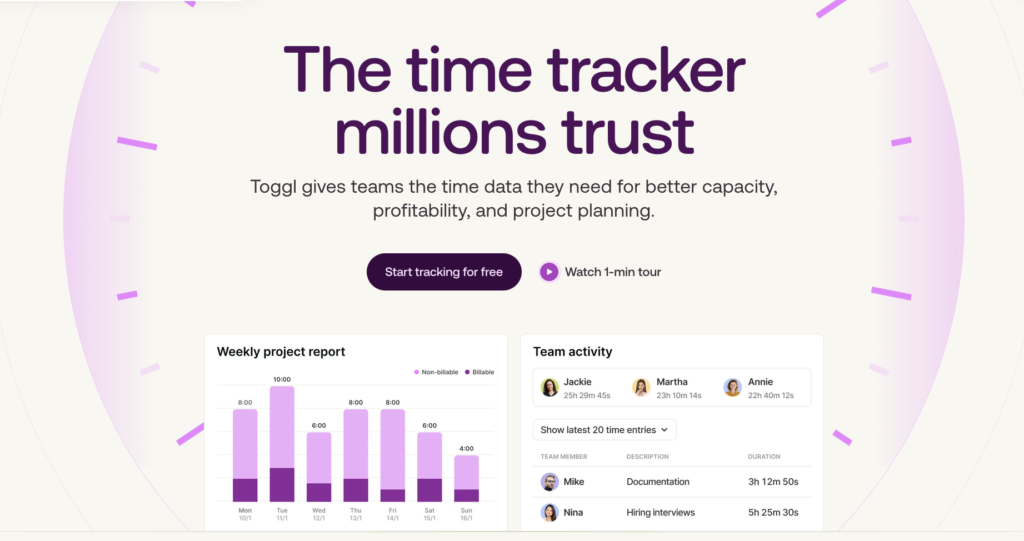
Toggl allows you to plan work, track time, and manage capacity in one system that shows how projects actually unfold.
The entire product experience is based on accurate, seamless time-tracking — a process that anchors planned work to actual output. It helps you understand execution speed, bottlenecks, and resource allocation effectiveness, so your plans are grounded in reality, rather than guesswork. For agencies and professional services teams, this connection between planning and tracked time keeps projects on track and margins intact.
Plan work the way you like
Toggl gives you multiple ways to see and organize work, depending on your needs. Use Task and Board views to easily assign day-to-day work.
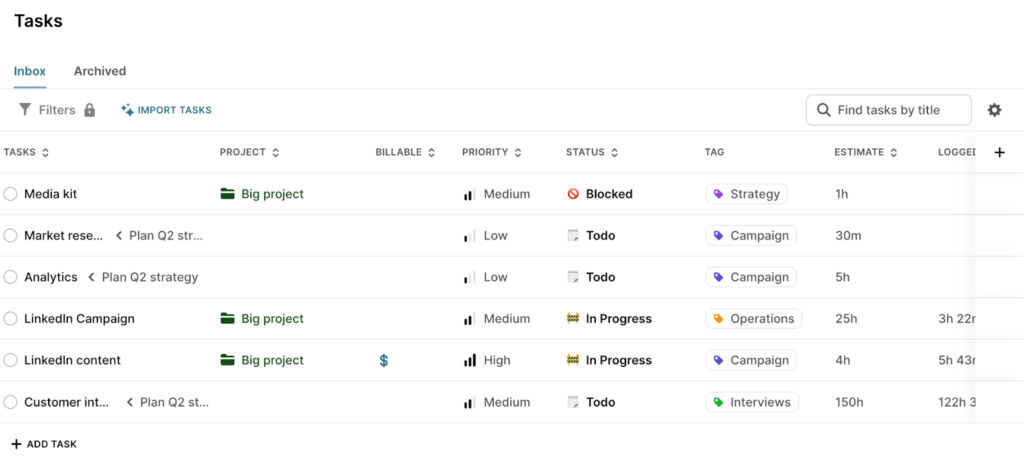
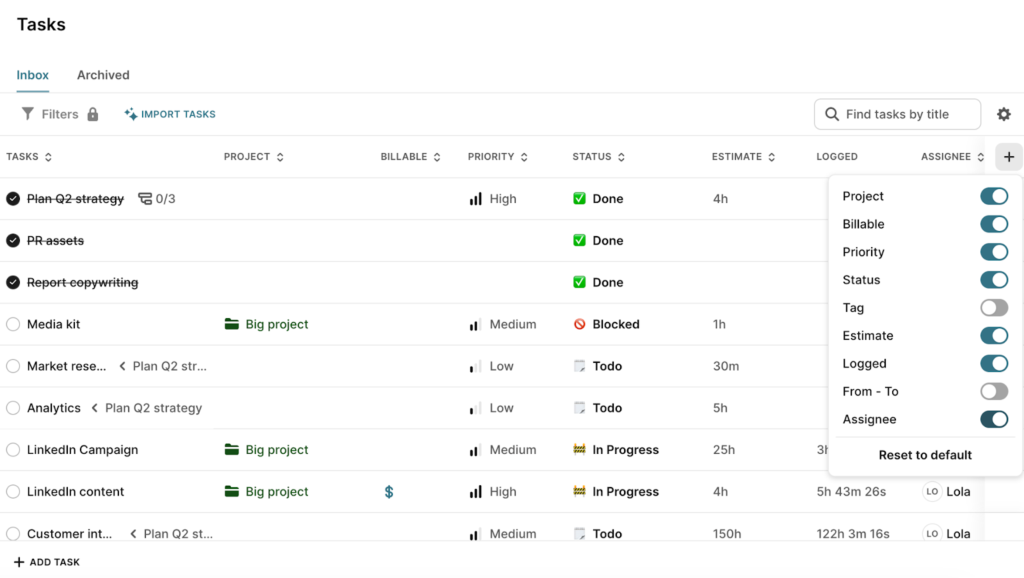
You can keep the view as simple or detailed as you like by adding or removing columns with a quick filter at the top right corner. For example, hide or display completed tasks or remove the billable rate column. Toggl provides structure without shoehorning you into predefined processes as MS Planner does.
To map the project flow visually, switch to the Timeline (Gantt-style view) and use the drag-and-drop functionality to schedule tasks, stretch them to adjust duration, and instantly see how that impacts the rest of the project.
Gantt charts are available starting from the Starter plan, which makes structured planning accessible without a pricey upgrade.
Know if your plan fits your team
Toggl offers built-in capacity planning and workload views that shows you who’s overbooked, who has room, and how effort is distributed across projects.
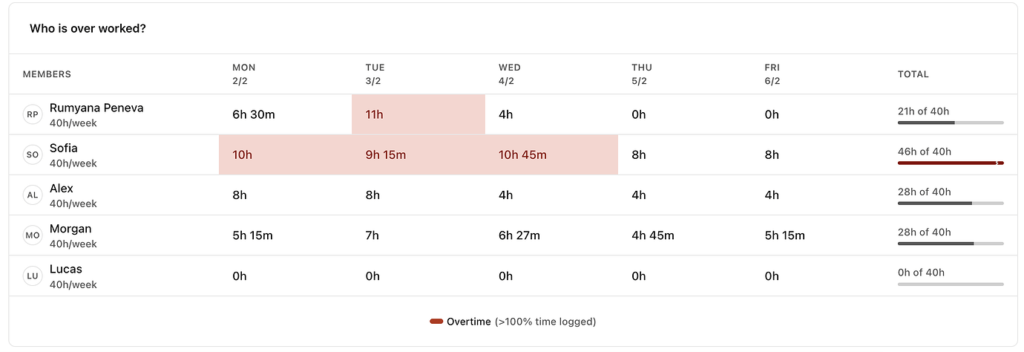
Availability factors in your team’s working hours, time off, and existing commitments, so you’re not assigning work to them based on assumptions. You’ll also see where your people are struggling and can adjust their workload before things escalate.
Straightforward pricing
Microsoft Planner looks affordable because it’s included in a Microsoft 365 license. But the free version is more of a personal task manager than dedicated project management software. If you want actual project planning features, the price and complexity climb fast.
Gantt charts, task dependencies, project templates, work prioritization, reporting, and workload management all sit behind Planner Plan 1 or higher tiers. And if you want deeper capabilities like resource management, financial tracking, or portfolio views, you’d be set back $30-$55/user per month. Not to mention extra licensing fees for using other tools in the Microsoft ecosystem, like Power BI for deeper analytics or Power Automate for workflow automation.
Toggl takes a different approach. Core planning features like time tracking, personal calendar, time blocking, recurring tasks, timeline (Gantt-style) planning, capacity views, and team-level reports with filters are all available in the Starter plan. If you want to manage resourcing more effectively, utilization and workload reports are available one plan higher.
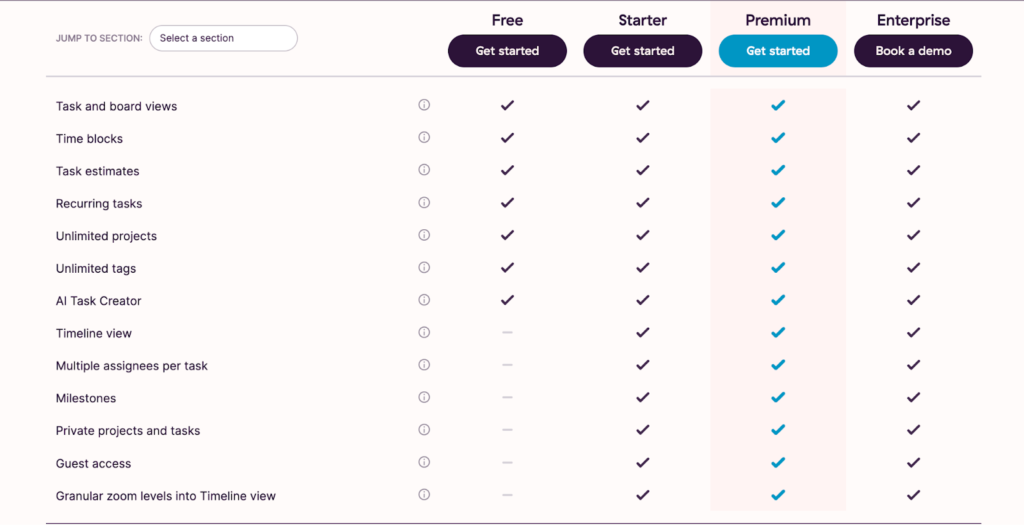
Instead of splitting features across multiple licenses and forcing updates, Toggl equips you with combined project management and time tracking from the start.
In contrast to Planner, which doesn’t offer native time tracking at any tier, Toggl builds it into every task and report. The result is a tool that delivers full visibility into both work and time without forcing you up the pricing ladder.
| Key features | Top use cases |
| Built-in time tracking: manual logs, real-time timers, and calendar-based tracking List, Calendar, Kanban, and Timeline views Task estimates vs. actuals Recurring tasks and milestones Multi-project and client project tracking and coordination Workload & utilization reporting Supported platforms: Web, Browser, Android, iOS, Windows, Mac. | Time tracking and billable work management Scope control and estimate vs actual performance Cross-project coordination and resource prioritization |
Pros
- Seamless visual planning. Drag-and-drop boards, calendar, and timelines make it easy to organize and (re)prioritize work as it comes in.
- Time tracking as a foundation. Built directly into the product, time tracking connects every task, timeline, and report, giving teams a clear view of actual effort versus planned work.
- Real capacity visibility. Workload and availability are based on accurate time data, so you can schedule work with confidence and avoid overbooking the team.
Cons
- Limited automation depth. The app currently doesn’t support complex, multi-step automation logic.
- Not built for heavy process mapping. Less suited for teams that require deeply customized workflows.
Pricing
| Forever free plan | Starter | Premium | Enterprise |
| Free up to five users | From $9/user/mo | From $20/user/mo | On-demand |
| Unlimited projects and tags Manual and automated time trackers Calendar integrations Focus mode Task and Kanban board views Time blocking Task estimates and recurring tasks AI task creator | Everything in Free plus: Timeline view Multiple assignees per task Milestones Guest access Team-level reports, with filters and billable rates Capacity planning tools | Everything in Starter, plus: Utilization and workload reports | Everything in Premium, plus: Personalized onboarding and a dedicated customer success manager Custom setup, integration, or reporting solutions Multiple workspaces under one organization |
Asana
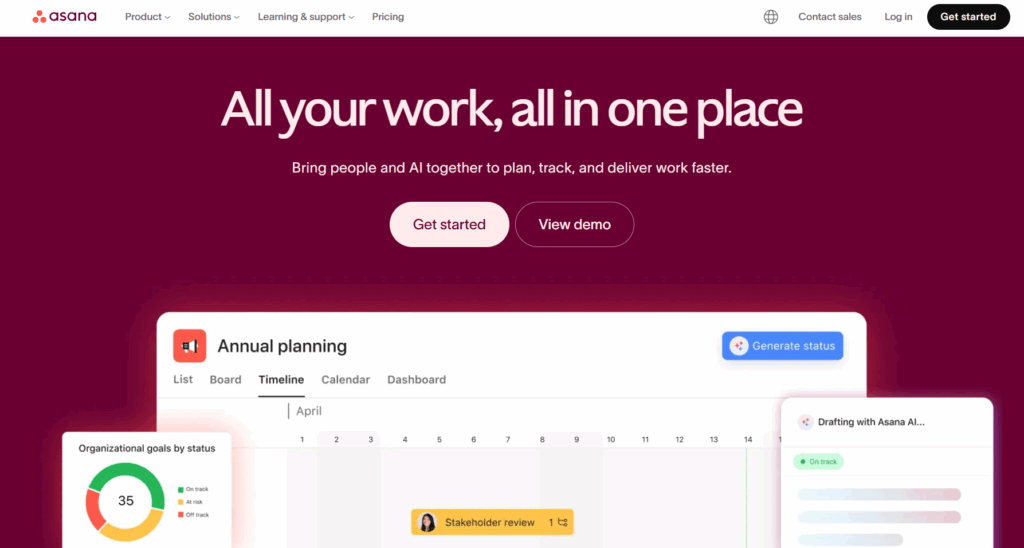
Asana is a scalable work management platform, built around the idea of clarity in motion. You can map work in List, Board, Timeline, Gantt chart, Goals, and Portfolio views, each providing a different perspective for managers and team members.
Tasks can have custom names, dependencies, budgets, priority, levels, and rules to trigger automation. Pre-made workflows include critical path mapping, proofing, and approvals, plus you can save your automation scenarios as templates and apply them in bulk across project spaces, using the workflow bundles feature.
Goals is one of Asana’s primary reporting views, linking individual KPIs/OKRs to broader department or company objectives and track progress in real time. Project dashboards host a variety of chart styles (pie, bar, line, burnout, etc.) to make the most important metrics instantly visible from across the organization. Higher plans also include portfolio dashboards, workload reports, and capacity planning.
| Key features | Top use cases |
| Multiple project views (List, Board, Calendar, Timeline, Gantt, Goals) Task management with rich details and customizations Goal and OKR tracking Workload and capacity management Automatic forms and intake workflows Scalable, multi-view reporting Supported platforms: Web, Windows, macOS, Android, iOS | Operational planning and process standardization Multi-project coordination across teams OKR tracking and performance management |
How Asana compares to Microsoft Planner
The Core MS Planner is much “lighter” than Asana. To get equivalent features, like project goals, subtasks, Timeline/Gantt views, dependencies, and custom fields, you’ll need a Premium Planner entitlement (Plan 1 or higher), which steepens the costs. Similarly, project portfolio management and financial controls (budgets, costs) get unlocked on Project Plan 5 — the highest tier.
Another important difference is workflow automation. Asana includes a native no-code workflow builder with unlimited rules, even with a Starter plan. MS Planner relies on Power Automate, which can streamline simple workflows within the Planner app and across the broader Microsoft 365 ecosystem. Some actions may require a premium Power Platform capability, which would trigger another license.
Pros
- Optimized work coordination. Leaders in marketing like how Asana keeps “all our moving parts in one centralized space”, making oversight, reporting, and task prioritization easier.
- Strong integration ecosystem. Tech teams appreciate how Asana can streamline cross-functional and cross-app actions (e.g., creating a GitHub issue from a triaged issue and notifying the CSR from closing a pull request that solved the issue).
- Templates. Some users rate templates as “game-changing” as they can easily standardize planning even for complex projects with multiple statuses and fields.
Cons
- Missing API. Asana doesn’t provide a public API for building custom integrations with other business apps, which some users find limiting.
- “Noise” problem. Multiple users point out that the Asana Inbox can get overwhelming quickly with too many notifications, and that having a “snooze” or better alert prioritization control would be helpful.
Pricing
- Forever free plan
- Free 30-day trial
- Paid plans start from $10.99/seat/mo
⚠️Gated features: Asana AI, Gantt view, custom task types, critical path mapping, workflow builder, custom fields, and project templates.
ClickUp
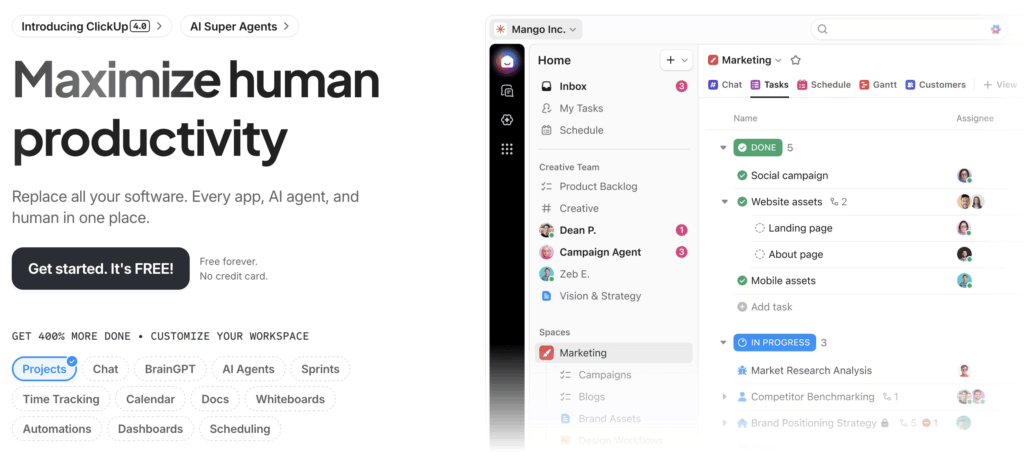
ClickUp packs the largest number of project coordination features into one intuitive interface. The hierarchical Folders/Space/Lists structure lets you set up dedicated spaces for different teams and use cases, with custom task types, statuses, fields, and workflow automation scenarios. Then swipe between views like board, calendar, Gantt, timeline, workload, or mind maps to see work from different perspectives.
Collaboration is another strong suit. ClickUp comes with built-in chat, comment threads with assignments, proofing with annotations, and even in-app video recording for quick updates, which are many more features than Microsoft To Do + Teams offer. You can keep the conversations tied directly to the work. This setup reduces tool-switching and keeps context intact, so planning, execution, and communication all move forward together.
| Key features | Top use cases |
| Unlimited custom views (List, Board, Calendar, Workload, Gantt, Table, and more) Custom fields manager Docs, wiki, and whiteboards Customizable forms Super rich editing AI and advanced automation Supported platforms: Web, Windows, macOS, Android, iOS | Cross-team workflow coordination Process automation and operations management Marketing campaign planning and execution |
How ClickUp compares to Microsoft Planner
ClickUp goes deeper than Planner in terms of process customization. You can build advanced task structures and workflow automation scenarios without relying on third-party tools. Reporting and charts are also more customizable, with an option to track goals, sprint points, availability, or even aggregated task statuses from your entire Workspace in one view.
ClickUp also offers richer views, with timelines that include native scheduling (based on tracked or estimated time) and dependencies. Mind Maps and Whiteboards are another handy add-on for creative brainstorming.
Pros
- Versatility. As a scalable, all-in-one platform, ClickUp can easily fulfil different use cases, with one company using the platform as a “CRM, bug tracking system, project management tool, and knowledge storage platform.”
- Customization options. A great selection of different views, statuses, and custom fields makes it easy to set up the workspace the way your team prefers.
- Promotes team collaboration. Having centralized access to project data saves some teams “almost 50% of the time we used to spend.”
Cons
- Not very advanced automation. Users wish there were more pre-made actions and a conditional logic that supports “or” triggers.
- UX is on the heavier side. The navigation is dense. Some users note that it can be difficult to go through the icons list, especially if you set a lot of different possibilities – the system does not help manage replicates at scale.”
Pricing
- Forever free plan
- 15-day free trial
- Paid plans start from $7/user/mo
⚠️Gated features: Unlimited spaces, advanced custom field manager, unlimited file storage, Team and Gantt views, private whiteboards.
Trello
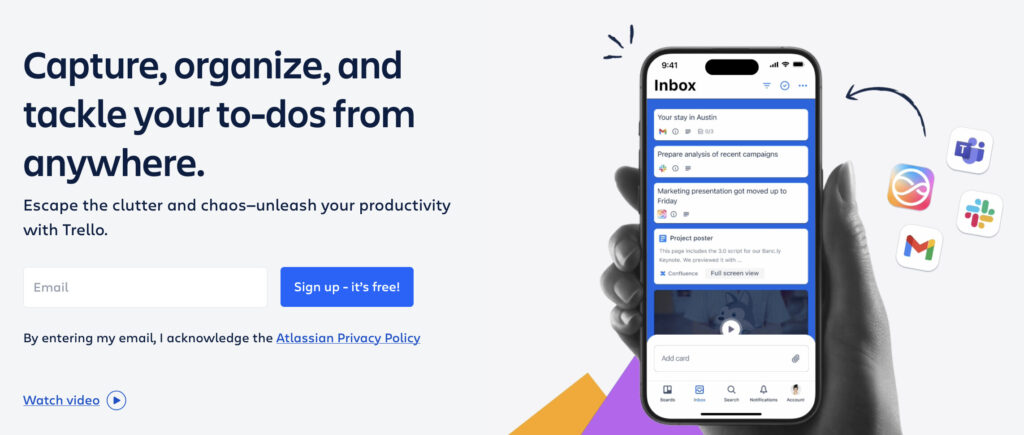
Trello is a fan favorite lightweight Kanban-like task management tool that offers close feature parity to Core Planner and is available to most Microsoft Teams users. You get a visually similar interface for sorting a to-do list of tasks onto a cardboard with details, due dates, tags, and attachments. Lists can also be color-coded or populated with custom fields on the Premium plan. You can also view your scheduled cards on a calendar and sync events from your favorite tools.
Trello integrates with over 200 other apps, enabling two-way data sync and additional functionality. For example, you can bring in a Gantt chart or card voting for task prioritization. Many of these Power-Ups are free or come with a small fee. Built-in automation assistant, Butler, further helps you keep your plans neat by running automation scenarios based on rules, in-app actions, or time-based triggers.
| Key features | Top use cases |
| Intuitive Kanban-like boards for task management Personal inbox view with AI-assisted task capture Extra dashboard, map, timeline, calendar, and table views Advanced checklists and custom fields for tasks Multi-board guest users No-code automation and third-party app integrations Supported platforms: Web, Windows, macOS, Android, iOS | Personal agenda management Lightweight team collaboration and task management tracking Internal request tracking and prioritization |
How Trello compares to Microsoft Planner
Trello offers a very similar user experience to Core Planner. You can sync events from your Calendar, turn Gmail/Outlook emails into structured tasks in a personal sorting view, or bring in data from other places (e.g., connected file storage). The key difference is that a Core Planner aggregates data from the Microsoft ecosystem, whereas Trello can be linked with more apps.
By default, Trello is more open-ended; you can customize cards in many different ways without being restricted by pre-made structures like task buckets. But it also boasts some nice ‘extras’, like more detailed checklists on cards and one-click card mirroring that reduce duplicate work and keep everyone aligned.
Pros
- Visual simplicity. “Ease of use” is a recurring theme across reviewers, with teams ranking the app as “uncomplicated” and “easy to adopt without a steep learning curve and stable.”
- Open-end planning canvas. Small teams appreciate how you can adapt the layout and level of details to suit the preferences of each user.
- Multi-purpose. Many people are using Trello for both personal and professional projects because it can be easily adapted for different purposes: strategy, task management, and knowledge management, etc.
Cons
- Limited reporting and analytics. Trello doesn’t include any project management reporting layers by default, nor provides workload, capacity, or financial analysis.
- No portfolio overview. Users comment on how Trello uses its attractiveness when you have multiple boards, since there’s no unified reporting to see high-level statuses.
Pricing
- Free forever plan for up to 10 collaborators
- 14-day free trial
- Paid pricing starts at $5/user/mo
⚠️Gated features: Unlimited boards, unlimited storage, extra views, custom fields, card mirroring, collapsible lists, smart, and color coding.
monday work management
monday work management is a dedicated platform built on top of the monday.com Work OS, and it’s designed both for scale and ease of use. Boards are the central view (with Timeline, Calendar, Map, and Chart available on Standard or higher plans), but they’re more feature-rich compared to MS Planner. You can add 36+ column types to represent resources, dependencies, locations, files, statuses, and other data. Special AI-powered columns, billed under a separate “AI credits” system, add some handy automation like text summarization, sentiment analysis, data extraction, label assignments, and more.
You can further shape workflows using custom fields, formulas, and no-code automation blocks, which streamline processes via integrations and APIs. Embedded documents and Zoom calls further reduce the need to switch apps, making monday work management a popular choice for larger teams living beyond the Microsoft 365 ecosystem.
| Key features | Top use cases |
| Tables with 20 different column types Big selection of planning and analytics views Unlimited free viewers and guest users Time tracking and resource management Portfolio management Built-in AI sidekick Supported platforms: Web, Windows, macOS, Android, iOS | PMO-style work coordination Portfolio and program management Work standardization and process alignment |
How monday work management compares to Microsoft Planner
monday work management is a better fit if you want to visually set up an operations hub for the entire organization. It handles complex workflows better, thanks to extensive customization, automations, dependency mapping, timelines, and broader reporting.
Similar to Toggl, monday work management includes a time layer to its project management software. Users can log hours against assigned tasks, and the tool can provide capacity indicators based on current and upcoming workload. A dedicated Resource planner and Capacity Manager are available on an Enterprise plan, but these don’t include functionality for booking/requesting resources in the same way as Planner Plan 5.
Pros
- Great adaptability. With CRM systems, project trackers, or onboarding workflows, monday can be easily molded to fit an array of business processes, according to users.
- Promotes operational clarity. PMO heads praise monday work management for its ability to effectively “balance, high-level strategic visibility with granular task execution.”
- Configurable automation flows. Users name the “virtually no restriction” automation logic as a major advantage for creating truly personalized in-app experiences.
Cons
- Insufficient file storage. Users on lower tiers find the storage caps very limiting and have to use extra cloud services instead.
- Subpar mobile app. Phone and desktop experiences are rather different and lack feature parity, which leaves some users wondering if they’re using the same product.
Pricing
- Free plan for two seats
- 14-day free trial
- Paid plans from €9 seat/mo
⚠️Gated features: Unlimited boards, unlimited free viewers, automation, time tracking, formulas, dependencies, resource planner, portfolio management.
Wrike
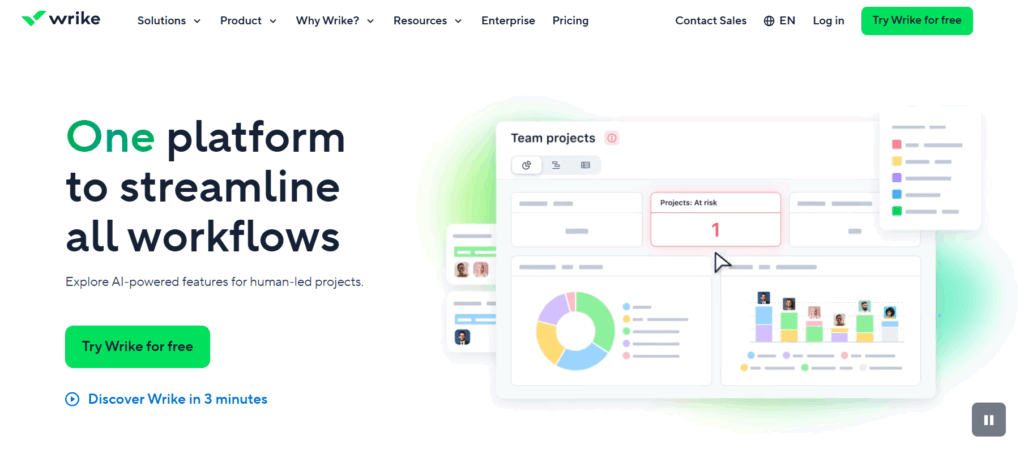
Wrike is an all-in-one work management platform with advanced project management features, a powerful report builder, resource management, AI, and workflow management. It can effectively support cross-team execution at both project and program levels through flexible task assignment views (Board, Table, Gantt, Calendar, Chart, Workload). You can easily customize workflows to suit your processes and track almost any status related to your work.
In-depth reporting dashboards let you visualize data from multiple sources (including third-party apps like Tableau) in a convenient format. You can also build forecasts, based on historical data, for example, to estimate future revenue or project completion dates. Resource Management tools (available on Business plan and higher) also bring time reporting into the mix, so you can better manage effort allocation and project budgets.
| Key features | Top use cases |
| Task management with subtasks Account-wide work schedules Dynamic Gantt chart Real-time reporting dashboards AI and workflow automation Resource and capacity planning Supported platforms: Web, Windows, macOS, Android, iOS | Enterprise work management Portfolio and program tracking Process automation and approvals |
How Wrike compares to Microsoft Planner
Wrike sits closest to Microsoft Planner Plan 5. Both offer planning with portfolio and enterprise resource management features, and a similar number of views — Gantt, workload management, calendar, and more. But Wrike has greater flexibility across tools and workflows, with broad integrations, an open API, and more workflow customization options.
Microsoft Planner, in contrast, relies more on Teams, Outlook, and SharePoint, especially for collaboration, which Wrike handles natively through comments, file sharing, and cross-project reporting. If your team doesn’t lean much into the Microsoft ecosystem, it may be a more convenient option.
Pros
- Decentralized collaboration. Managers appreciate how Wrike removes them from the hand-off processes by giving teams an effective structure to follow at different stages (proofing, approvals, etc).
- Built-in collaboration tools. Many users praise new features like the ability to comment directly within tasks, tag teammates, and share files in context as they cut down the email chains.
- Fast start. Busy leaders say they can “get a project up and going in under 30 seconds” and easily find all the essential info quickly, thanks to intuitive navigation.
Cons
- Learning curve. Adopters say the learning curve becomes more noticeable when implementing advanced features like automations, custom fields, and advanced workflows.
- Limited integration with the MS ecosystem. If this is what you care about a lot, you may be disappointed by the limited sync with Outlook and MS Teams.
Pricing
- Forever free plan
- 14-day free trial
- Paid pricing starts at $10/user/mo
⚠️Gated features: Custom fields, workflows and statuses, portfolio management, calendars, Gantt chart, real-time reports, request forms, and custom approval flows.
Teamwork.com
Teamwork.com is a purpose-built project management tool for managing client projects end-to-end. It augments task management, with time tracking, budgeting, and resource management features, tying every logged hour back to progress, cost, and revenue. Projects can be structured across multiple views, with milestones, dependencies, and timelines that reflect how each client project unfolds.
The platform stands out in how tightly execution and operations are linked. You can plan capacity, track utilization, and monitor budgets in real time from one interface. Intake forms turn requests into structured work, recurring projects can be templated, and reporting surfaces both delivery status and financial performance. It’s a setup designed to give teams control over not just what gets done, but how sustainably and profitably it runs.
| Key features | Top use cases |
| Role-based & client billable rates Resource and capacity management Gantt, Table, List, Board views Time tracking and task estimation Shared documentation spaces Budgeting and invoicing Supported platforms: Web, Windows, macOS, Android, iOS. | Client project and retainer management Agency operations and delivery workflows Resource planning and workload balancing |
How Teamwork.com compares to Microsoft Planner
Teamwork.com is a stronger fit to run projects commercially. It’s designed for easier external collaboration with simple guest access provisioning, intake forms, approval workflows, shared documentation spaces, and chats.
The planning tab is built for capacity planning and assignment visibility, which allows you to effectively layer retainer work, based on task estimates and available team capacity. Different user roles can have different billable rates — something Microsoft Planner doesn’t support — which enables more accurate revenue tracking and invoicing, built into Teamwork.com too.
Pros
- Organizational management. In the words of adopters, “the tool makes it incredibly easy to manage teams, projects, and departments,” thanks to multiple roles and superb oversight mechanisms.
- Cost management features. These receive frequent praise from users as they allow them to see “how much money has been spent on a task and how much time it has taken”.
- Granular permissions. Being able to “set up any user however you wish, even at the project level” is a strong attractor for others.
Cons
- Occasional performance issues. Users note the app becomes less responsive with scale and can get sluggish when you add larger projects with lots of tasks and data.
- Slight feature creep. Although users generally appreciate the frequency of product updates and extra functionality, some say these features aren’t necessarily relevant to them, making the interface feel more visually cluttered.
Pricing
- Forever free plan
- Free 30-day trial
- Paid plans start from €9.99/user/mo
⚠️Gated features: Billable user rates, client quotes, workload planning, tentative projects, utilization reports, formula field, Gantt view, critical path mapping.
Notion
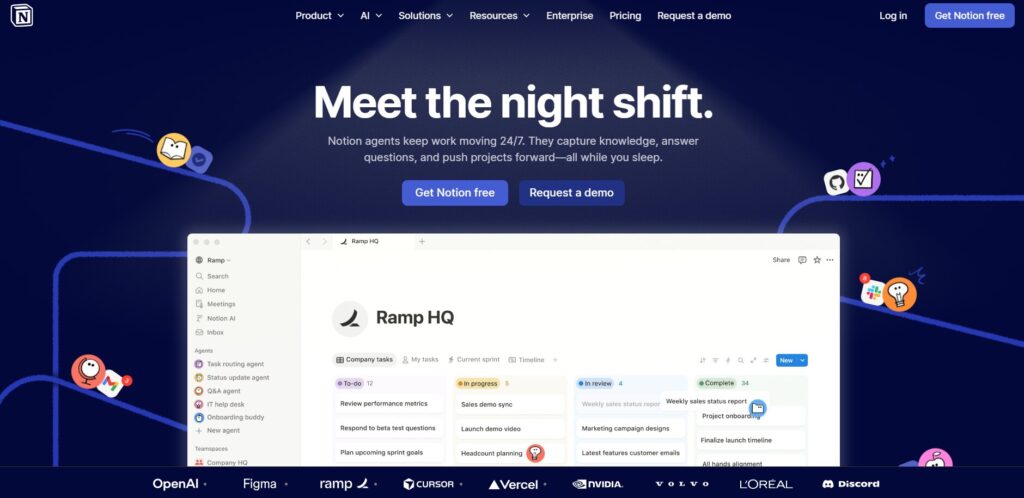
Notion is less a project management tool and more a workspace you build yourself. The experience is centered around Pages with customizable blocks — to-do lists, boards, calendars, tables, math formulas, video, and 500+ other embeddable services. Instead of giving you pre-made views (timeline, boards, etc), Notion provides buildable components and lets you decide how to structure and connect work.
Notion can act as a task manager, a space for team SOPs, a sprint planning hub, or a shared workspace for ongoing projects, often all at once. Templates help you set things up faster. Some premium ones also bring in extra functionality, like time tracking or capacity planning views. You can also embed data from third-party apps, such as Jira tickets or Figma previews, directly into your workspace. And with webhooks, you can connect Notion to the rest of your stack to centralize data and workflows.
| Key features | Top use cases |
| Nested pages with embedded blocks Subtasks and dependencies Customizable charts to visualize data from the databases Public API and webhooks for integrations Permission groups and advanced security settings Notion AI and Notion Agents Supported platforms: Web, Windows, macOS, Android, iOS. | Corporate documentation and wikis Personal and team task management Product backlog and roadmap tracking. |
How Notion compares to Microsoft Planner
Notion and Microsoft Planner approach work in completely different ways. Planner gives you a structured system out of the box: due dates, dependencies, progress tracking. Notion starts with a blank page, which you can mold into a layout that fits your team.
Notion does better with knowledge management, with rich editing, intuitive page navigation, and better relationship mapping, courtesy of its database structure. Compared to SharePoint, Notion feels more pleasant and easier to use and maintain. Templates are another strong point. Planner keeps them locked on higher-tier plans, while Notion gives you a wide library for free and lets you turn anything into a reusable template in seconds.
Pros
- User-friendly experience. Adopters appreciate how the drag-and-drop interface “makes organizing information fast and actually enjoyable.” You can build dashboards and workflows without any technical skills.
- Notion AI. Users also like the ‘housekeeping’ built-in algorithms perform: “I just upload my documents, and it organizes everything for me without any extra work”.
- Great value for money. As the app is so customizable and extendable, many users have stopped paying for separate tools for notes, task management, and knowledge organization.
Cons
- Suboptimal search experience. Notion spaces can host a lot of data, but finding the right bits isn’t always easy, as search often “gets completely irrelevant results or misses the note entirely”, according to users.
- Slow performance. Multiple users observed that the app “starts to feel slower than it should” and “can feel a bit slow” when you add denser pages and large databases.
Pricing
- Forever free plan
- Free 30-day trial
- Paid plans start from $10/user/mo
⚠️Gated features: Unlimited file uploads, Unlimited guests, private team spaces, unlimited charts, custom forms, dashboards, and Notion AI.
OpenProject
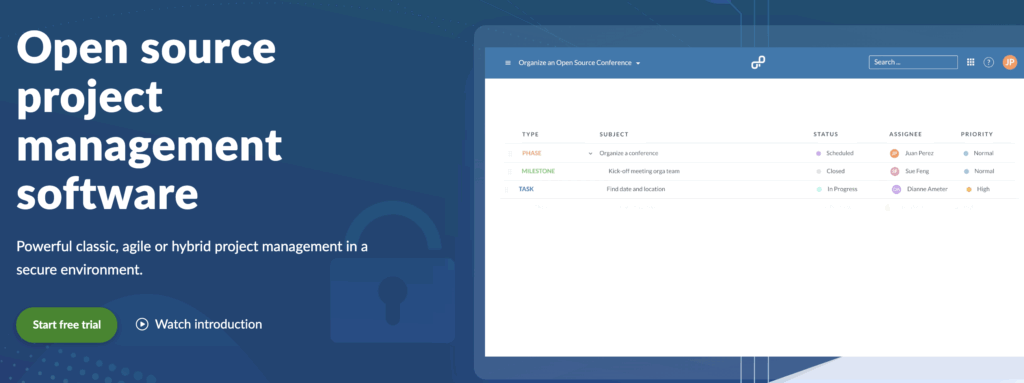
OpenProject is a project management platform for teams requiring full control over how their projects run, including where their data lives. You can self-host the Community Edition on your own infrastructure to keep everything in-house, or opt for the Enterprise edition with cloud hosting and added capabilities like workload reporting, portfolio management, integrations, and automation.
At its core, OpenProject organizes work through “Work Packages,” which can represent anything from tasks and milestones to bugs or change requests. Each “Package” carries structured data like status, owner, priority, and deadlines, and can be viewed across tables, boards, timelines, or dashboards. Around that, you get the tools to run delivery: time tracking, budgeting, scheduling, document collaboration, templates, and granular user controls. It’s less about lightweight task tracking and more about managing the full lifecycle of complex work.
| Key features | Top use cases |
| Customizable project life cycles Agile boards, Gantt charts, Scrum taskboards Time tracking and team calendars Custom fields and workflows Subprojects, boards, and portfolio management Intelligent workflows with custom action buttons Supported platforms: Web, Windows, macOS, Linux, Android, iOS (all via self-hosting or SaaS subscription). | Agile sprint planning and backlog tracking Waterfall project management with dependencies Public sector and construction project management |
How OpenProject compares to Microsoft Planner
OpenProject shifts more ownership to your end. You can deploy it in the cloud or self-host it. The latter provides full control over data, access, provisioning, infrastructure management, and customization. A well-documented API allows you to extend the app and shape it around your workflows, not settle for a predefined environment as you do with Microsoft Planner.
In terms of task management, OpenProject uses richer work packages that represent anything from bugs and support tickets to physical assets, each with custom fields and deeper context. Planning is also more precise. You can map dependencies, schedule resources, and track budgets with a financial layer that ties effort to cost.
Pros
- End-to-end work coordination. Users rate OpenProject as a “feature-loaded platform” that allows them to coordinate all the projects from start to finish without switching tools.
- Strong reporting. The ability to “generate detailed reports on project progress, time tracking, and resource allocation” without much hassle is highly valued by managers in the banking space.
- High data security. Teams also appreciate how top-notch security and sturdy authentication allow them to handle “sensitive information without any worries”.
Cons
- No offline access. Several users mentioned they’d love to have this feature.
- Steeper adoption curve. You’ll first need to install and configure the system, which is a whole effort on its own, before properly training new users.
Pricing
- Free Community Edition
- 14-day free trial license
- Paid pricing starts at $7.25/user/mo
⚠️Gated features: Team and subproject boards, portfolio management, unlimited baseline tracking, automated project initiation request, team work planner, and intelligent workflows.
How to choose the right Microsoft Planner alternative
You don’t have to settle for missing features or overpay for essentials when other tools offer much better value for your money. Here’s a quick cheatsheet to help you find a better fit:
| Problem | Recommendations |
| “I can’t see how work fits together across projects.” | Asana, Wrike, monday work management |
| “I need proper timelines and Gantt charts without enterprise pricing.” | Toggl, ClickUp, OpenProject |
| “Our workflows feel too rigid or oversimplified.” | ClickUp, Notion, monday work management |
| “I’m migrating from Microsoft Project Online.” | Wrike for enterprise teams Toggl for small/mid-market |
| “I need client-facing project management with billing.” | Teamwork.com |
| “We rely too much on Microsoft tools and want flexibility.” | Asana, Notion, OpenProject |
| “I just want something simpler—but better than Planner.” | Toggl, Trello, Notion. |
One last tip: Mind the switching costs. Migrating data, retraining your team, and rebuilding workflows takes time.
To avoid getting roped into a system that isn’t quite right, test 2-3 options with a real project. It’s the fastest way to see what truly fits your team, not just what looks good on a sales sheet.
Set and execute data-driven plans Toggl
Microsoft Planner gets teams running with minimal friction. It lives inside the Microsoft ecosystem, doesn’t take much cognitive load to master, and works well for simple, team-level coordination.
But as projects multiply and timelines start to matter, simplicity gets in the way. A lack of time tracking, limited planning views, and weak cross-project reporting are all gaps that push teams to look elsewhere.
If that’s your situation, Toggl keeps the visual clarity Planner is known for, but adds the layer most teams eventually need: time-based planning. You can map work on visual timelines, understand who has capacity, and track how long tasks actually take — all in one place. Your plans stay grounded in reality and aligned with your team’s capacity.
For teams that need to plan, balance, and deliver work without constant firefighting, Toggl is a natural next step. Create a free account and see how time-first planning changes the way you work.
Frequently asked questions (FAQs) about Microsoft Planner alternatives
Does Microsoft Planner have time tracking?
No, Microsoft Planner doesn’t have native time tracking features. Instead, popular alternatives like Toggl, Teamwork.com, Wrike, and Asana offer manual and automatic time entry, billable rates, plus task estimation.
Is there a free Microsoft Planner alternative?
Yes. Popular free alternatives to Microsoft Planner are Toggl, ClickUp, Trello, and Notion. Most offer more flexibility out of the box, with features like multiple views, basic automation, reporting dashboards, or time tracking included. The key difference is they don’t lock core functionality behind a broader ecosystem, so you can test and scale them without costly license provisioning.
What is the best Microsoft Planner alternative for Gantt charts?
If you want pro-level Gantt charts, OpenProject and ClickUp offer advanced timeline views with task dependencies, critical paths, and auto-scheduling. These are all features that Planner simply doesn’t support. And if you want simpler timelines to visually coordinate work around deadlines and available capacities, Toggl is another top option.
Which MS Planner alternative works best with Microsoft 365?
Asana and Trello are Microsoft Planner alternatives that both slot well into the Microsoft 365 ecosystem, without locking you deeper into it. They integrate with tools like Teams, Outlook, and OneDrive, so you can keep your existing workflows while gaining more flexible project management features.
What should teams migrating from Microsoft Project Online consider?
Teams migrating from Microsoft Project Online should first document existing workflows, along with suggestions on how to improve these with extra features from the new software.
The next migration step is to plan the transition itself. Migrate one active project first, rebuild key workflows, and give teams time to adjust before scaling. Early user feedback will show you what needs fixing before the switch becomes irreversible.

Elena is a senior content strategist and writer specializing in technology, finance, and people management. With over a decade of experience, she has helped shape the narratives of industry leaders like Xendit, UXCam, and Intellias. Her bylines appear in Tech.Co, The Next Web, and The Huffington Post, while her ghostwritten thought leadership pieces have been featured in Forbes, Smashing Magazine, and VentureBeat. As the lead writer behind HLB Global’s Annual Business Leader Survey, she translates complex data and economic trends into actionable insights for executives in 150+ countries. Armed with a Master’s in Political Science, Elena blends analytical depth with sharp storytelling to create content that matters.