
How To Audit Your Data with Toggl
Audit Log: See Changes and Troubleshoot in Real-Time
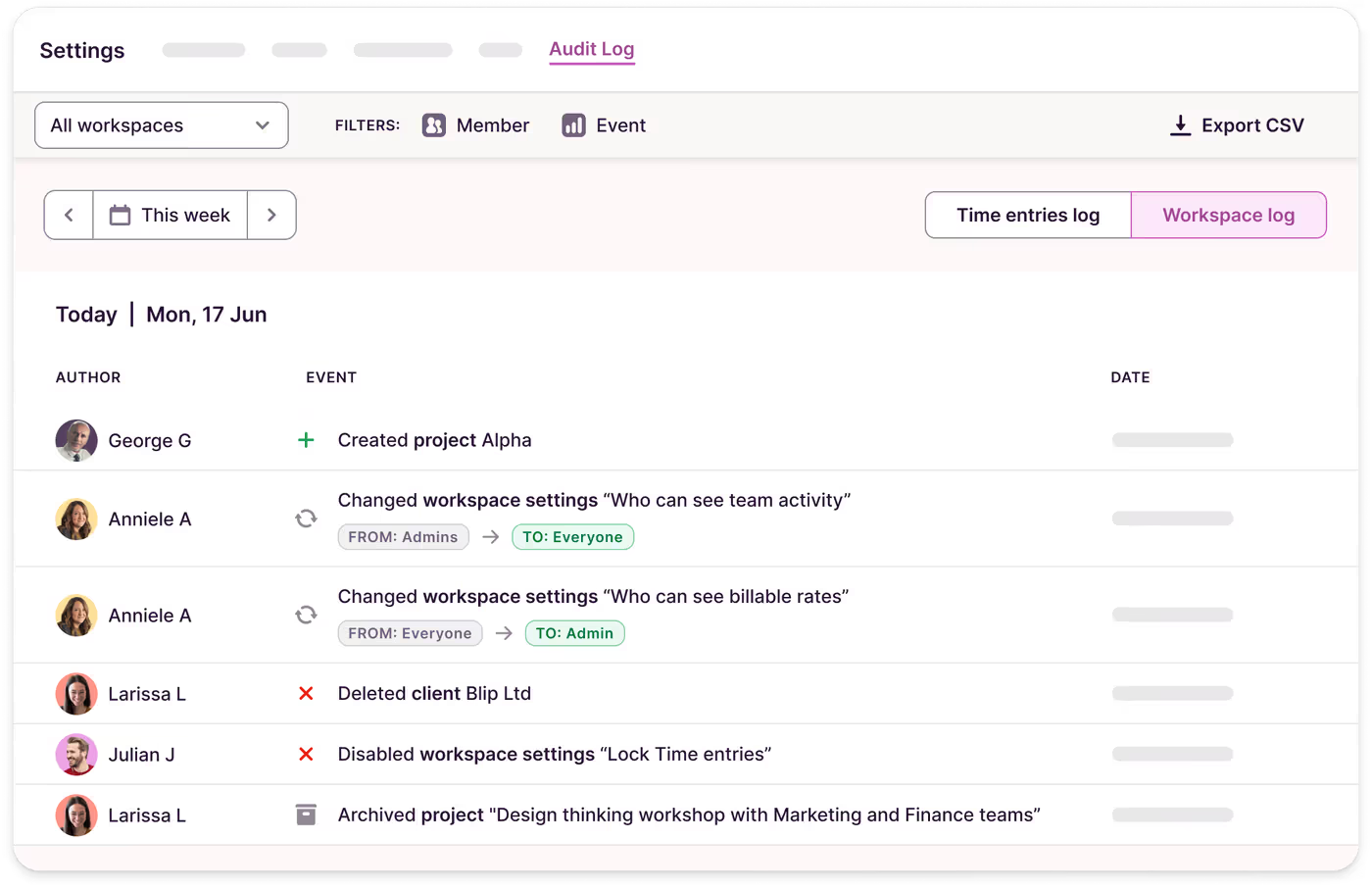
The Audit Log consolidates all changes into one accessible interface, enabling administrators to uphold organizational standards with ease. Available exclusively to Admins on Premium and Enterprise plans, Toggl’s Audit Log tracks changes across:
- Workspace settings
- Time entries
- Projects
- Clients
- Tags
- Billable rates
- Labor rates
Head to your Organization and select Audit Log. On the right, choose whether you want to view Time Entries or the Workspace log.
Advanced Auditing: Use Reports to Identify Missing Data
Toggl's auditing features, available through its Reports and Analytics, empower you to proactively manage and analyze time data.
What can you audit in the Summary Reports?
Quickly uncover details like tasks or clients without logged time, discrepancies in billed amounts, and more. Here's how:
- Group data using primary and secondary criteria, such as by Client and by Time Entry.
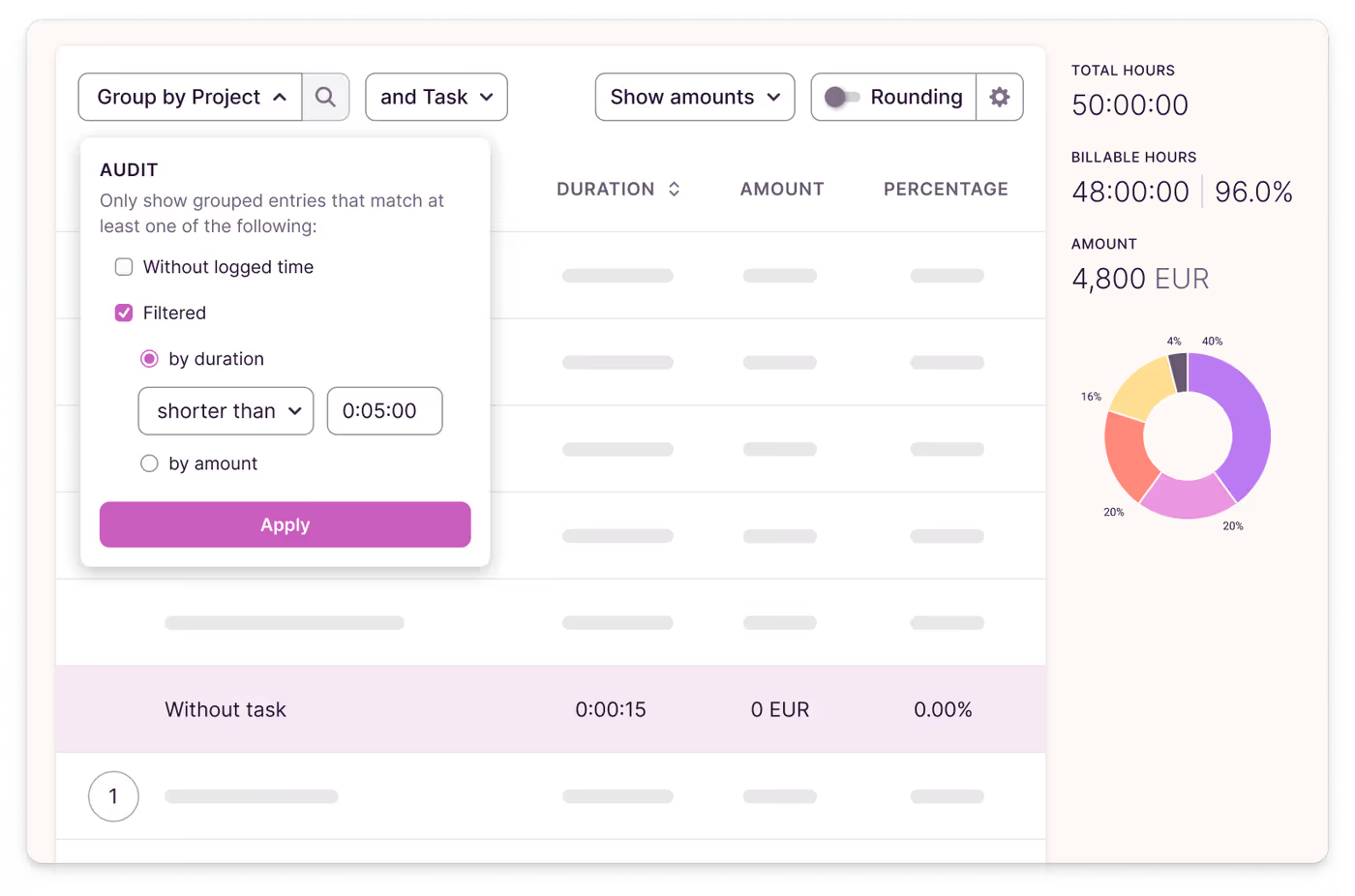
- Click the magnifying glass icon on the primary grouping button to:
- Identify users, projects, or clients with no logged time.
- Detect users, projects, or clients with durations or billable amounts outside a set range.
- Click "Apply" to filter and audit the data effectively.
What can you audit in the Detailed Reports?
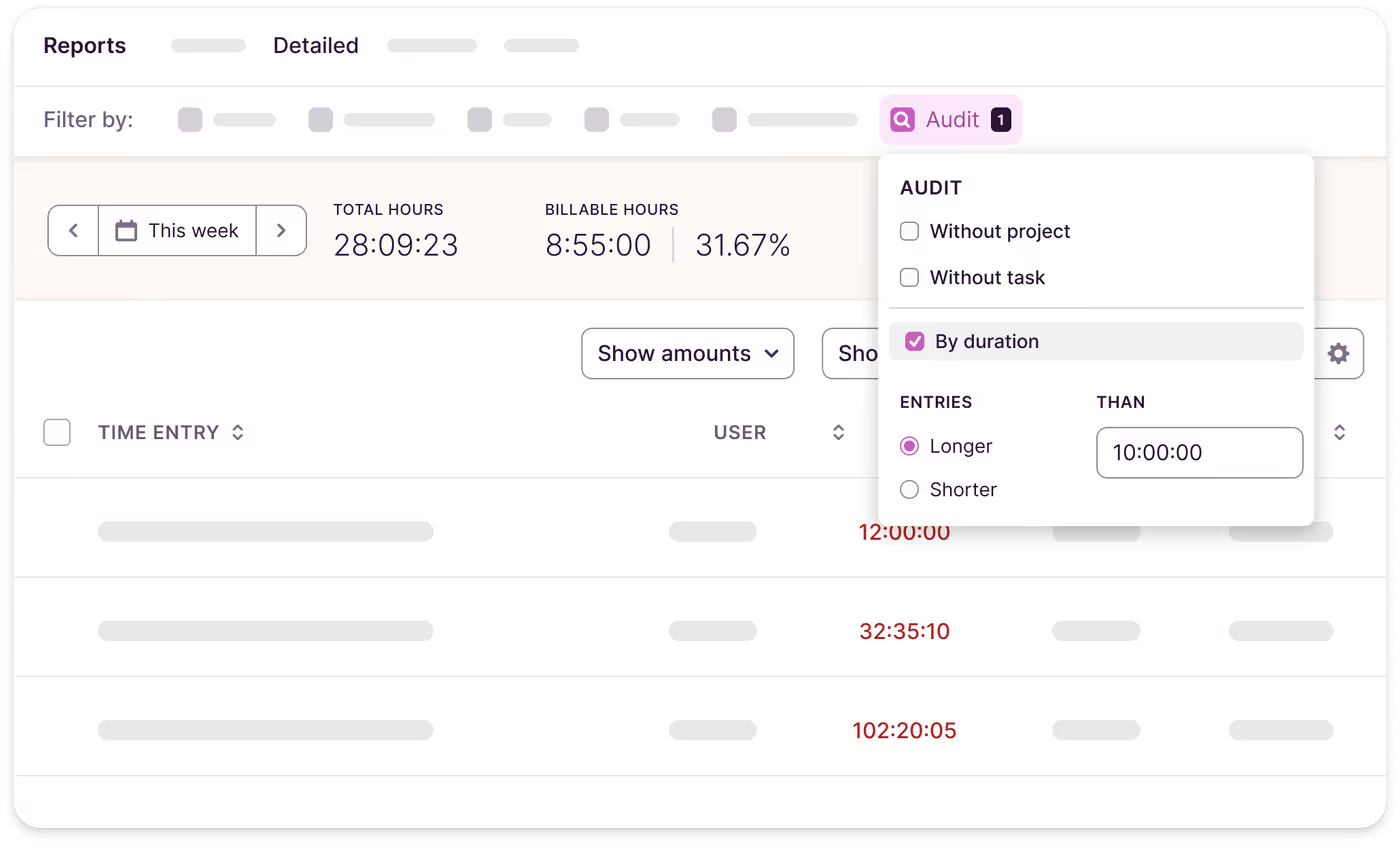
In the list of available filters, locate "Audit" and choose from:
- Without Project: Identify time entries not assigned to a project.
- Without Task: Identify time entries not assigned to a task.
- By Duration: Find time entries that exceed or fall short of a specified duration.
Use filters in Analytics for custom auditing
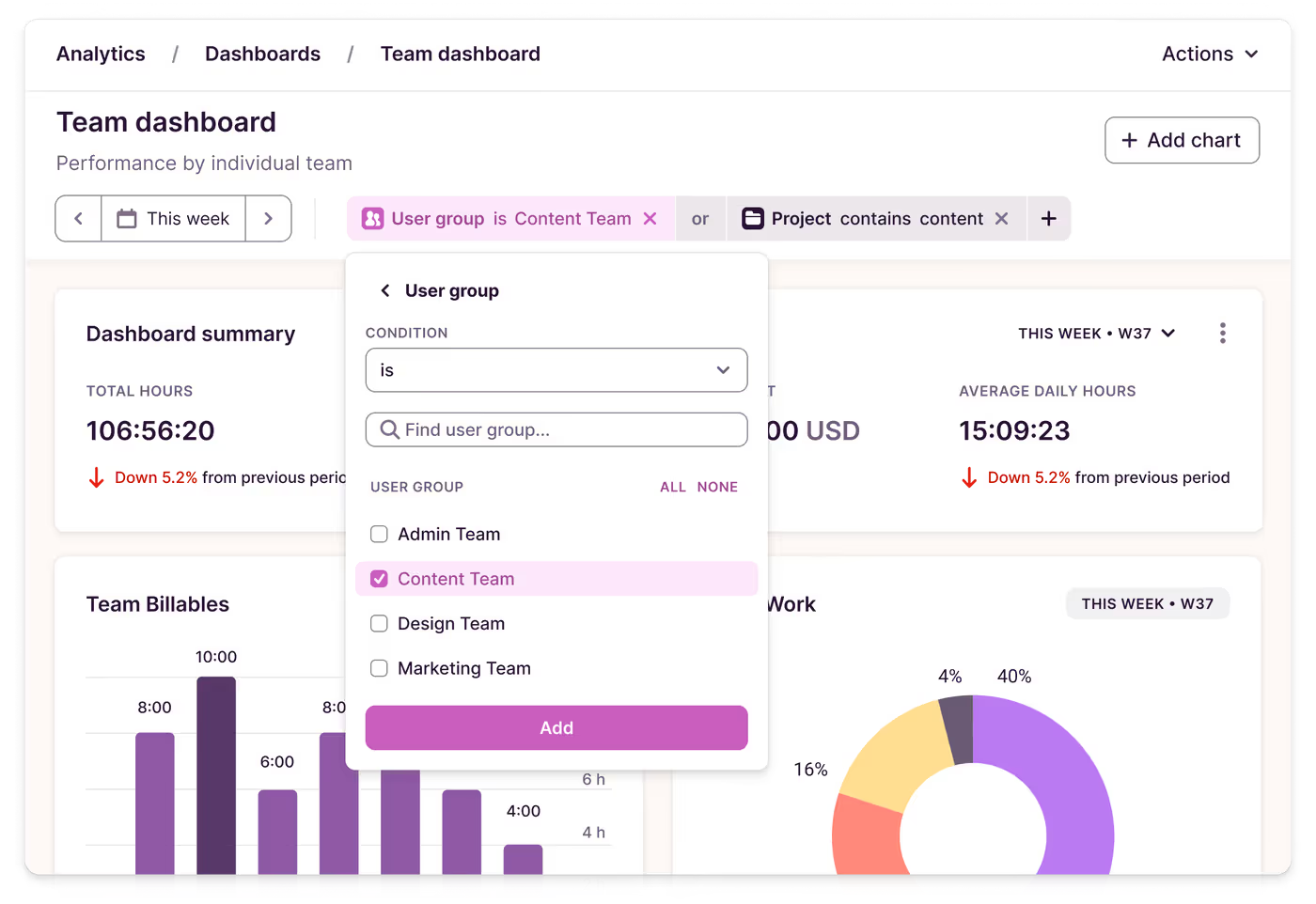
Filters in Analytics let you apply custom conditions such as “is not,” “is empty,” or “contains,” and use precise “and/or” logic to refine your analysis.
These filters are ideal for quickly auditing time entries. For example, apply the “is empty” filter to identify gaps and ensure entries are properly tagged and billed. Use the “and” or “or” options to audit multiple projects simultaneously.
To refine your review, exclude non-billable activities with filters like “Does not contain” or “is not,” removing tags such as “Internal Meetings” for a clearer overview.
When to Use Auditing Features?
Auditing helps optimize systems and build trust. Here are key scenarios where these features are most valuable:
- Client Billing: Ensure every billable minute is accounted for. No missed hours, no overcharging — just accurate, transparent billing that keeps clients satisfied and your finances in order.
- Project Management: Identify inefficiencies, delays, or tasks taking longer than expected. Auditing reveals areas for optimization and better productivity.
- Compliance: In industries with strict labor regulations, auditing ensures accurate work-hour tracking and adherence to legal standards.
- Team Work-Life Balance and Performance Reviews: Use auditing to provide managers with data-driven insights for feedback, coaching, and workload distribution. This helps maintain a balanced and productive team.