
Setting Up Data Quality Foundations for Your Team
Like building a sturdy house, your time tracking system needs a solid foundation. Standards such as required fields, and locked time entries eliminate guesswork, reduce errors, and build trust in your data. With clear rules in place, your team can focus, your admins can stay sane, and your system becomes not just functional but foolproof.
Here are the key data quality features in Toggl to help you set up a successful time tracking system.
Make data complete with Required Fields
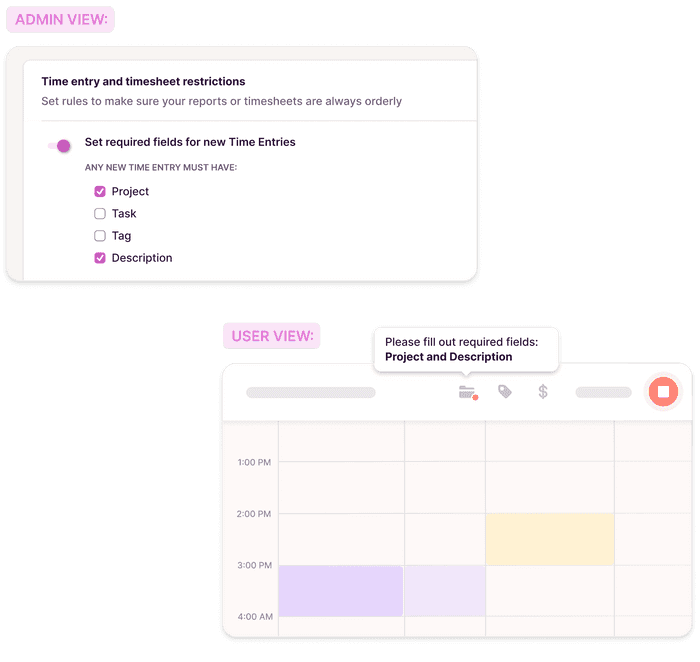
Required fields are your mapmaker — they guide your team to provide the essential information every time entry needs to be accurate. By ensuring fields like project names, tasks, descriptions, or tags are mandatory, you report accurately, allocate resources effectively, or bill clients confidently.
This feature also saves time for everyone. Team members won’t have to second-guess what’s required, and admins won’t waste time chasing down incomplete entries. It’s a simple yet powerful way to reduce errors and streamline time tracking workflows.
How to Set It Up:
- Go to your Workspace Settings.
- Enable required fields for Projects, Tasks, Tags, Description, or all of them.
- Roll it out to your team — explain why this makes their work more efficient and impactful.
Protect past data with Locked Time Entries
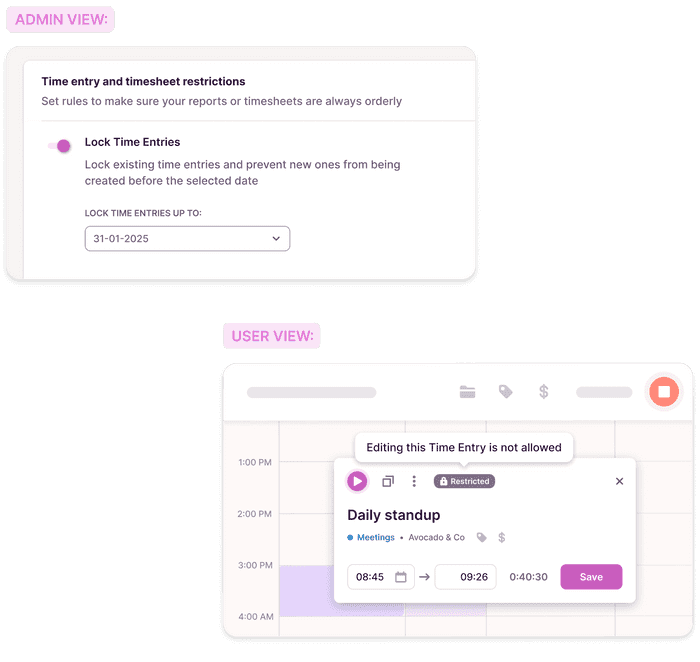
Time entries capture critical information — they document what happened and when. But what happens if someone makes changes later? Client invoices may become inaccurate, and reports could lose credibility.
Locking time entries effectively safeguards against both accidental and intentional changes, ensuring your records remain accurate and reliable.
How to Set It Up:
- Head to your Workspace Settings and locate the Lock Time Entries field.
- Choose a locking date — a point after which no one in the workspace can modify time entries.
Set Time Tracking Reminders to keep your team accountable
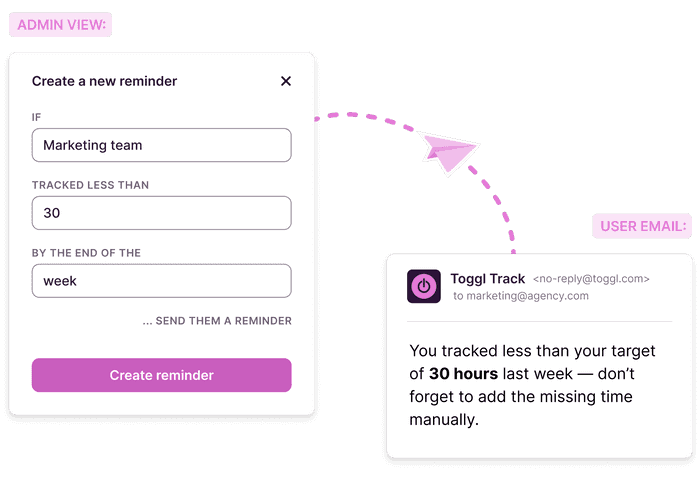
Reminders keep everyone on track without manual follow-ups. When targets aren’t met, team members receive automated email nudges to help them catch up.
How to Set It Up:
- Go to your Workspace Settings and select the Reminders tab.
- Click New Reminder, specify tracking targets (e.g., 8 hours per day, 40 hours per week, or both!), and assign them to individuals or groups.
- Sit back and let the system handle the rest.
With reminders in place, your team is more likely to stay on target, and your data remains reliable, actionable, and audit-ready.
Use Public Favorites to stay consistent
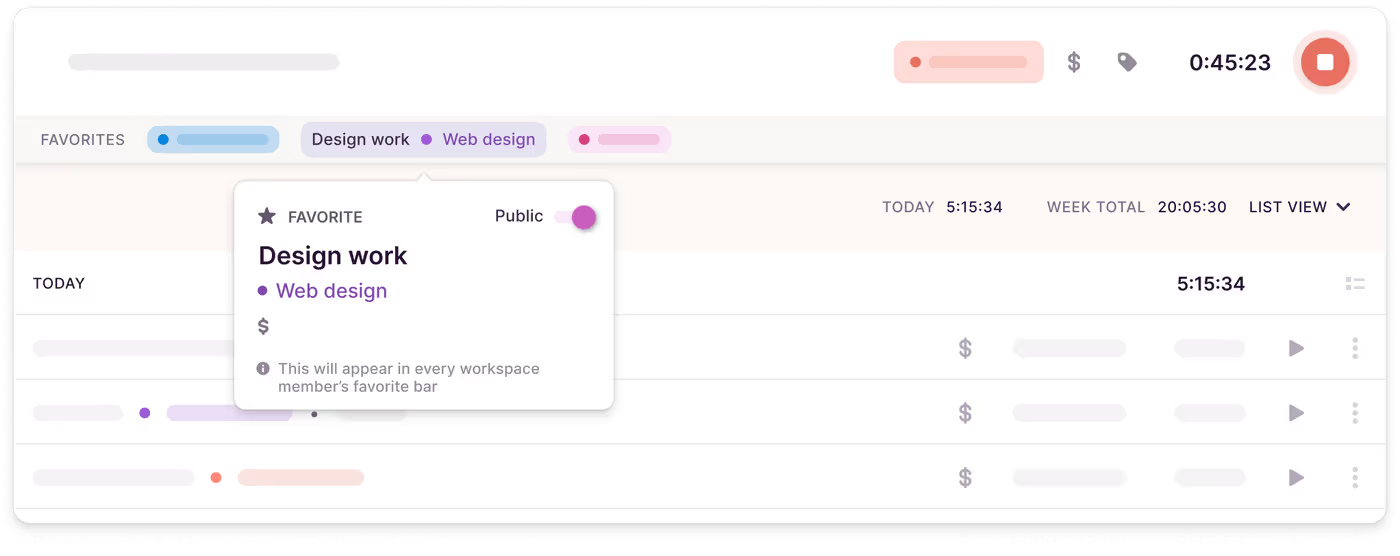
Your team works on the same tasks or projects daily — so why not create a unified "playlist" of the most-used time entries for consistent data and hassle-free tracking?
Admins can share a Favorite time entry with the team by hovering over it in the Favorite bar, pre-filling it with essential details (projects, tags, billable rates), and toggling the Public switch.
Once shared, the Favorite becomes visible to every team member in the workspace. All they need to do is click “Start” and focus on their work.
All these data quality features are available to Admins on our Premium and Enterprise plans. Explore our Pricing page to find the most suitable plan for your team.