
How to Track Time Collaboratively?
Time tracking is often seen as a solo act — one person, one timer, one entry. But work isn’t done in siloes, and neither should time tracking be.
Here are three Toggl features that make team time tracking more collaborative for your team.
💛 Create Public Favorites
Your team works on the same tasks or projects daily — so why not create a unified "playlist" of the most-used time entries for consistent data and hassle-free tracking?
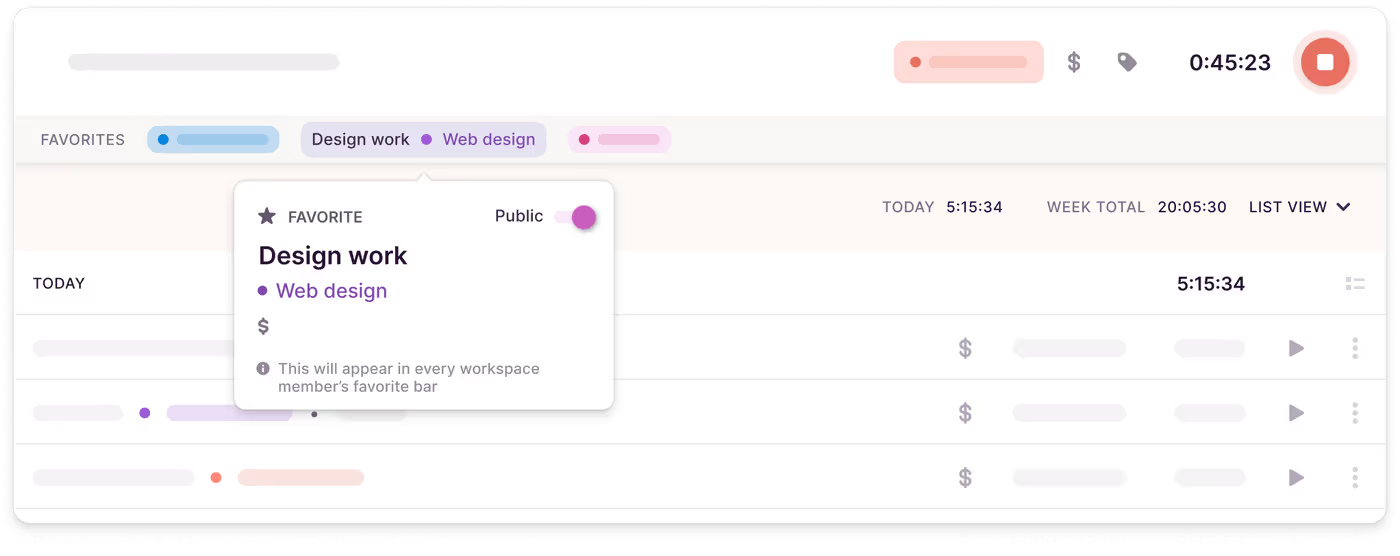
Admins can share a Favorite time entry with the team by hovering over it in the Favorite bar, pre-filling it with essential details (projects, tags, billable rates), and toggling the Public switch.
Once shared, the Favorite becomes visible to every team member in the workspace. All they need to do is click “Start” and focus on their work.
👯 Add teammates to a time entry
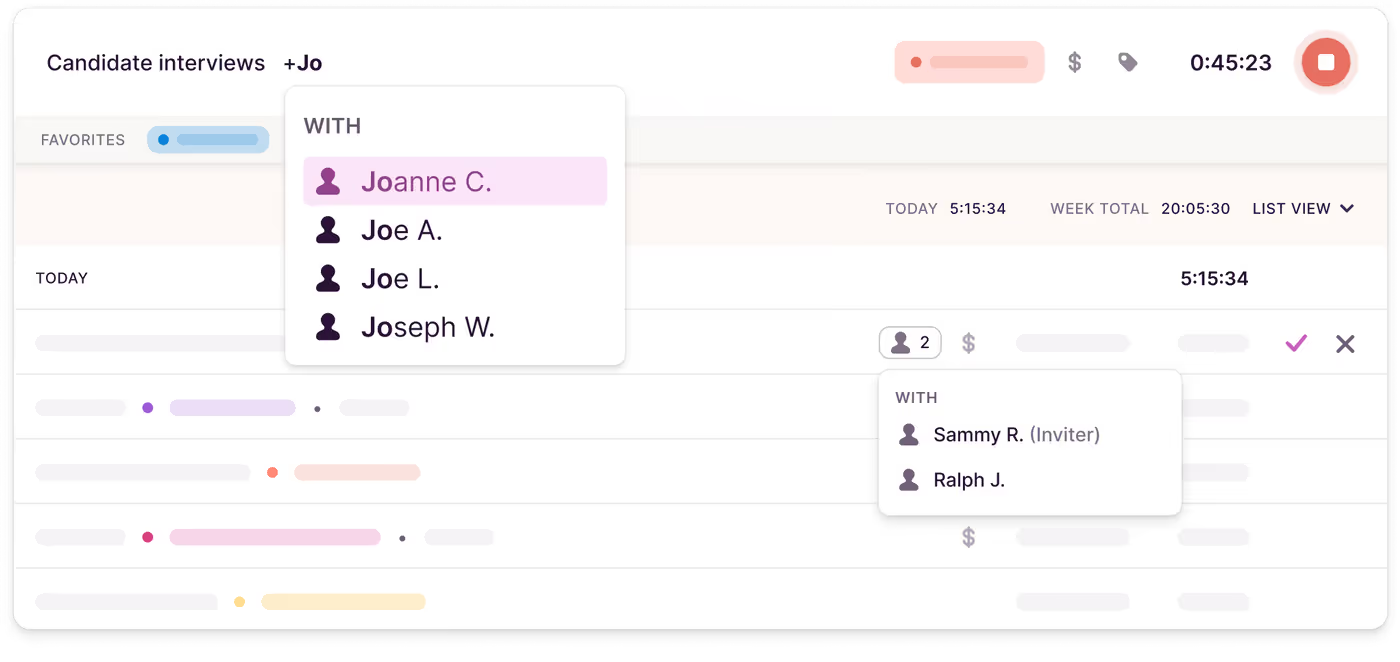
Having a meeting or working on the same task with a colleague?
Simply type “+” in the description field and add your teammates to the time entry. Once they approve it, it will appear in their workspace as well, with the same time entry data associated with it for accurate reporting.
🏆 Set priorities with Goals
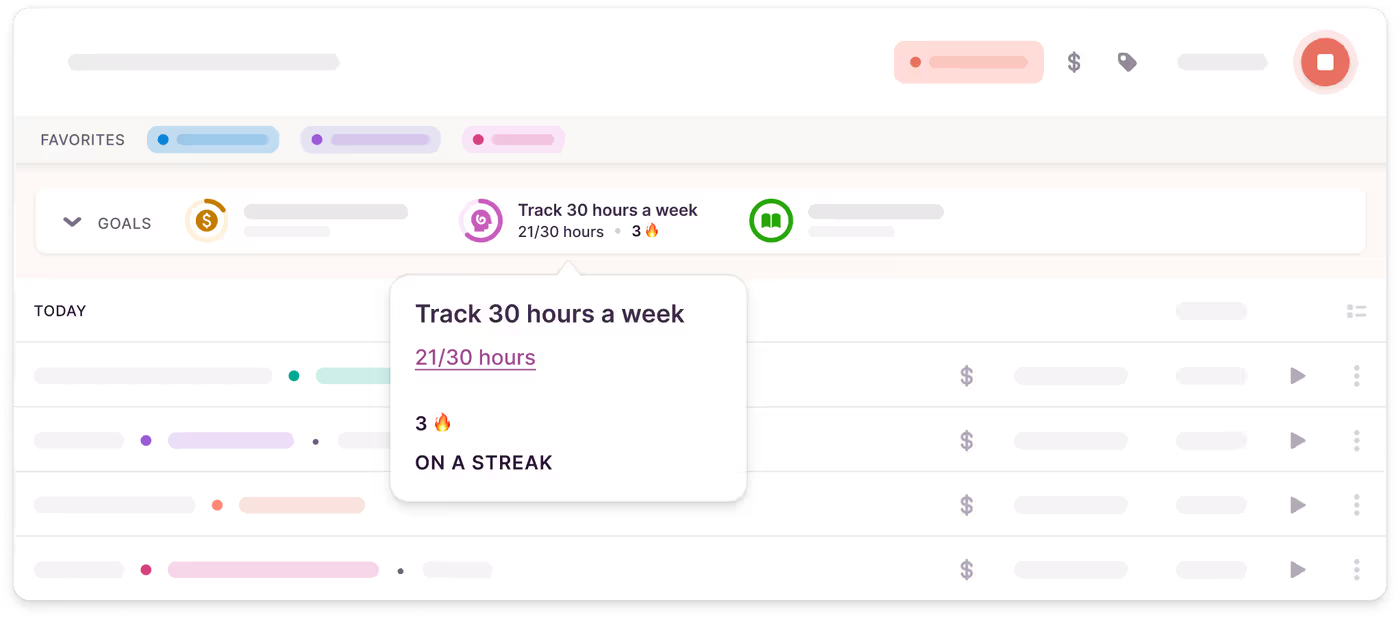
Whether it’s meeting billable targets, aligning on team-wide objectives, or simply staying accountable, Goals give your team a north star and shift the narrative from "What did we do?" to "What did we achieve?"
1. Set a goal for a specific number of hours
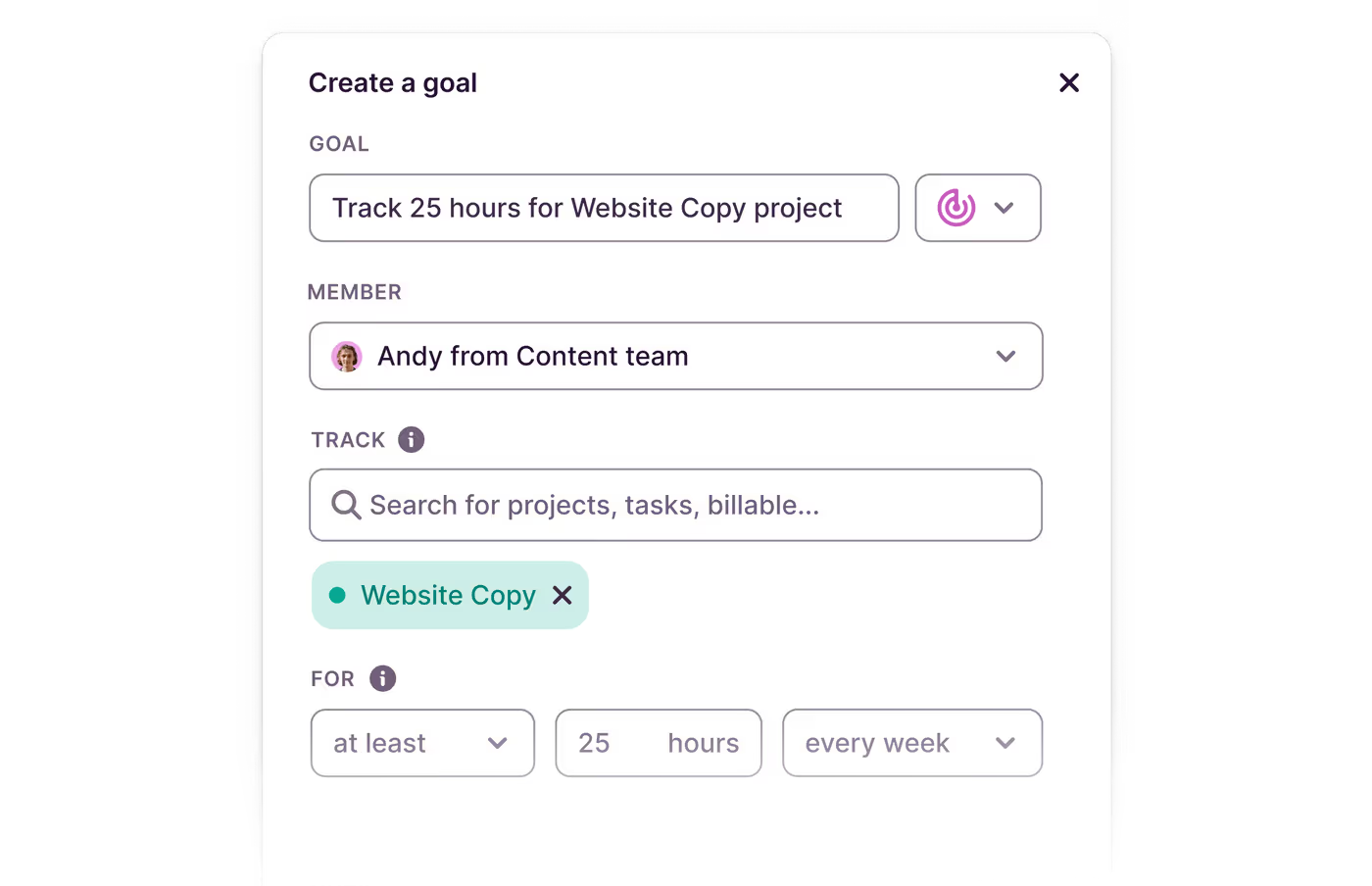
Create a Goal by giving it a clear name, like “Track 30 hours for web project,” and assigning it to a team member. You can attach the Goal to all time entries, or to a specific project, task, or tag, and set an end date. The Goal will then appear on your team member’s Timer page, making progress tracking simple and transparent.
2. Set financial Goals
Track billable hours to focus on your team’s most profitable projects. Create a Goal by naming it, such as “Track 20 billable hours every week,” and assigning it to a team member. If needed, attach it to a project, task, or tag. Select “Billable” so only billable time entries are tracked, set an end date, and hit “Create Goal.” This keeps your team aligned on high-value work.
3. Spend more time on productive work
Use Goals to help your team focus on a company’s objectives. Create specific tags like “Focus Time,” “Meeting,” or “OKRs”. When creating the Goal, select the relevant tag(s), assign the Goal to a team member, set an end date, and hit “Create Goal.” The Goal will appear on their Timer page, making it easy to stay aligned with priorities.