
Google Calendar Time Tracking Integration
Start a timer from a Google Calendar event, so you can track long it takes without leaving your calendar. Use the native integration to turn Google Calendar meetings, tasks, and other events into tracked time in Toggl or turn planned Toggl tasks into events in your calendar.
Native integration
Google Calendar Native Time Tracking Integration
Connect Google Calendar to Toggl, so events appear as planned time on your calendar. Or, add planned Toggl tasks as events in Google Calendar automatically. Before logging an event, you can link it to a task or project, add tags, and set its billable status.
Toggl's native Google Calendar integration doesn't require a paid plan.
Setting it up
Open your Settings
Click your avatar at the bottom left and choose Settings (this is your personal Settings, not Admin settings).
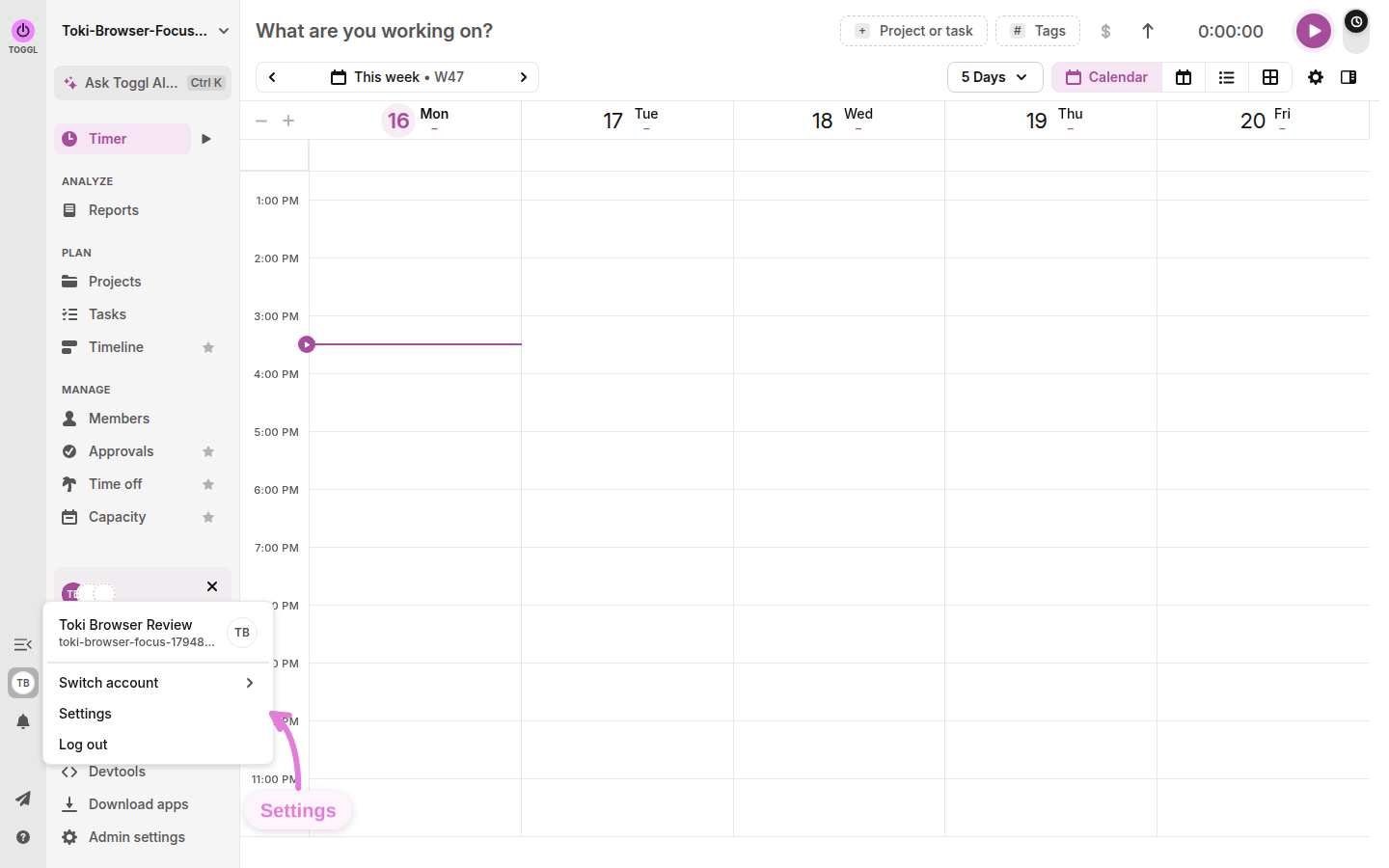
Add Google Calendar
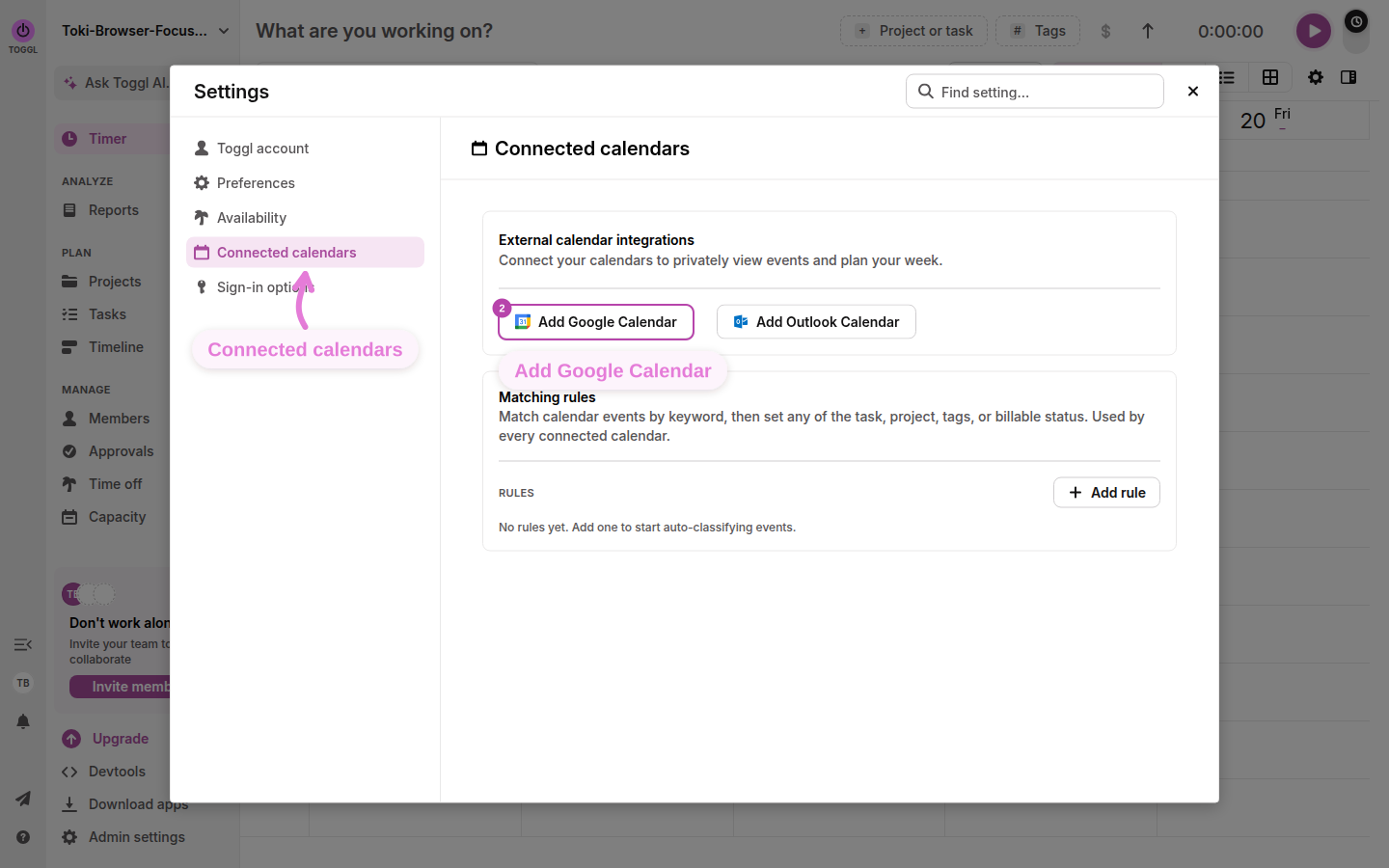
Go to Connected calendars → External calendar integrations and click Add Google Calendar. There's also a shortcut: Until a calendar is connected, the gear on the Calendar page shows Connect Google Calendar.
Sign in to Google and allow access
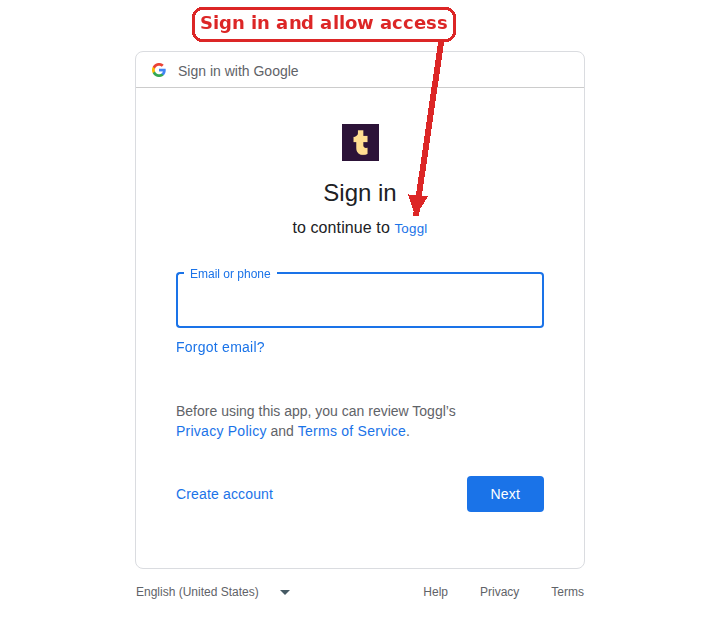
Google's sign-in screen opens and says "to continue to Toggl". Pick your account and approve the access Toggl asks for and you're sent back to Toggl.
Check your events and pick calendars
After a few seconds your events appear in Toggl's calendar as planned entries. To hide a calendar, go back to Settings → Connected calendars, open the chevron next to your Google account, and under View calendars switch that calendar off.
Turn events into tracked time
Open a planned event, use Link to to set a task or project (tags and billable too, if you want them), and click Log time. To skip that, switch on Auto-track time for a single calendar, or Auto-track time from all enabled calendars for all of them.


Toggl's browser extension for tracking time in Google Calendar doesn't require a paid plan.
Setting it up
Add the Toggl extension
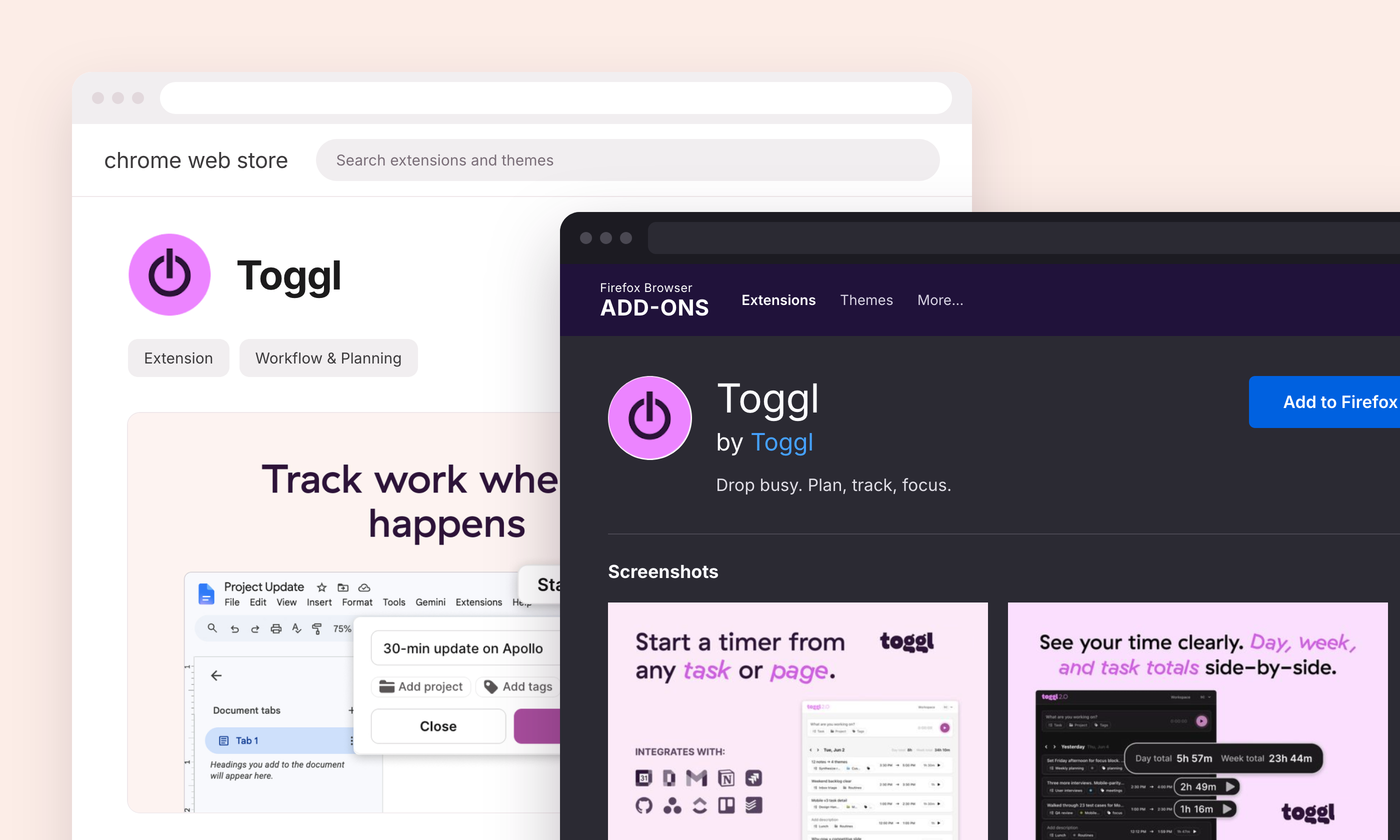
Install the Toggl extension from the Chrome Web Store for Chrome, Edge and other Chromium browsers, or from Firefox Add-ons for Firefox.
Log in
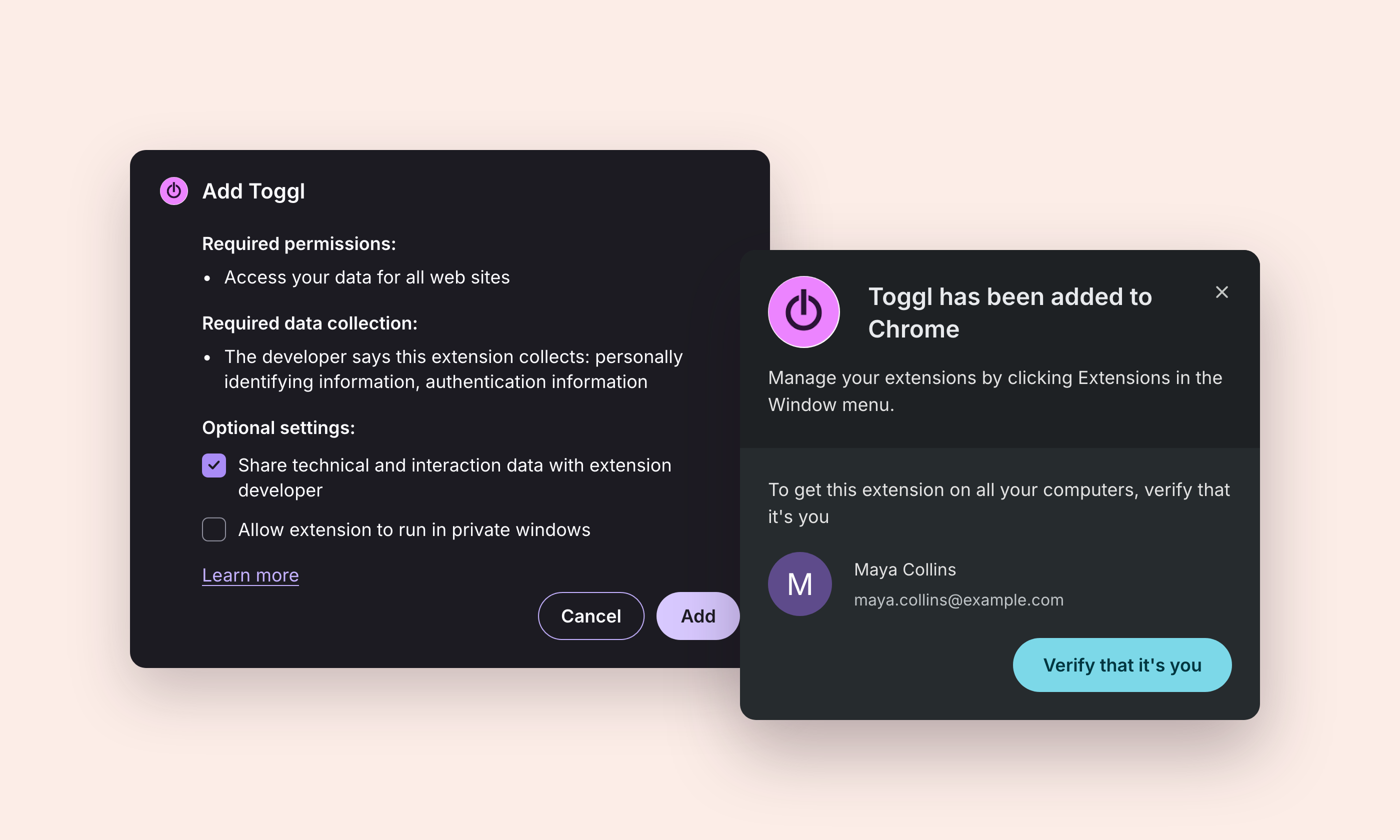
Click the Toggl icon next to the address bar, choose Log in, and sign in with your Toggl account.
Enable Google Calendar
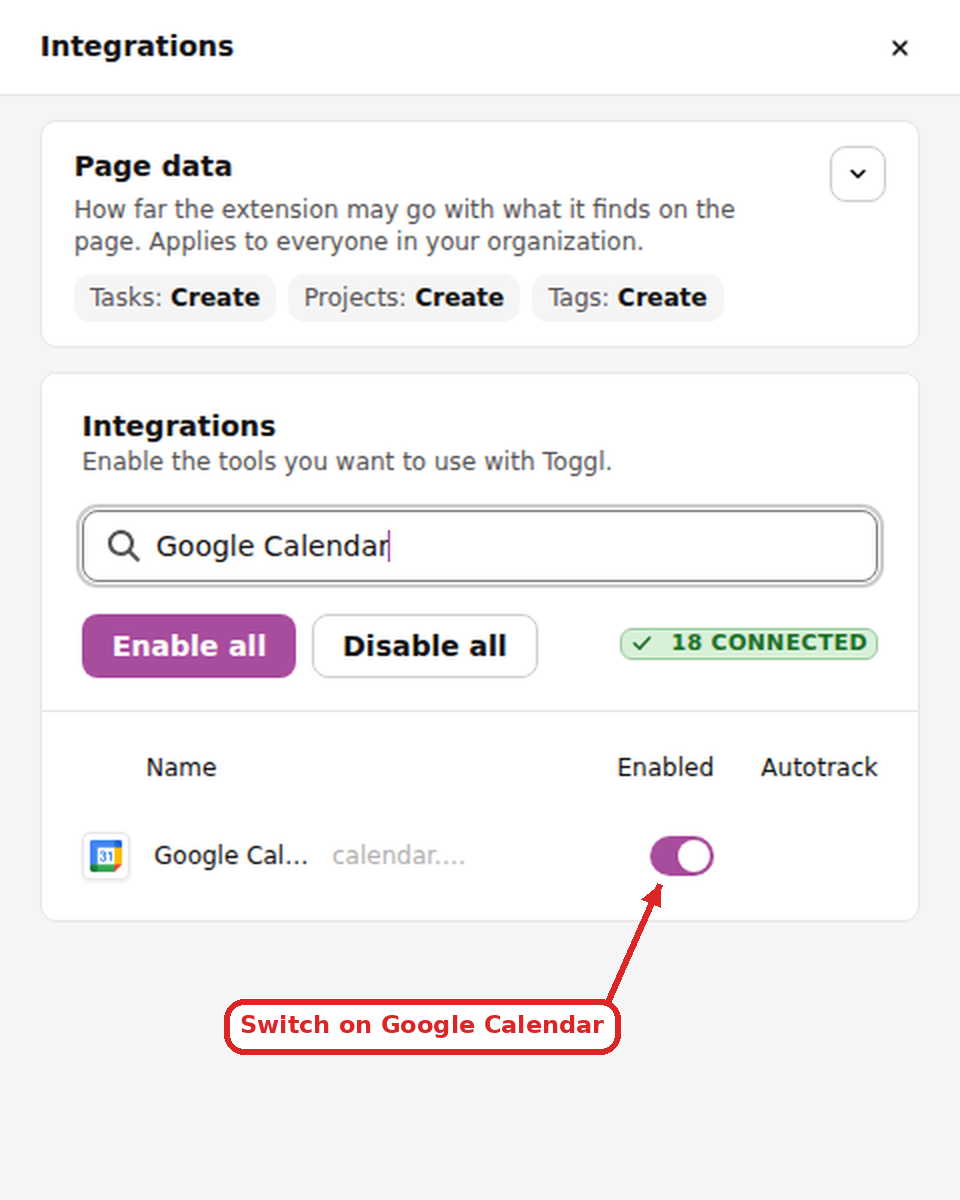
The first time you log in, the Welcome to Toggl! screen lists the supported sites, and Google Calendar is already on. Click Enable all, or Enable selected. To change it later, open the avatar menu → Integrations, search "Google Calendar" and switch it on.
Open an event in Google Calendar
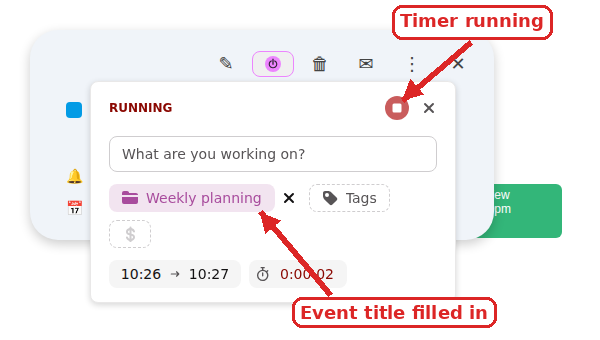
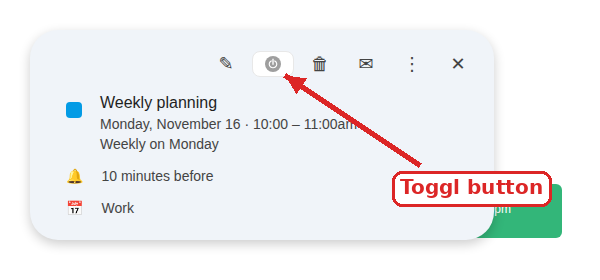
Click an event and the Toggl button appears in the toolbar of the event's popup, next to the edit, delete and email icons. There's no button on the event blocks in the calendar grid.
Click the Toggl button
The timer starts immediately and the event title is filled in for you. You can add a description and tags while it runs, and stop it from the same popup.