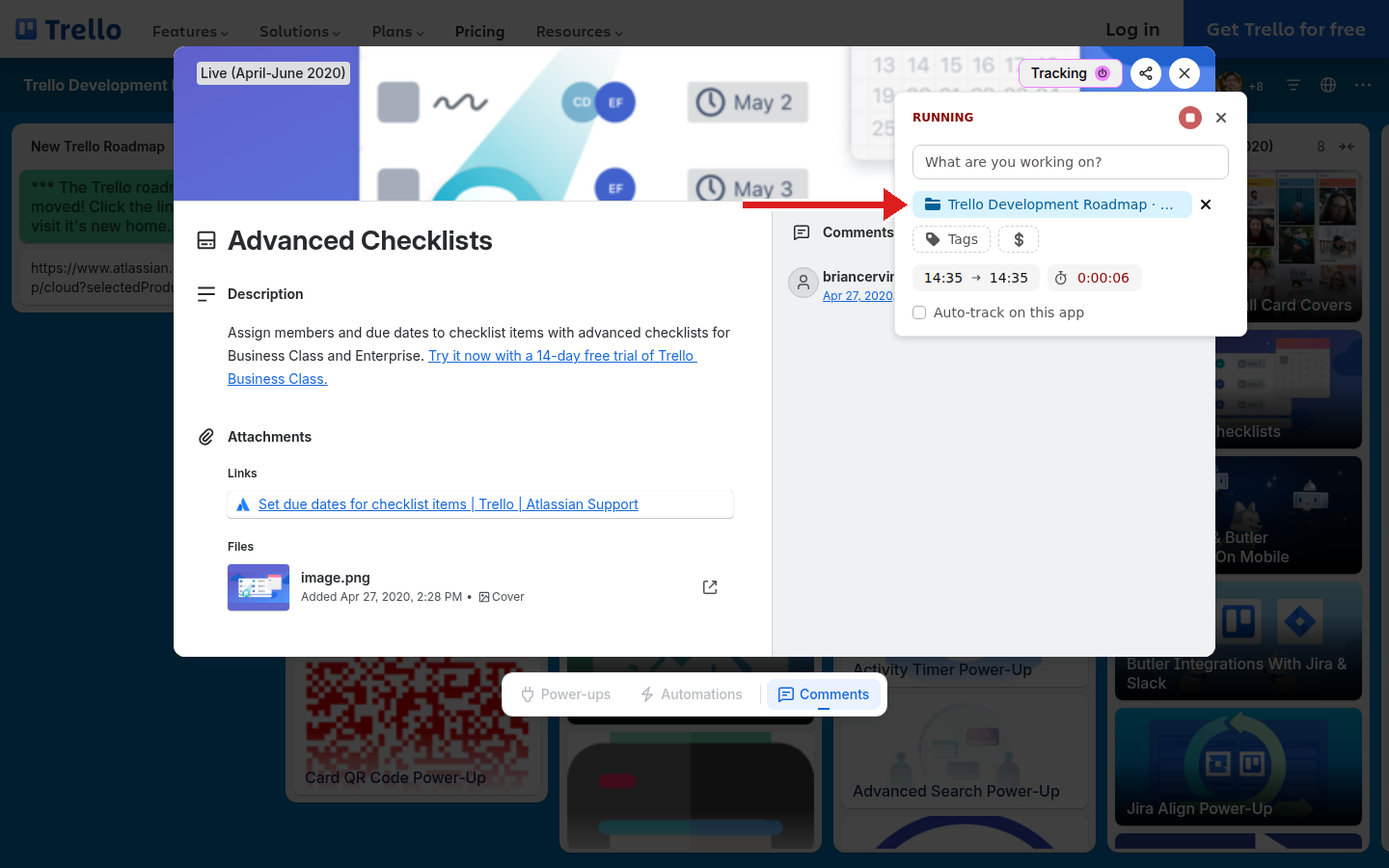


Toggl's browser extension for Trello doesn't require a paid plan.
Setting it up
Add the Toggl extension
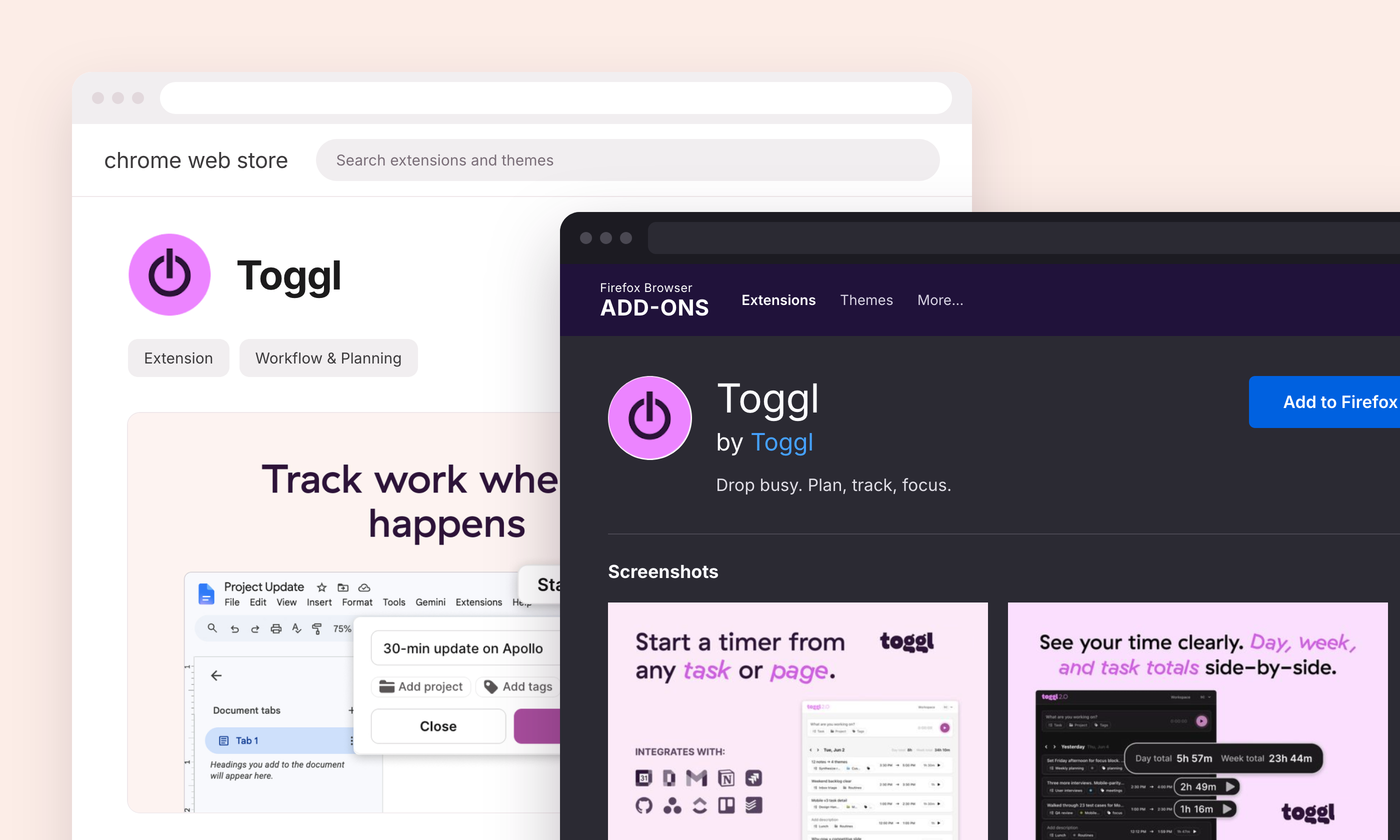
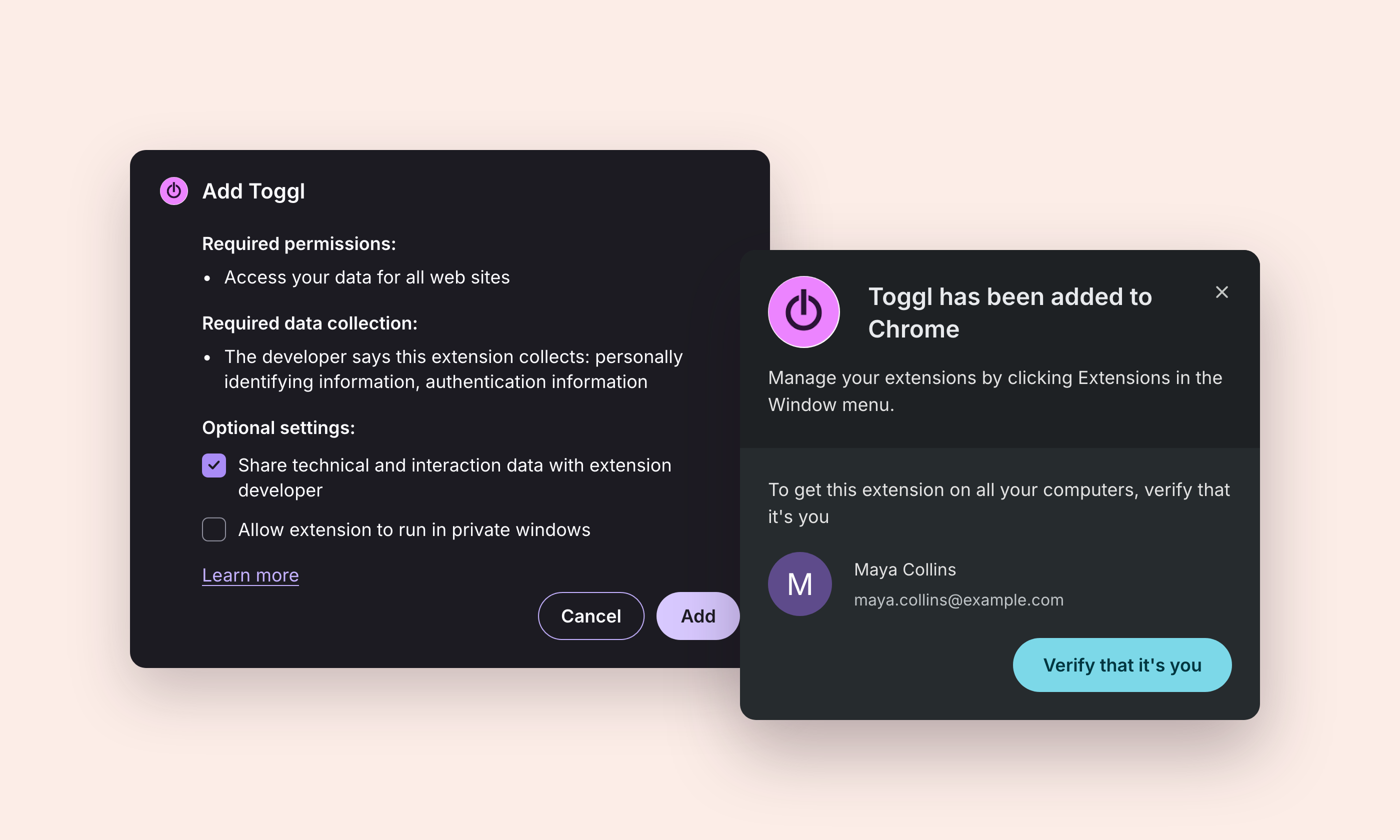
Install the Toggl extension from the Chrome Web Store for Chrome, Edge and other Chromium browsers, or from Firefox Add-ons for Firefox.
Log into Toggl
Click the Toggl icon next to the browser's address bar, select Log in, and sign in with your Toggl account.
Enable Trello
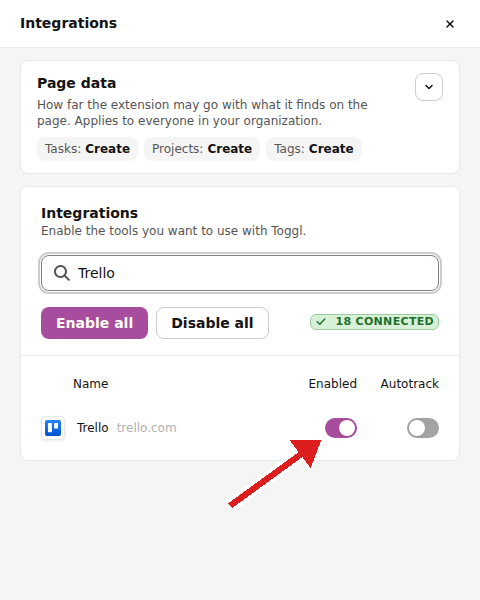
Open the extension's avatar menu → Integrations, search for Trello, and switch Enabled on. During first-time setup, you can instead leave Trello selected on the "Welcome to Toggl!" screen and choose Enable selected or Enable all. Trello also has an Autotrack switch, which starts the timer automatically when you open a card.
Open a Trello card
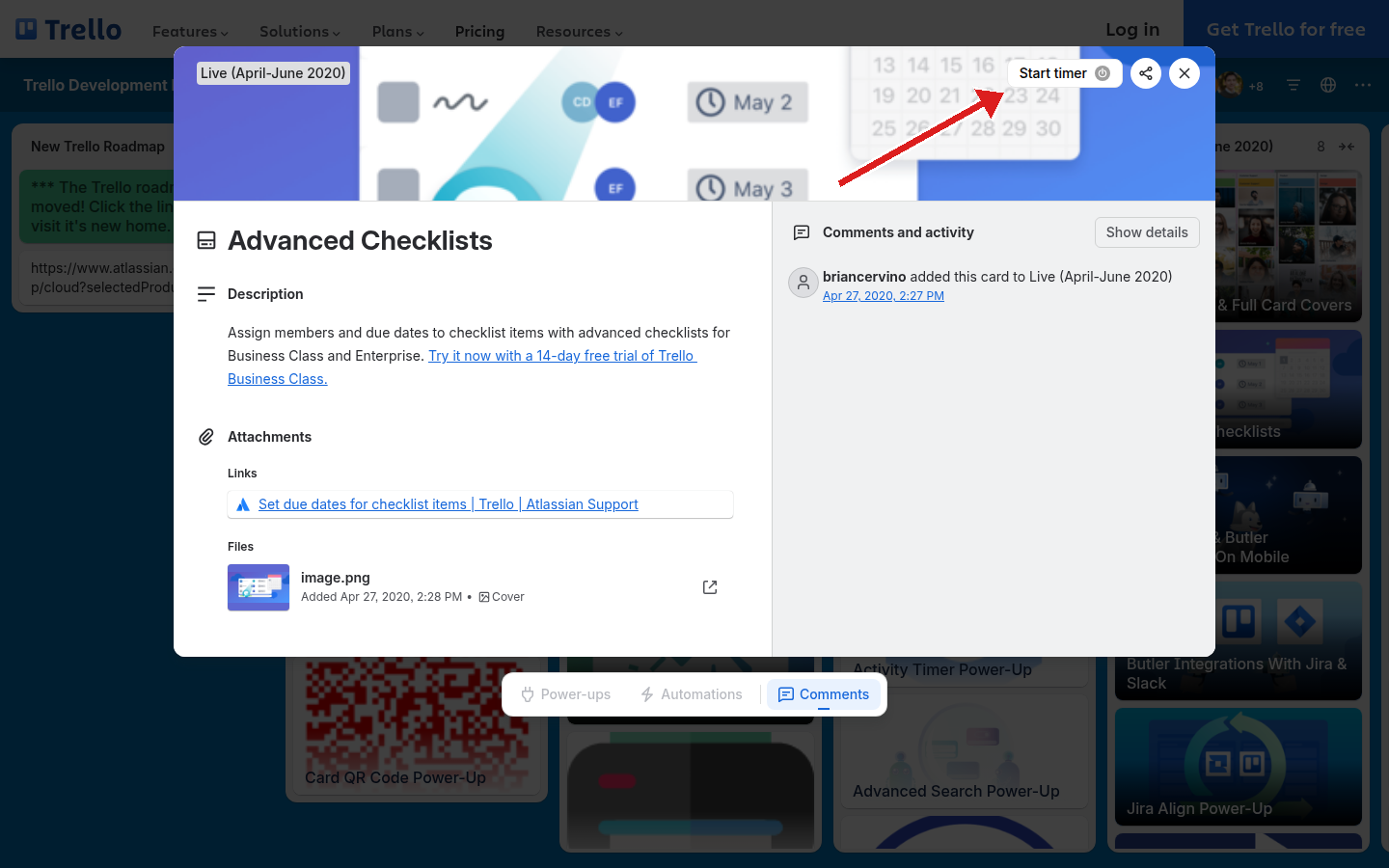
The Start timer button appears at the top right of the open card, next to Trello's share and close buttons. Checklist items inside a card also get a small Toggl button when you hover over them.
Start tracking
Click Start timer. The card title becomes the Toggl task, the board name becomes the project, and the button changes to Tracking. A panel opens where you can add a description, tags or billable status, adjust the time, or stop the timer.